Act on release updates to keep your Salesforce org functioning at its best. Release
updates replace the Critical Updates console and include more detailed information about upcoming
changes.
Required Editions
Available in: both Salesforce Classic (not available in all orgs) and Lightning
Experience
Available in: all editions
User Permissions Needed
To view release updates:
View Setup and Configuration
To enable or disable release updates:
Manage Release Updates OR Customize Application
The Release Updates page provides a list of updates that affect your org. Each update includes
step-by-step actions for you to take. To ensure a smooth transition, many release updates have
test runs available. Use the test run option to activate or deactivate an update before the
Complete Steps By date so that you can evaluate its impact on your org.
Warning Salesforce recommends testing each update by activating it in either your
developer sandbox or your production environment during off-peak hours.
From Setup, in the Quick Find box, enter Release Updates, and then
select Release Updates.
On the Release Updates page, select an update.
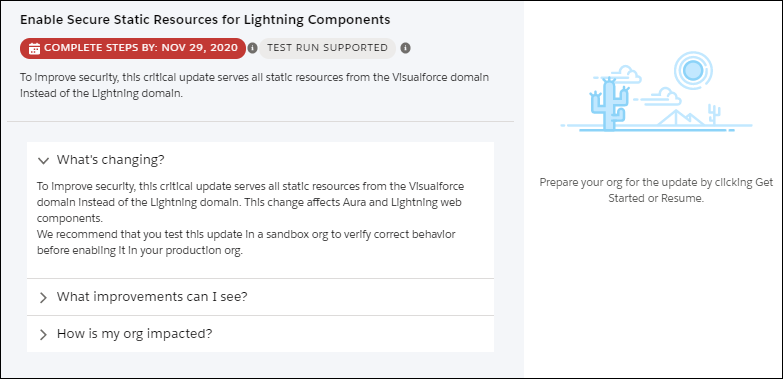
Get quick information about an update without leaving the home page by clicking
View Details. Use the expandable sections to see details about the
changes, improvements you can expect, and impact on your org.
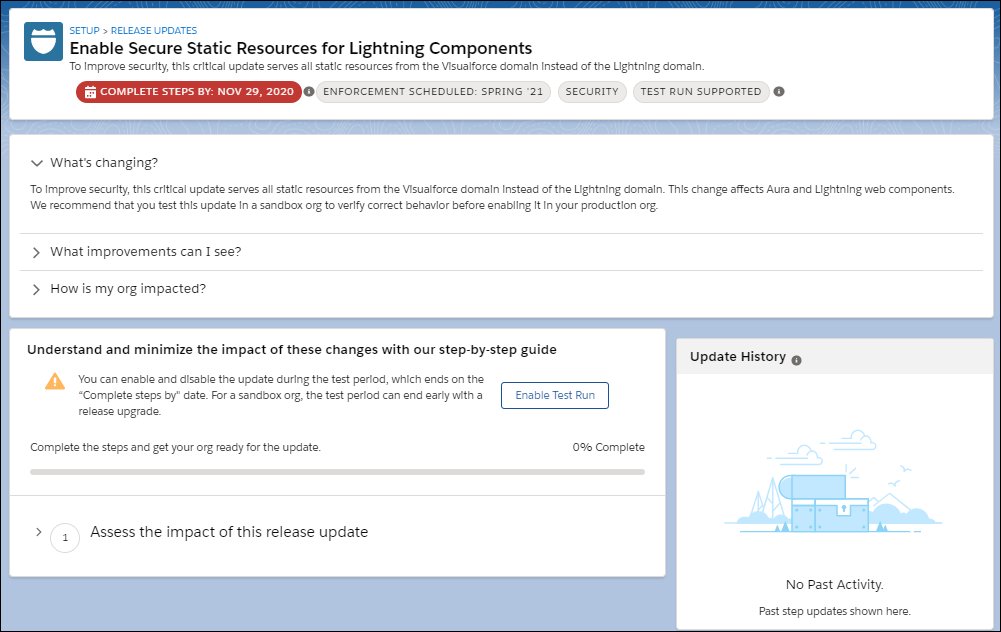
Click Get Started to act on your update. From this page, you can
enable a test run if it’s available for your update, and review the specific steps to
take.
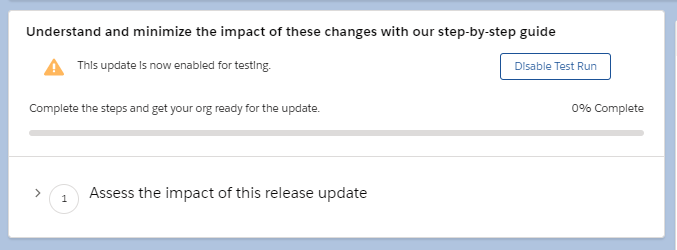
If you enabled a test run and find in testing that you must disable the update, click
Disable Test Run. You can enable or disable test runs as often as
needed until the Complete Steps By date on your update. On sandbox orgs, the test run periods
can end earlier than the Complete Steps By date.
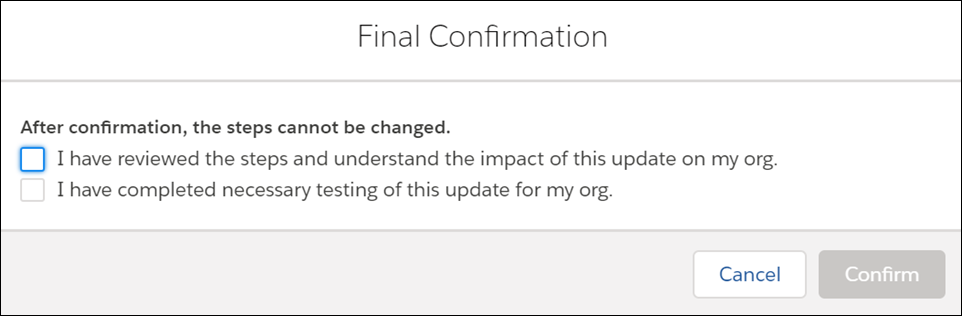
After you finish the steps, click Done.
Confirm that you reviewed and completed the update steps.
We use three kinds of cookies on our websites: required, functional, and advertising. You can choose whether functional and advertising cookies apply. Click on the different cookie categories to find out more about each category and to change the default settings.
Privacy Statement
Required Cookies
Always Active
Required cookies are necessary for basic website functionality. Some examples include: session cookies needed to transmit the website, authentication cookies, and security cookies.
Functional Cookies
Functional cookies enhance functions, performance, and services on the website. Some examples include: cookies used to analyze site traffic, cookies used for market research, and cookies used to display advertising that is not directed to a particular individual.
Advertising Cookies
Advertising cookies track activity across websites in order to understand a viewer’s interests, and direct them specific marketing. Some examples include: cookies used for remarketing, or interest-based advertising.