For data subjects who want their data to be erased, create Right to Be Forgotten
policies to run on individual customer records. Create policies that capture the objects that you
want to be deleted, then manually run the policy on a specific record at any time. Right to Be
Forgotten policies are created at the object level to ensure all customer data is
removed.
Required Editions
User Permissions Needed
To create and use Right to Be Forgotten policies:
ModifyAllData and PrivacyCenter
Available in: all editions
To create a Right to Be Forgotten Policy:
From the Privacy Center dashboard, under Right to Be Forgotten Policies, click
View All.
Next to Right to Be Forgotten (RTBF) Policies, click New.
Enter a name for your policy. The name must be alphanumeric, with no spaces or special
characters. Then click Save & Edit.
Optionally, enter a description for your policy, and save. If you plan to create multiple
policies, we recommend that you add a description.
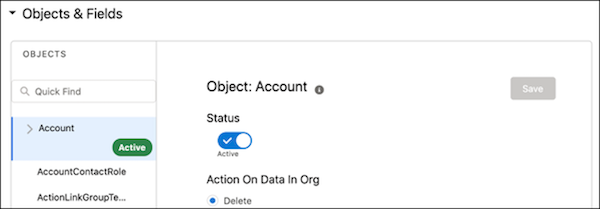
Under Objects & Fields, choose a parent object to run the policy on. Select only one
parent object for each policy. Switch the object in the policy to Active, and save. If you no
longer want the object’s data to be captured by the policy, switch the object to
Inactive.
Under Action on Data in Org, the Delete option is automatically selected. More options
become available with the Fall ’21 release.
Note All activated objects are marked as Active in
the object list.
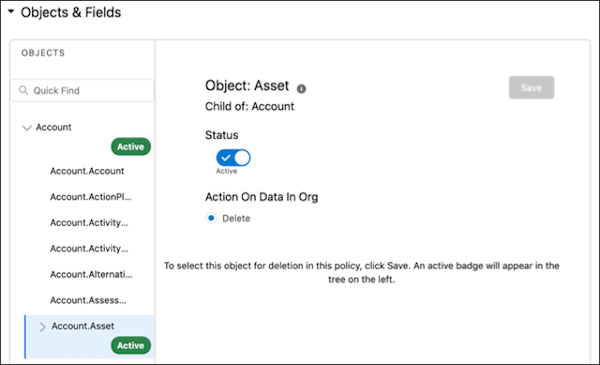
After you add and save the parent object to the policy, you have the option to add related
child objects. To see a list of child objects, click the down arrow next to the parent object’s
name. Switch the child objects you want to add to the policy to Active, and save.
Click Activate. You can deactivate your policy at any time, for
example, if you want to save your work but don’t want the policy to be used.
Did this article solve your issue?
Let us know so we can improve!
Loading
Salesforce Help | Article
Cookie Consent Manager
General Information
Required Cookies
Functional Cookies
Advertising Cookies
General Information
We use three kinds of cookies on our websites: required, functional, and advertising. You can choose whether functional and advertising cookies apply. Click on the different cookie categories to find out more about each category and to change the default settings.
Privacy Statement
Required Cookies
Always Active
Required cookies are necessary for basic website functionality. Some examples include: session cookies needed to transmit the website, authentication cookies, and security cookies.
Functional Cookies
Functional cookies enhance functions, performance, and services on the website. Some examples include: cookies used to analyze site traffic, cookies used for market research, and cookies used to display advertising that is not directed to a particular individual.
Advertising Cookies
Advertising cookies track activity across websites in order to understand a viewer’s interests, and direct them specific marketing. Some examples include: cookies used for remarketing, or interest-based advertising.