You are here:
Lightning Apps by Default
Starting in Winter ‘22, the Salesforce mobile app defaults to a phone-activated Lightning app if it’s available to the user. Previously, all users had Mobile Only app navigation, but they could switch to a different Lightning app by using the App Launcher from the Menu tab. The Salesforce mobile app now selects the first available Lightning app by default—instead of Mobile Only—resulting in a change in the navigation bar at the bottom of the page. Users who don't have access to any phone-activated Lightnings apps default to Mobile Only.
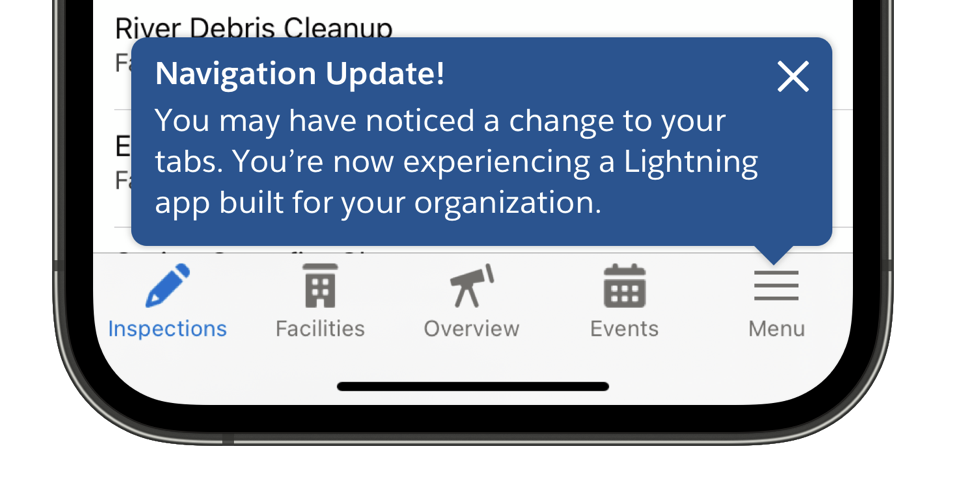
This default navigation change shows users a tooltip at the bottom of the app.
Why is the Salesforce mobile app changing its default navigation?
Salesforce created Mobile Only as a temporary technology to help upgrade organizations from the classic Salesforce1 app experience to the new Lightning-enabled mobile app experiences. Because Salesforce innovation is devoted to Lightning, this bridging technology has been deprecated in favor of using a Lightning app that’s created by your organization. New features such as Dynamic Interactions require a Lightning app on mobile to function correctly.
What do I use instead of Mobile Only?
You can use Lightning apps. If you already enabled Lightning apps for Mobile, you can see that they’re automatically selected instead of defaulting to Mobile Only.
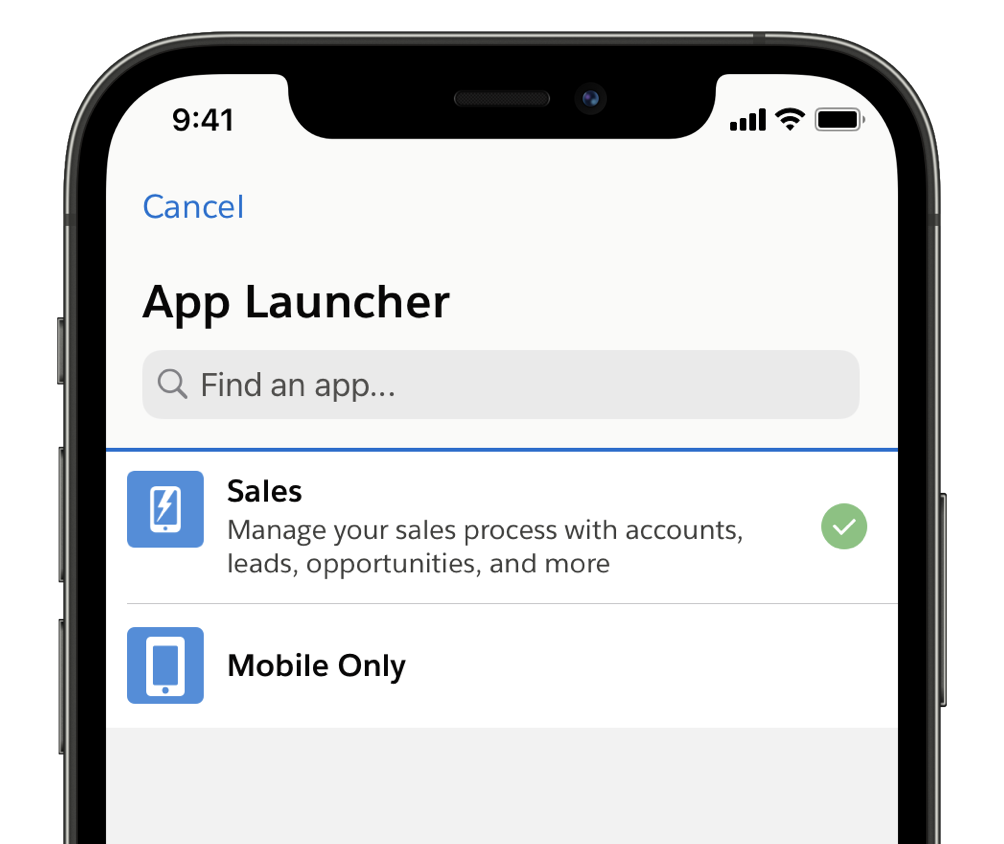
You can verify that Lightning apps are selected by navigating to the Menu tab in the app and tapping App Launcher. If there are Lightning apps other than Mobile Only, the default is to the first app on the list.
I’m already using Lightning apps on desktop. Do I have to do anything?
Make sure that your Lightning apps are enabled for the phone form factor. Your users then have consistent navigation on all their devices, and there’s no maintenance for the phone form factor.
How can I enable Lightning apps for Mobile?
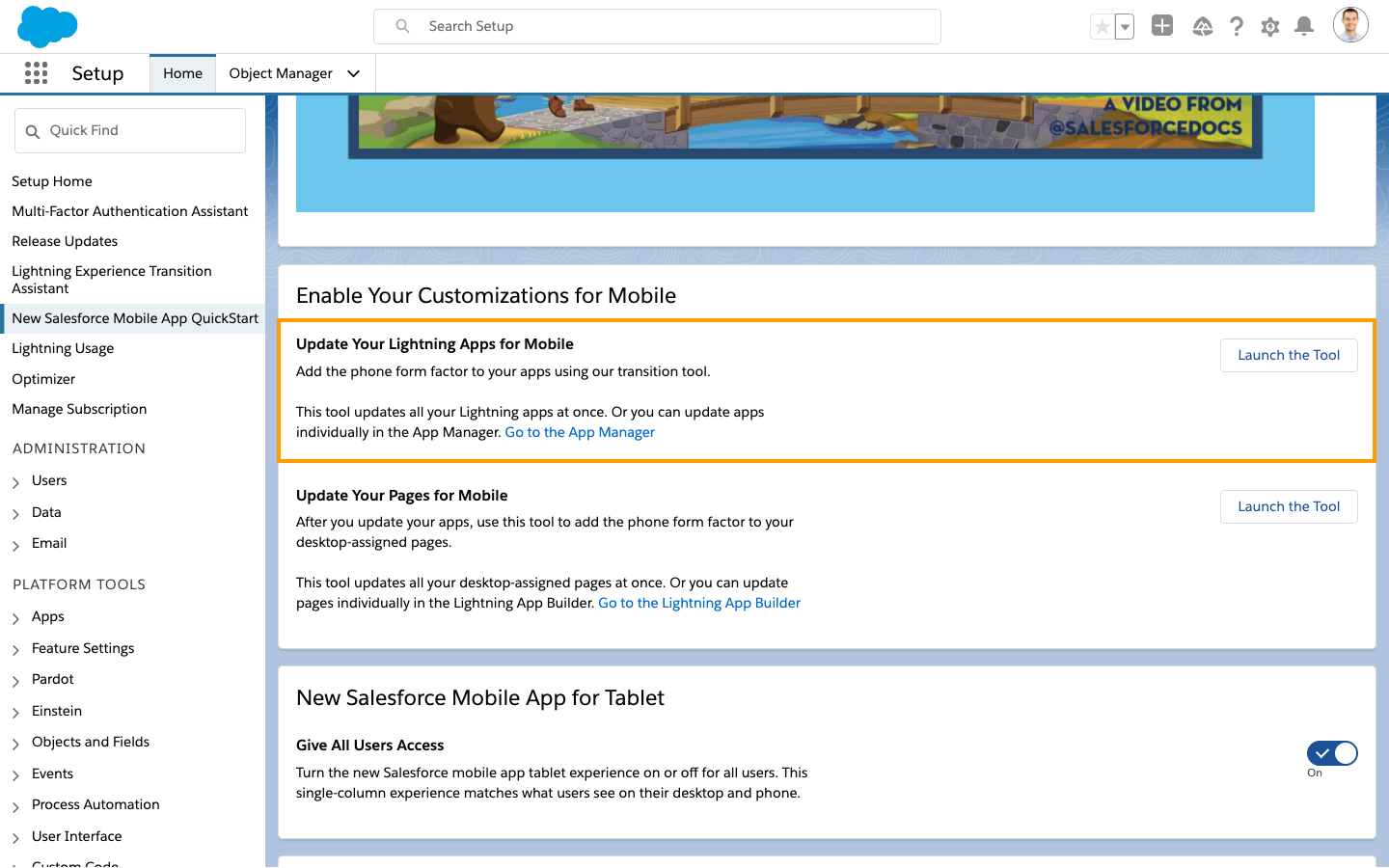
It’s easiest to enable all your existing Lightning apps at the same time. From Setup, in the Quick Find box, enter New Salesforce, select New Salesforce Mobile App Quickstart, and click Launch the Tool.
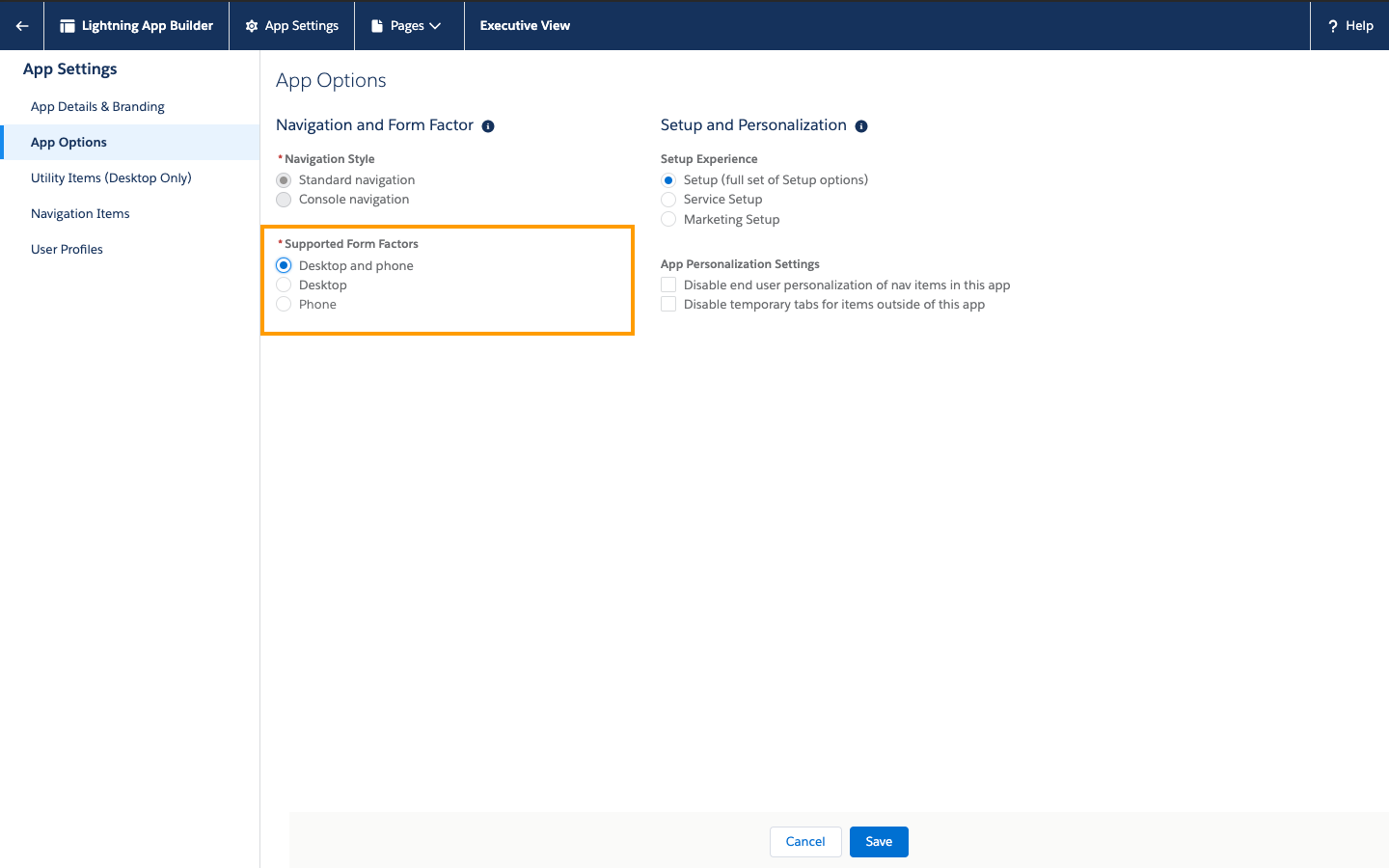
Or you can enable Lightning apps one at a time in App Manager. From Setup, in the Quick Find box, enter App Manager, and then select App Manager. Click the arrow next to the Lightning app that you want to enable for your phone, and then select Edit. Go to App Options and from Supported Form Factors, select Desktop and Phone.