
You are here:
Customize the Mobile Only Navigation Menu in the Salesforce Mobile App
Select the Lightning pages, Visualforce pages, Lightning components, and other productivity items you want to appear in the navigation menu and navigation bar of the Salesforce mobile app using the Mobile Only app.
Required Editions
| Setup for the Salesforce mobile app available in: both Salesforce Classic and Lightning Experience |
| Setup available in Salesforce Classic in: all editions except Database.com |
| Setup available in Lightning Experience in: Group, Professional, Enterprise, Performance, Unlimited, and Developer Editions |

About the Mobile Only App
The Mobile Only app is a navigation experience for the Salesforce mobile app. Admins customize the navigation menu for Mobile Only in Setup. Users see the navigation items when they tap Menu in the navigation bar. The first four items also appear in the navigation bar at the bottom of the screen.
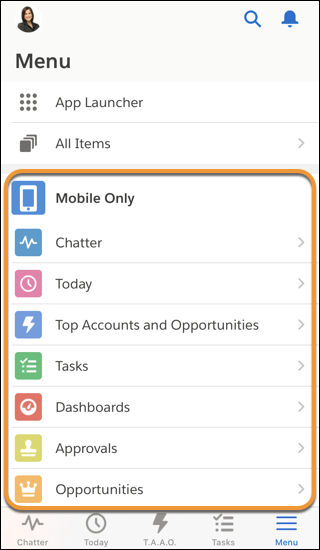
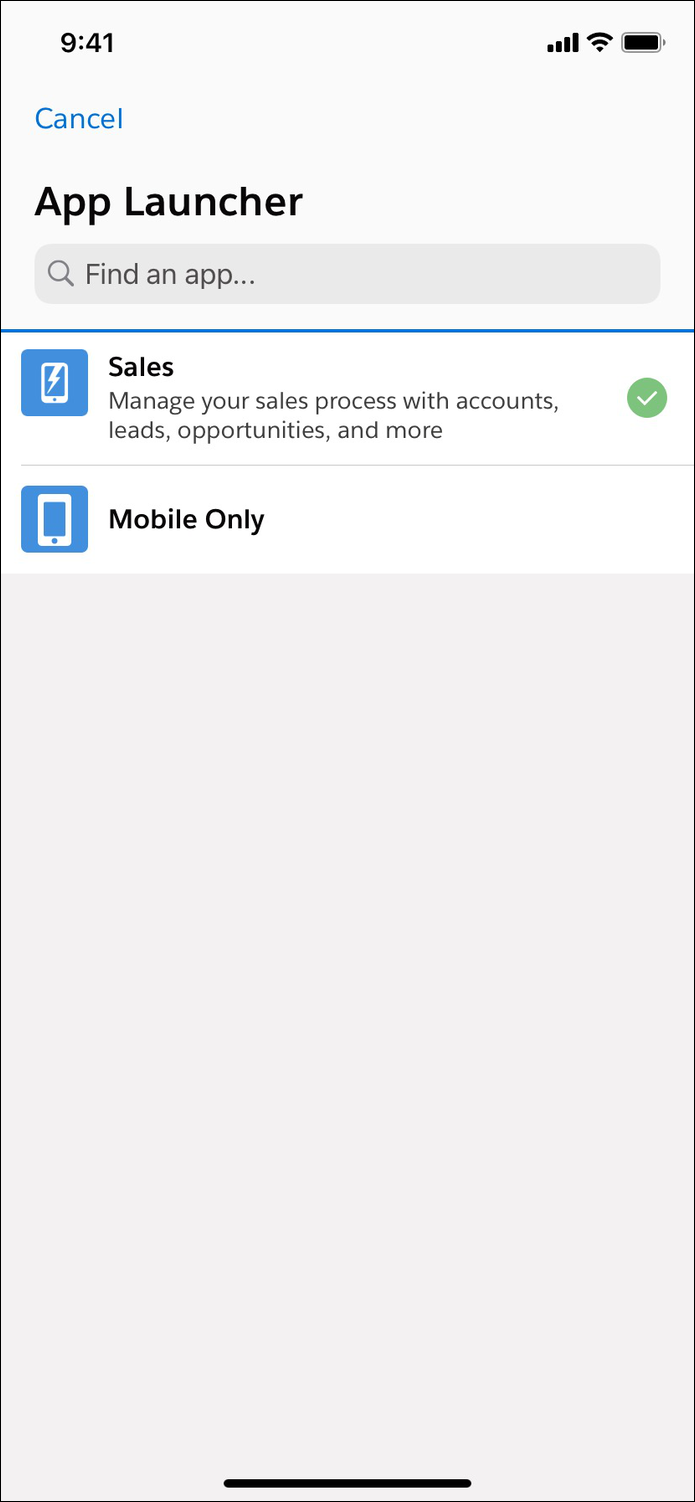
Users can keep using the Mobile Only app, or they can switch to a Lightning app using the App Launcher. To learn how to customize the navigation menu for a Lightning app, see Customize a Lightning App Navigation Menu in the Salesforce Mobile App.
If users want to access the default Mobile Only navigation items again, they can switch back to Mobile Only via the mobile App Launcher.
Disable the Mobile Only App
The Mobile Only app helps users transition to the new Salesforce mobile app. However, it might not make sense for your org if you’ve previously made Lightning apps available on mobile. You can disable the Mobile Only app by adding a connected app custom attribute.
To disable the Mobile Only app, go to Setup. In the Quick Find box, enter Connected Apps, select Manage Connected Apps, and click the name of the connected app that you want to modify. In the Custom Attributes section on the connected app page, click New. Enter HIDE_MOBILE_ONLY_APP for the attribute key and “true” for the attribute value.

The Mobile Only app is disabled when the user force quits the Salesforce mobile app or logs in to a new session. On the next launch, the user sees the default Lightning app. On all subsequent launches, the user sees the most recent Lightning app that the user accessed on mobile.
Customize Navigation Items
You can include Visualforce pages, Lightning pages, and Lightning components. Make sure you’ve created tabs for those items first. To create a tab, from Setup, enter Tabs in the Quick Find box, and select Tabs.
To customize navigation items, in the Quick Find box, enter Navigation, and select Salesforce Navigation. After you save your changes, refresh the Salesforce mobile app to see the changes.

Depending on your organization’s settings, the menu can contain:
| Menu Item | Description |
|---|---|
| Approval Requests | Displays a list of the user’s pending approvals. Users can tap an approval item and approve or reject it from within Salesforce. Available in Salesforce for iOS. |
| Canvas apps | Appears for organizations that have enabled a canvas app to appear in the navigation menu. |
| Chatter | The user’s main feed. Appears for organizations that have Chatter enabled. |
| Dashboards | Availability depends on edition and user permissions. If you don’t add this item to the navigation menu, dashboards and the Dashboards item are automatically included in the set of Smart Search Items. |
| Events | Lists events owned by the user, that the user created for him- or herself, and that the user or a user’s groups are invited to. If you don’t add this item to the navigation menu, events and the Events item are automatically included in the set of Smart Search Items. |
| Forecasts | Displays the Forecasts app, a helpful tool for every member of a sales team to track forecast data and monitor progress towards quota. Available in Salesforce for iOS. Your org must have Forecasting enabled. |
| Groups | Appears for organizations that have Chatter enabled. If you don’t add this item to the navigation menu, groups and the Groups item are automatically included in the set of Smart Search Items. |
| Lightning component tabs | Only custom Lightning components that have a Lightning component tab associated with them can appear in the navigation menu. |
| Lightning pages | Custom app pages. |
| News | Displays the News app, a one-stop place for news and other insights about the user’s accounts, contacts, leads, and opportunities. |
| Notes | Displays the Notes app. If you don’t add this item to the navigation menu, notes and the Notes item are automatically included in the set of Smart Search Items. |
| People | Appears for organizations that have Chatter enabled. If you don’t add this item to the navigation menu, profiles, and the People item are automatically included in the set of Smart Search Items. |
| Reports | Availability depends on edition and user permissions. If you don’t add this item to the navigation menu, reports and the Reports item are automatically included in the set of Smart Search Items. |
| Smart Search Items | Puts a list of recently accessed items in the navigation menu. Anything you put below the Smart Search Items element appears below those recent items. If Smart Search Items is one of the first four items in the navigation menu, some recent items also appear in the navigation bar at the bottom of the screen. |
| Tasks | Lists of a user’s open and closed tasks and tasks that have been delegated. If you don’t add this item to the navigation menu, tasks and the Tasks item are automatically included in the set of Smart Search Items. |
| Today | An app that helps users plan for and manage their day by integrating mobile calendar events with associated Salesforce tasks, accounts, and contacts. The app also allows users to instantly join conference calls, quickly log notes about events, and more. |
| Visualforce page tabs | Only Visualforce pages with the Available for Lightning Experience, Experience Builder sites, and the mobile app checkbox selected are displayed in the Salesforce mobile app. |
Things to Keep in Mind
- You can’t set different menu configurations for different types of users.
- Anything represented by a tab in Salesforce—such as standard and custom objects, Visualforce pages, the Chatter feed, People, or Groups—is visible for a user in the Salesforce mobile app menu, based on the user’s profile settings. For example, if a user is assigned to a profile that has the Groups tab set to Tab Hidden, the user doesn’t see the Groups menu item in the Salesforce mobile app navigation menu, even though an admin has included it in the menu.
- The navigation menu in an Experience Builder site isn’t controlled via the Navigation Menu settings page. Instead, the tabs that are specified in Tabs & Pages in the site’s administration settings determine the contents of the site’s navigation menu.
- If your users don’t yet have a history of recent objects, they see these default objects in the Recent section initially: accounts, cases, contacts, leads, and opportunities. It can take up to 15 days for objects they work with to appear in the Recent section. To make objects appear under Recent sooner, they can pin them from the search results screen in the full Salesforce site.
- Lightning Apps by Default
Starting in Winter ‘22, the Salesforce mobile app defaults to a phone-activated Lightning app if it’s available to the user. Previously, all users had Mobile Only app navigation, but they could switch to a different Lightning app by using the App Launcher from the Menu tab. The Salesforce mobile app now selects the first available Lightning app by default—instead of Mobile Only—resulting in a change in the navigation bar at the bottom of the page. Users who don't have access to any phone-activated Lightnings apps default to Mobile Only.
