
Loading
Salesforce now sends email only from verified domains. Read More
Salesforce Mobile App
Table of Contents
Select Filters

          No results
          No results
          Here are some search tips

          Check the spelling of your keywords.
          Use more general search terms.
          Select fewer filters to broaden your search.

          Search all of Salesforce Help
          Create a Custom Launchpad for the Salesforce Mobile App

          Create a Custom Launchpad for the Salesforce Mobile App

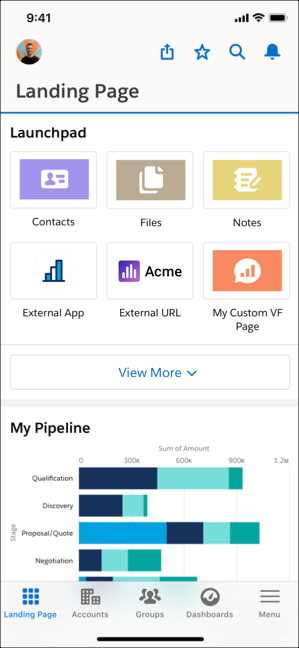
          Launchpads let users quickly access the information they need. Use the Launchpad Lightning web component to add links to Lightning pages on mobile and desktop. If you don’t need a launchpad for desktop users, you can create a mobile-specific launchpad. Set the component visibility to show the launchpad to mobile users only. That way, mobile users can still access all of their navigation menu items, but the most important links are only a tap away.
          Required Editions

          Setup available in Lightning Experience in: Group, Professional, Enterprise, Essentials, Performance, Unlimited, and Developer Editions
          User Permissions Needed
          To create and save Lightning pages in the Lightning App Builder: Customize Application

          View a launchpad on the mobile app

          Launchpads are customizable Lightning web components that you can add to any Lightning page. They create a shortcut to important places for your users. You can add any items that have tabs associated with them—standard and custom objects, Lightning web components, Lightning pages, Visualforce pages, and external websites. Make sure that your users have permission to view the tabs—they only see items that they have access to in the launchpad.

          You can use launchpads on multiple pages and add multiple launchpads to one page.

          When users view the page on desktop or mobile, they see the launchpad. On mobile, Internal links open in the Salesforce mobile app, while external links open in a mobile browser window.

          1. On your desktop, navigate to the Lightning page that you want to add a launchpad to.
          2. Click the Setup gear icon, then click Edit Page.
          3. From the list of standard Lightning web components, find Launchpad and drop it into the desired spot on the page.
          4. Enter a custom title for your launchpad or keep the default.
          5. Click Select... under Launchpad Items.
          6. From the list of available items, drag at least one item into the Selected list
            Note
            Note You can select up to 20 items. Users see the first six items you select, with the option to expand the launchpad to view more.
          7. Click OK.
          8. Select an item from the list to view and edit the details.
            Note
            Note If you don't have access to a tab, you can still add it to the launchpad, but you can’t see it in the component preview.
          9. Add any component visibility filters that you want.
          10. Click Save | Activate | Assign as Org Default | Desktop and Phone | Save.
          11. To view your changes on desktop, click Back.
            Note
            Note The Calendar navigation item isn’t supported in mobile Launchpad components. Access it through a tab instead.
           
          Loading
          Salesforce Help | Article