
You are here:
Enable Mobile Home for iOS and Android
Mobile Home is a set of configurable, dynamic cards that show personalized information for your users. When users open the Mobile Home page, they can see their reports, recent records, favorites, and more. Each card shows information that’s based on what users view in Salesforce. Your users can also easily rearrange, add, and remove cards to customize Mobile Home.
Required Editions
| Setup for the Salesforce mobile app available in: both Salesforce Classic and Lightning Experience |
| Setup available in Salesforce Classic in: all editions except Database.com |
| Setup available in Lightning Experience in: Group, Professional, Enterprise, Performance, Unlimited, and Developer Editions |
| User Permissions Needed | |
|---|---|
| To enable Mobile Home: | Customize Application |
Want to see Mobile Home in action? Watch the  Mobile Home demo (3 minutes)
Enable Mobile Home
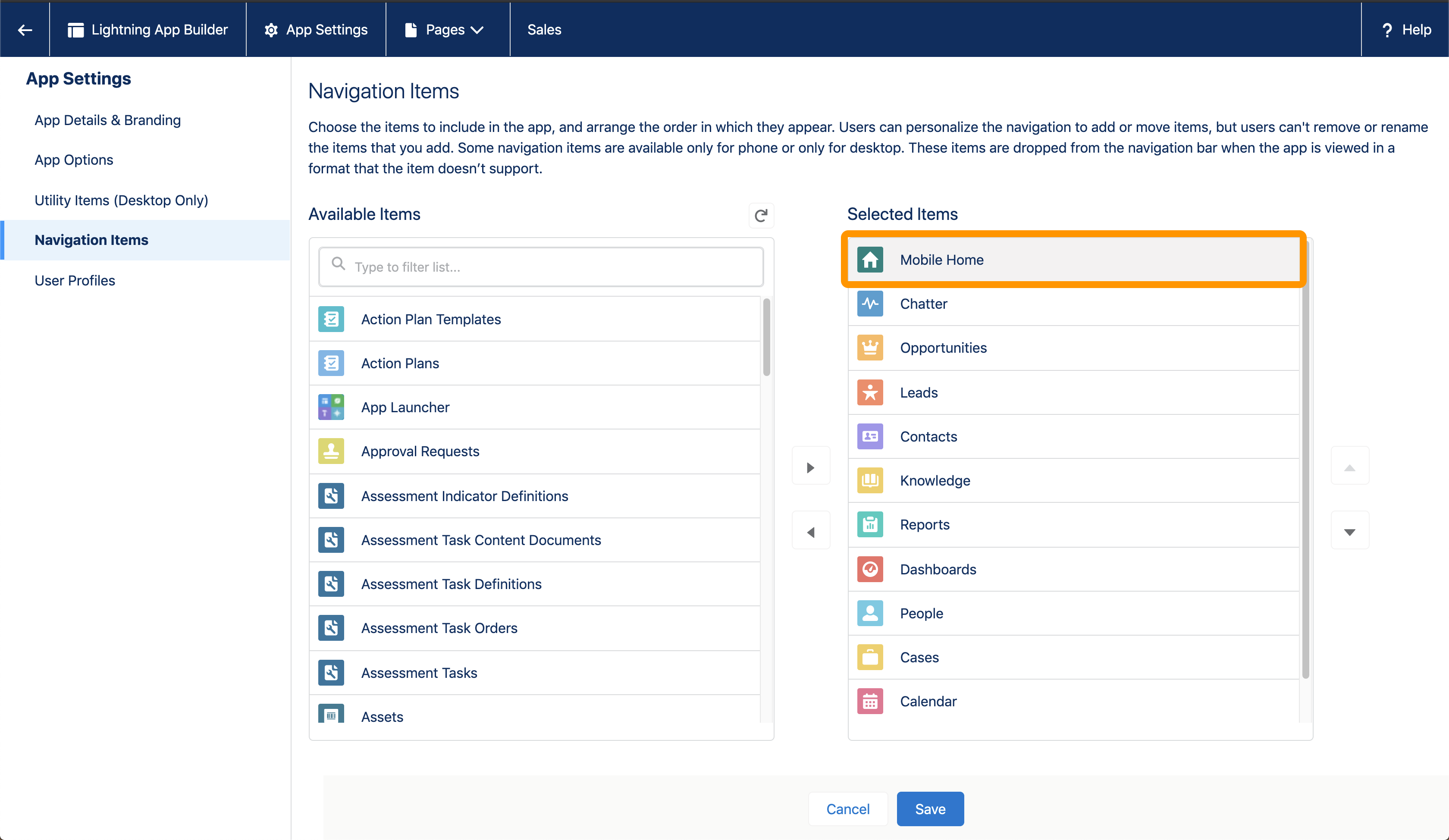
Mobile Home is a standard navigation item that can be added to any Lightning app. From Setup, in the Quick Find box, enter App Manager, and then select App Manager. Click the arrow next to the Lightning app you want to modify and select Edit. Then click Navigation Items. Find Mobile Home in the left column and add it to the right column. We recommend adding it as the first tab so that users can see it when they open the app. To ensure Mobile Home is visible to users, check that the Tab Setting for Mobile Home is set to Default On.
As of February 28, 2022, users are able to instantly add the Mobile Home feature to their Lightning apps themselves. When a user navigates to the menu tab, they see a prompt to add Mobile Home to this Lightning App. Tapping on ‘Add to App’ adds Mobile Home as a navigation item on the tab bar. It can be reordered just like other areas in the app by tapping the Edit button on the current Lightning App.
This navigation item only appears in the Salesforce mobile app and not for desktop users.
Admins can disable user's access to Mobile Home enablement from Setup.
- In the Quick Find, enter Connected Apps then select Manage Connected Apps.
- Open Salesforce for iOS or Salesforce for Android.
- Navigate to Custom Attributes and select New.
- For Attribute key, enter ENABLE_MOBILE_HOME_PROMPT.
- For Attribute value, enter "FALSE" then select Save.



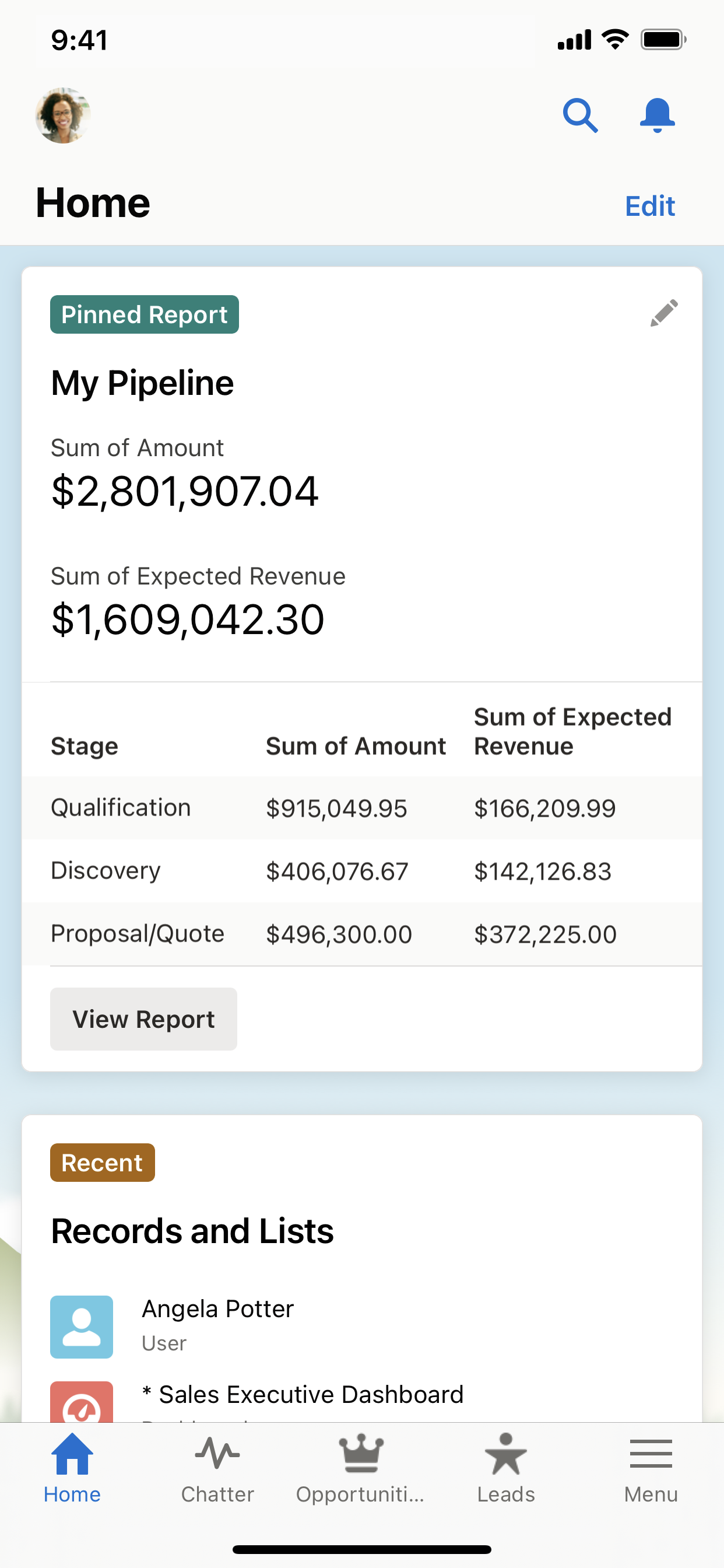
Mobile Home is automatically configured for each of your users based on how they use Salesforce. Users can also add and remove cards to create a more personalized home page on mobile.
Available Cards to Use
These cards are available for Mobile Home.
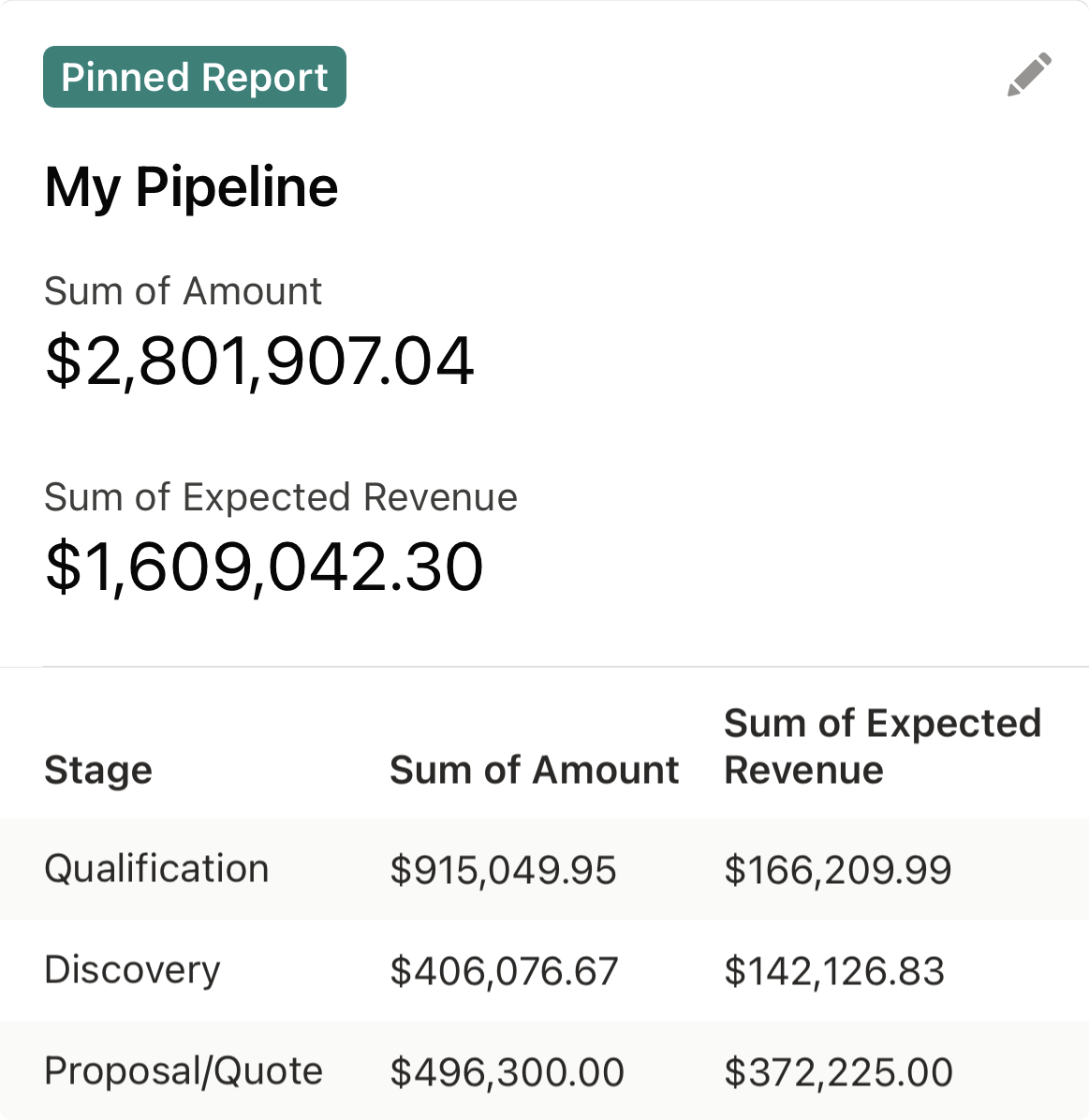
- Pinned Report: Overview of the user’s chosen report.
- Recent: Recently viewed records or lists.
- My Calendar: The current day’s events from the user’s native mobile calendar app.
- Salesforce Events: Salesforce Events scheduled for the day.
- Tasks: Upcoming tasks assigned to the user.
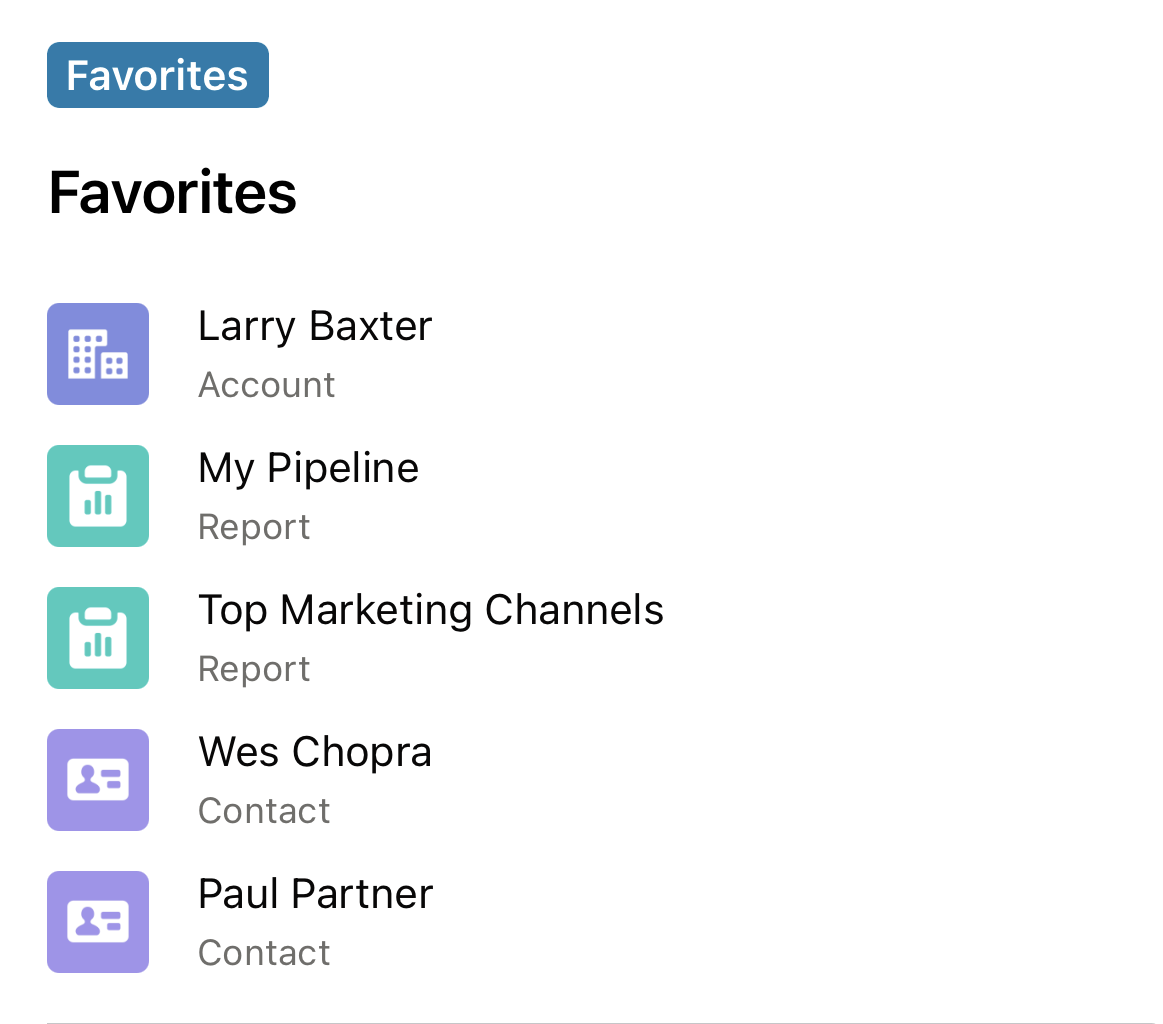
- Favorites: Items that the user added to their Favorites.
- Pinned List: A list of frequently used records and objects.
Edit a Mobile Home Page
Users can customize their Mobile Home page’s cards to show only their essential data.
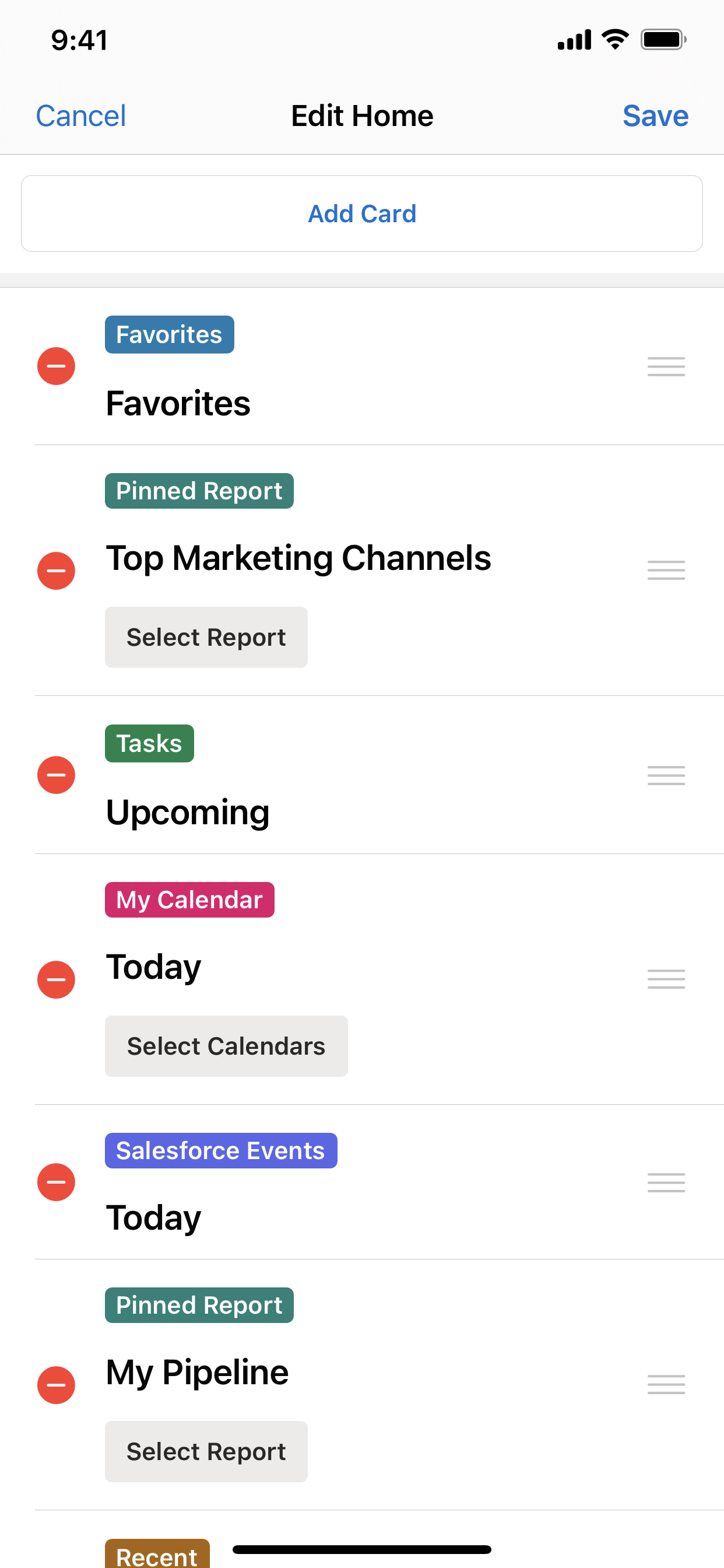
To edit the Mobile Home page, tap Edit to add, remove, and rearrange cards. From here, users can also change which report appears on the Pinned Report card or select specific calendars for the My Calendar card.
Upgrade from Mobile Home Beta
If you already use Mobile Home Beta, we recommend switching to the new generally available version. The new version uses standard navigation items as the official mechanism, which allows you to control who in your organization sees Mobile Home and to move it to any position in the menu. To upgrade, remove the Custom Attribute from your connected apps. From Setup, in the Quick Find box, enter Connected Apps, and then click Manage Connected Apps. Click the name of the connected app that you want to modify. Remove the ENABLE_MOBILE_HOME custom attribute in the Custom Attribute section. Then, use the enable steps at the beginning of this guide to use your apps with the upgraded version.
Differences from Beta to GA
| iOS | Android |
|---|---|
| Global Action bar removed | Favorites card added |
| My Calendar card added | |
