
You are here:
Mobile Offline App FAQs
Learn where in the Salesforce Mobile App you can use LWCs, how to use Briefcase Builder to ensure records are available offline, and get to coding.
Getting Started
- How do I launch and exit the Offline App?
- What’s on the Home and Briefcase tabs?
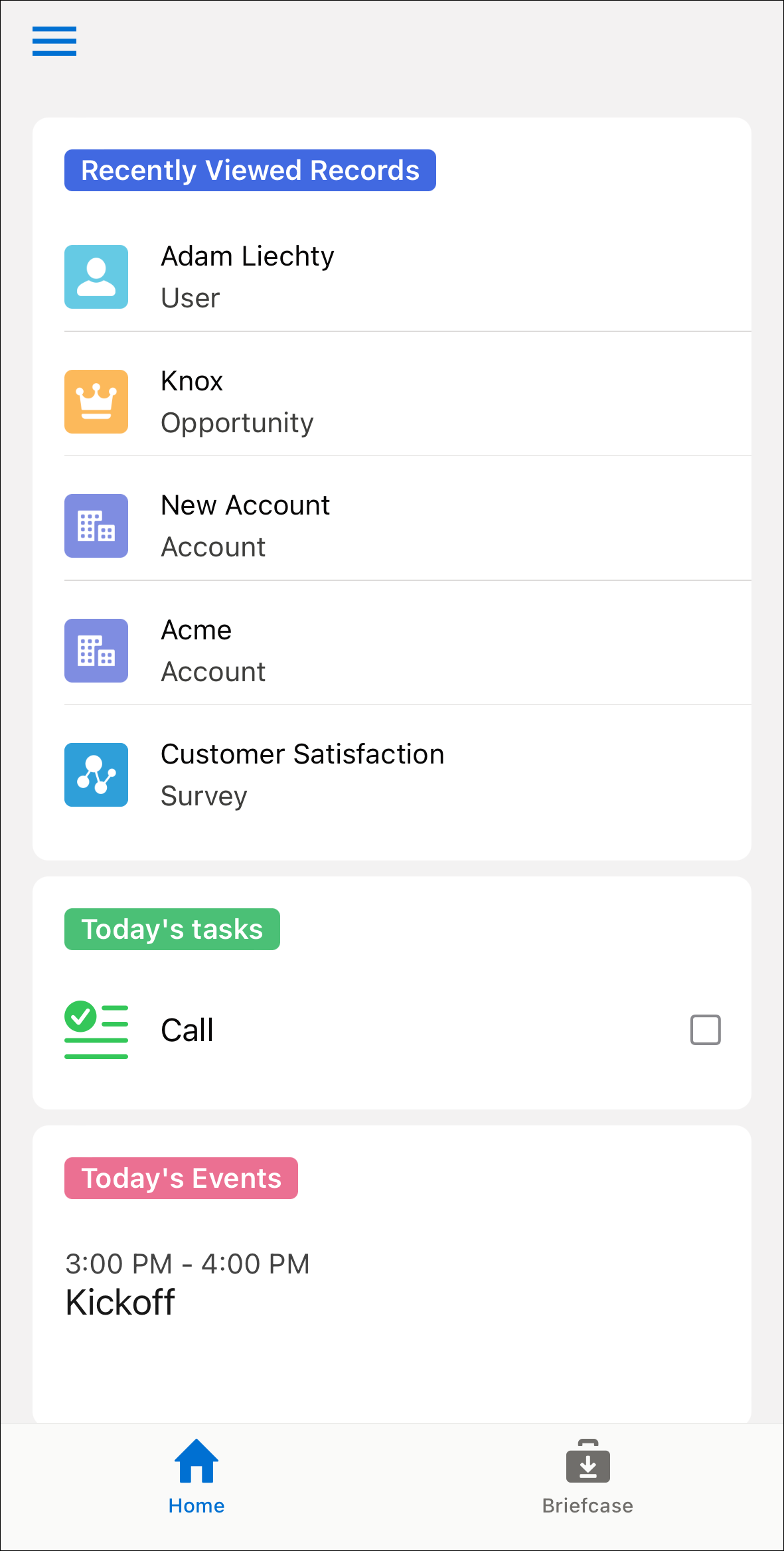
The Home tab contains the information users need to get started on their work. By default, the Home tab shows cards for Recently Viewed Records, Today’s Tasks, and Today’s Events. To refresh this page, pull down on the screen. To customize what’s shown on the Home tab, see Customize The Landing Page.
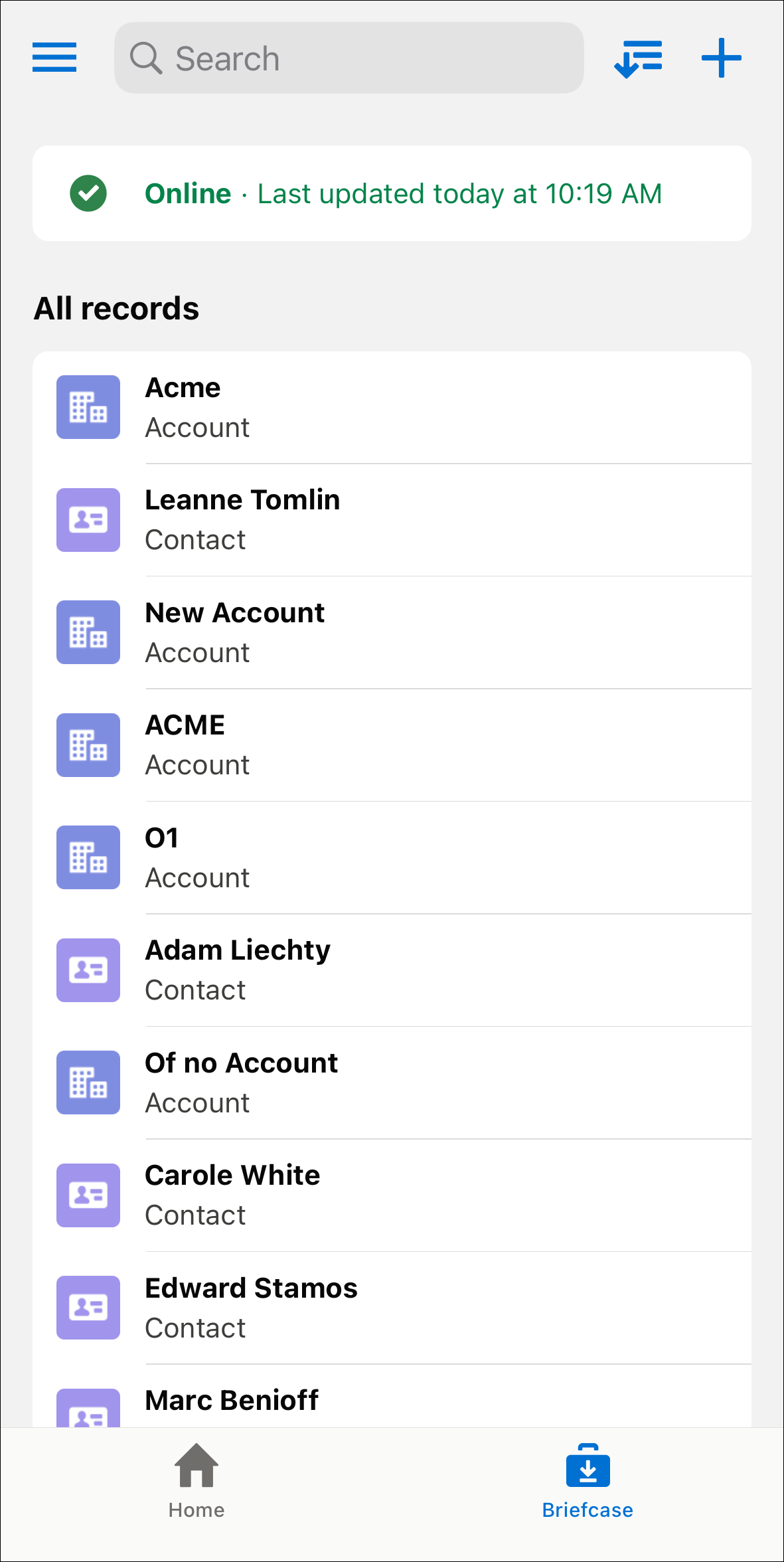
The Briefcase tab shows a list of all the records that are primed and ready for offline use. The list might be empty the first time you launch the Offline App. To see the records that are available offline, tap Download.
- What does the Offline App prime for offline use?
See Data That Is Primed.
- What doesn’t the Offline App prime for offline use?
Records
- When I tap + to create a record, why can’t I see all the objects?
The Offline App doesn’t yet support the action to create records out of the box. To enable record creation for an object, create a
<objectApiName>.createLightning Web Component (LWC) quick action that creates records for that object. After you build and deploy the.createaction to your org, the object appears in the list when you tap + to create a record. - How do I enable my Offline App to support offline record creation and online record syncing?
Drafts
- What are drafts and how are they synced?
- Why did my draft fail to sync?
A draft can fail to sync for these reasons:
- The draft failed to pass validation checks on a custom object or field value. The validation failure can apply to a single field or multiple fields. These validation checks occur only on the server.
- There were changes to the record that conflict with the draft on the mobile device. For example, if a draft references or modifies a record that was deleted since the previous sync, the sync fails.
Drafts sync to the server in the order they were created. If you have multiple drafts queued to sync, and a draft fails to sync, the remaining drafts remain in the queue until you delete or fix the failed draft.
To delete a draft that failed to sync, tap Undo. This action reverts the record change contained in the draft.
To fix a draft that failed to sync due to validation checks, tap Edit. Your Offline App needs to have an
<objectApiName>.editLWC quick action to support editing drafts.
Development
- How do I debug my Lightning Web Components (LWC) for the Offline App?
See Debug Lightning Web Components in the Mobile Offline Developer Guide.
- How do I get quick actions to show in the action bar when I view a record?
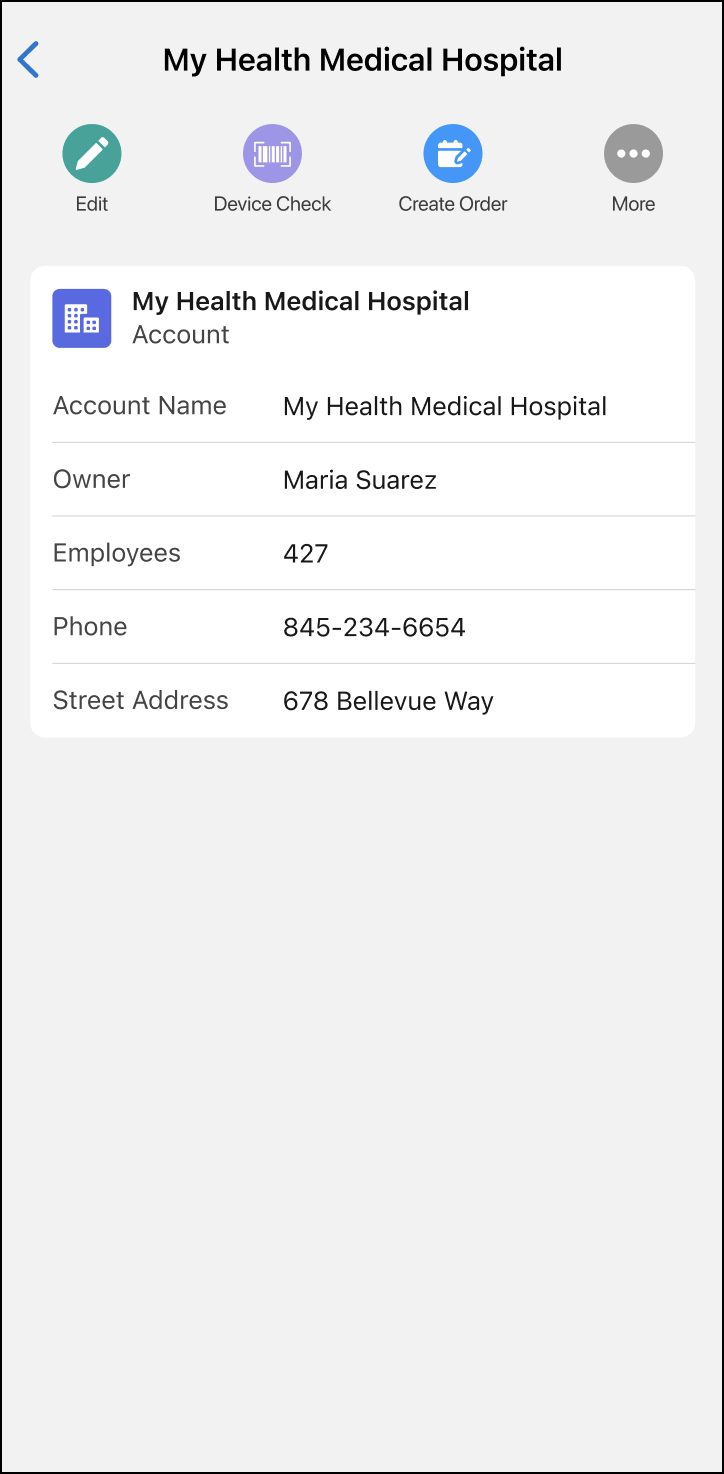
Add the quick action to the object’s main layout. For instructions, see Adding LWC Quick Actions to Mobile Layouts.
After you add a quick action to the action bar, the action appears on any record in the object’s main layout. If you want users to navigate to screens conditionally, configure LWCs to display links or buttons conditionally.
Some quick actions are automatically removed from the action bar when the action isn’t necessary while viewing a record. For example, the
<objectApiName>.viewaction is removed because the user is already viewing the record. Similarly, the<objectApiName>.createaction is removed from the action bar of an existing record, but the action is available when you tap + to create a record. - Where can users find the LWC quick actions that I create?
There are several ways:
- If a record appears on one of the cards in the Home screen, tapping on it will attempt to
navigate to the
<objectApiName>.viewquick action. See I’m not able to view a record when I tap it. What’s going on? - Tapping a record from the All Records list similarly navigates to the
<objectApiName>.viewquick action. - Author an LWC that extends NavigationMixin, and navigate to one of your LWC quick
actions:
{
  "type": "standard__quickAction",
  "attributes": { "actionName": "<objectApiName>.<actionName>" },
  "state": { "recordId": recordId, "objectapiName": objectApiName }
}
- If a record appears on one of the cards in the Home screen, tapping on it will attempt to
navigate to the
