
You are here:
Set Up Messaging in the Salesforce Mobile App
Create your messaging channel, customize a mobile-friendly agent interface, and then let your agents do the talking.
Required Editions
| Available in: Lightning Experience. View required editions. | |
 This article applies to: This article applies to: |
Messaging for In-App, Messaging for Web, enhanced WhatsApp, enhanced Facebook Messenger, enhanced SMS, enhanced Apple Messages for Business, enhanced LINE, Bring Your Own Channel, and Bring Your Own Channel for CCaaS |
 This article doesn’t apply to: This article doesn’t apply to: |
Standard WhatsApp, standard Facebook Messenger, and standard SMS channels |
| User Permissions Needed | |
|---|---|
| To send and receive messages in the Salesforce mobile app: | Messaging User permission set license AND Message on Mobile permission |
While the end result is the ability to message customers from the Salesforce app on a smartphone or tablet, setup and configuration for this functionality is done on the Salesforce desktop site.
Set Up Enhanced Omni
Our messaging channel types don’t require enhanced omni when used on the desktop site. You must enable enhanced omni to message from the Salesforce app.
Set Up Your Messaging Channel
Follow the setup guide for the type of messaging you want to offer.
The Salesforce mobile app is compatible with these messaging types.
Optimize Your Agent Console for the Salesforce app
Customize how the agent console appears.
- On the desktop site, open the agent console.
- Click the Setup icon, and then select Edit Page.
- Click the Pages dropdown menu, and then select + New Page.
- Select Record Page, and then click Next.
- Give your layout a Label, and then select Messaging Session as the Object.
- Select a page template, and click Done.
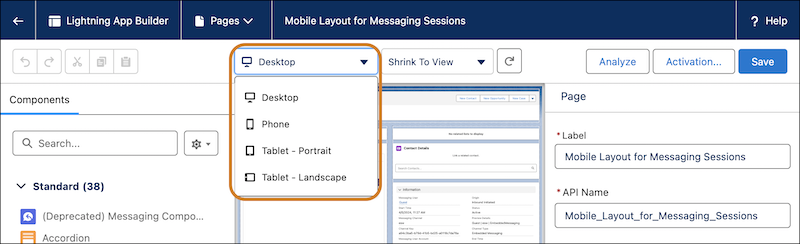
- In the layout field, select Phone if your team primarily messages from
their smartphones. Select one of the Tablet options
if your team primarily messages from their tablets. .
-
Add the Enhanced Conversation component to the mobile layout.
While you can add more Lightning components, doing so can affect app performance. For optimal performance, add only the Enhanced Conversation component.
- Save your changes.
- Click Activation….
- Click Assign as Org Default.
- In the Assign Form Factor window, select Phone, and then click Next.
- Save your changes.
Prepare Your Users to Message in the Salesforce App
The Messaging User permission set license is required to message with the Salesforce app.
- If the setup steps for your respective messaging type don’t include assigning the Messaging User permission set license, assign it to your agents.
- Assign the Message on Mobile permission to your agents.
Did this article solve your issue?
Let us know so we can improve!
