
Loading
SalesforceA
Table of Contents
Select Filters

          No results
          No results
          Here are some search tips

          Check the spelling of your keywords.
          Use more general search terms.
          Select fewer filters to broaden your search.

          Search all of Salesforce Help
          Reassign a User License with SalesforceA

          Reassign a User License with SalesforceA

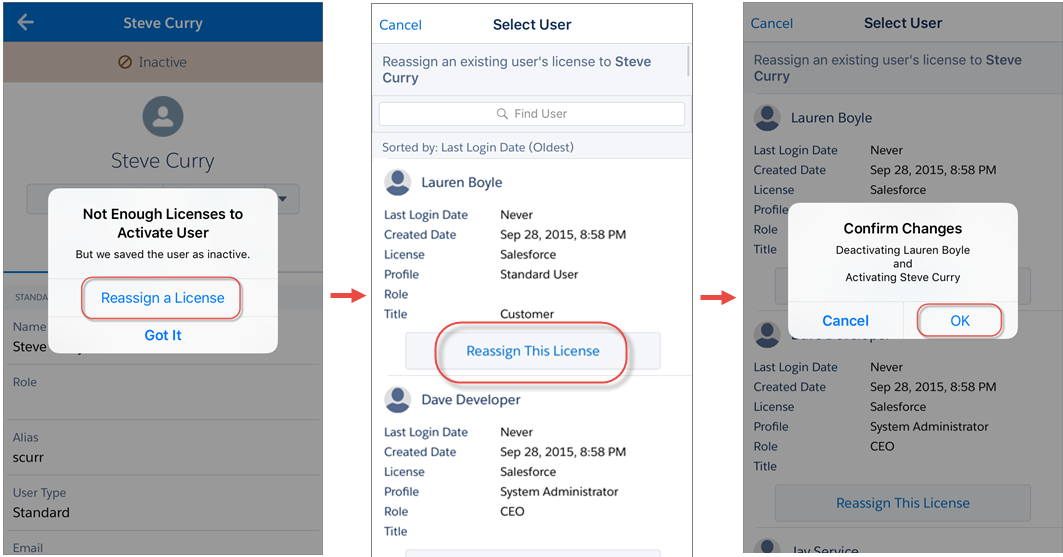
          SalesforceA is scheduled for retirement in all Salesforce orgs as of June 2022. When you create a new user with SalesforceA, there may be instances when your org doesn't have enough user licenses to assign to the newly created user. No need to worry if this happens, because SalesforceA saves the newly created user as inactive. To change the newly created user from inactive to active, you can reassign a user license from an existing user to the newly created user. Reassigning a user license is available in SalesforceA for iOS version 3.3 or later.
          Required Editions

          Available in: both Salesforce Classic and Lightning Experience
          Available in: Essentials, Contact Manager, Group, Professional, Enterprise, Performance, Unlimited, and Developer Editions.
          User Permissions Needed
          To use SalesforceA: Manage Users
          1. From the inactive user's page, tap Reassign a License.
          2. Either scroll or use the Find User search bar to find an existing user you want to reassign a user license from.
          3. When you've found that existing user, tap Reassign This License.
          4. Confirm the changes, and tap OK.
          Reassign License
           
          Loading
          Salesforce Help | Article