SalesforceA is scheduled for retirement in all Salesforce orgs as of June 2022. Use
SalesforceA on your mobile device to create a new user. Creating a new user is available in
SalesforceA for iOS version 3.3 or later.
Required Editions
Available in: both Salesforce Classic and Lightning Experience
Available in: Essentials, Contact Manager,
Group, Professional, Enterprise,
Performance, Unlimited, and Developer
Editions.
User Permissions
Needed
To use SalesforceA:
Manage Users
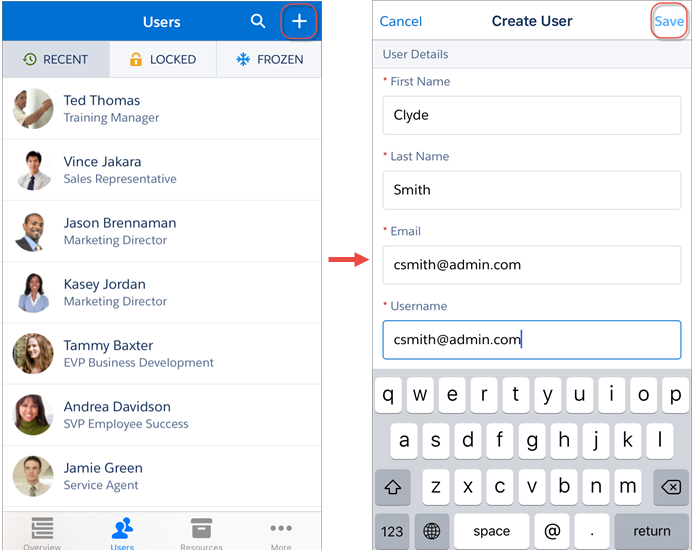
From the Users page, tap +.
Enter the user’s name and email address and a unique username in the form of an email
address. By default, the username is the same as the email address.
Select a User License. The user license determines which profiles
are available for the user.
Select a profile, which specifies the user’s minimum permissions and access
settings.
In Professional, Enterprise, Unlimited, Performance, and Developer Editions, select a
Role.
Select Generate new password and notify user immediately to have
the user’s login name and a temporary password emailed to the new user.
Tap Save.
NoteYour username must be unique across all Salesforce orgs. The username
must be in the format of an email address, for example, jane@salesforce.com. This email
username doesn’t have to work. You can have the same functioning email address
associated with your account across orgs—only the username in the form of an
email address must remain unique.
You can create a new user even if you don't have enough user licenses to accommodate
one. SalesforceA saves all the fields of your new user, but the user is in an inactive
state. To change the state of an inactive user to active, you need to reassign a license
from an existing user to your newly created user. For guidelines about creating a new user,
see Guidelines for Adding Users in the Salesforce Help
for more information.
We use three kinds of cookies on our websites: required, functional, and advertising. You can choose whether functional and advertising cookies apply. Click on the different cookie categories to find out more about each category and to change the default settings.
Privacy Statement
Required Cookies
Always Active
Required cookies are necessary for basic website functionality. Some examples include: session cookies needed to transmit the website, authentication cookies, and security cookies.
Functional Cookies
Functional cookies enhance functions, performance, and services on the website. Some examples include: cookies used to analyze site traffic, cookies used for market research, and cookies used to display advertising that is not directed to a particular individual.
Advertising Cookies
Advertising cookies track activity across websites in order to understand a viewer’s interests, and direct them specific marketing. Some examples include: cookies used for remarketing, or interest-based advertising.