
You are here:
Output Node: Write Recipe Results to a Dataset or External System
In Salesforce Data Pipelines, use Output nodes with Data Prep recipes to write recipe results to a target, such as a dataset, staged data, .csv, or remote location like Amazon S3. A recipe can have more than one Output node. If the recipe writes to a dataset, you can change the API name and label of the dataset in the Output node. If an existing dataset uses the specified API name, the recipe overwrites the existing dataset when it runs.
| User Permissions Needed | |
|---|---|
| To manage and create a recipe: | Edit CRM Analytics Dataset Recipes |

- In the recipe, select the Add Node button (
 ) at the end of the recipe.
 - In the Add Node dialog box, select Output.

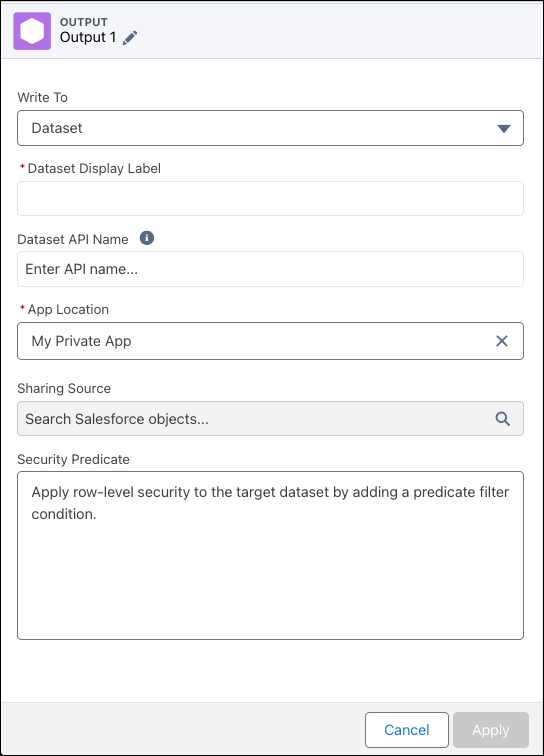
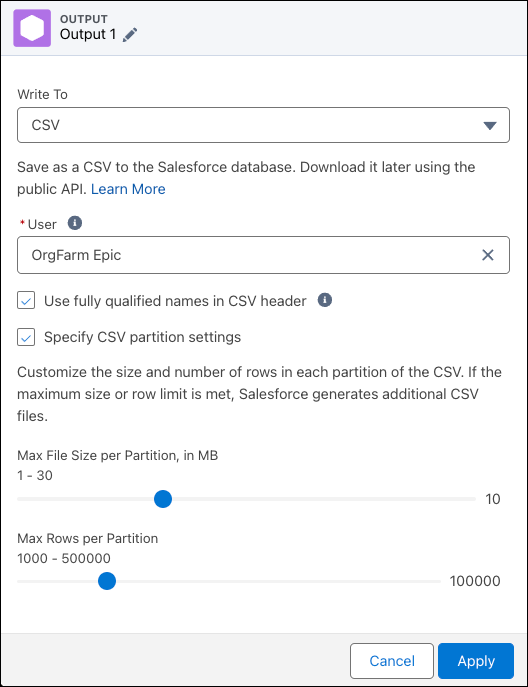
- In Write To, select the output type, Dataset, Existing Dataset, or CSV.
- For Dataset, add:
- The label, API name, and dataset’s app.
- Optionally, if using sharing inheritance, select a Sharing Source to apply sharing rules.
- Optionally, add a security predicate to restrict access to records with row-level security.
- For Existing Dataset:
- Select the operation, Append, Upsert, or Delete.
Note Upsert and Delete for Existing Dataset is a pilot or beta service that is subject to the Beta Services Terms at Agreements - Salesforce.com or a written Unified Pilot Agreement if executed by Customer, and applicable terms in the Product Terms Directory. Use of this pilot or beta service is at the Customer’s sole discretion.
Select the existing dataset to run the operation on. The append operation adds all data from the input to the existing dataset, and records can be duplicated. The upsert operation appends data from the input to the existing dataset if new and overwrites existing rows when they match. The delete operation removes input data from the the existing dataset when existing rows match.
The upsert and delete operations only work with datasets created by external uploads and data syncs, which preserve the required isUniqueKey information.
- Enter the dataset label and API name.
- Turn on the disjointed schema option to ensure the dataset updates if the snapshot data schema changes. If the option isn’t selected, the recipe fails when the schema changes

When using this option, remember that:
- The dataset row limits apply. Consider adding and scheduling a recipe to delete old snapshot rows to avoid hitting the limits.
- When the snapshot schema changes, and the disjointed schema option is active, the recipe takes longer to run as it reregisters all the rows.
- Select the operation, Append, Upsert, or Delete.
- For CSV:
- Select the user who has permission to download the generated files.
- Optionally, select whether to include a header in the CSV file.
- Optionally, determine how to split the CSV over multiple files.
- For Output Connection, see the relevant output connector help.
Note The Dataset API Name can contain only underscores and alphanumeric characters. It must also be unique, begin with a letter, and not include spaces, end with an underscore, or contain two consecutive underscores. If another dataset in the same app uses the API name, the dataset is overwritten. If a dataset in another app uses the name, choose a different, unique name. If an API name isn’t specified, a unique API name is generated. - For Dataset, add:
- Click Apply.
- Save the recipe.
To create the dataset, run the recipe. As you create more datasets, remember that your org has a row limit for all datasets in your org.
- Run Sequential Recipes with Staged Data
When your data strategy involves multiple recipes, you can reduce processing time by using staged data instead of datasets. Place the steps you would otherwise repeat into one recipe that outputs results as staged data. Subsequent recipes can then use the staged data as input nodes to do other work. For example, rather than merge account and opportunity data in several region-specific forecasting recipe, merge in an initial recipe that outputs the results as staged data, and use this data in the other recipes - Recipe Output to CSV
Use the Data Prep output node in Salesforce Data Pipelines to save your prepared data as a data and schema file in a Salesforce BPO (storage database). You can then download the data locally using the public API as a CSV file. Use the CSV file to transfer prepared, cleaned, and improved data into your system for analysis, storage, or to inform business processes.
