Text to Number Transformation: Convert the Column Type
When you load data into a dataset, Salesforce Data Pipelines tags a number column as
text if it contains unexpected strings or characters. To perform a calculation on the column,
such as calculating the average, use the Text To Number transformation to change the Text column
type to Number. You can perform calculations on number columns only.
Required Editions
Text to Number Transformation: Convert the Column Type
User Permissions
Needed
To manage and create a recipe:
Edit CRM Analytics Dataflows OR Edit Dataset Recipes
During the column type conversion, the Text to Number transformation rounds
decimals to the nearest whole number. For example, 300.2939 becomes 300.
In the Transform node of a Data Prep recipe, select the text (dimension) column you
want to convert to the Number (measure) column type.
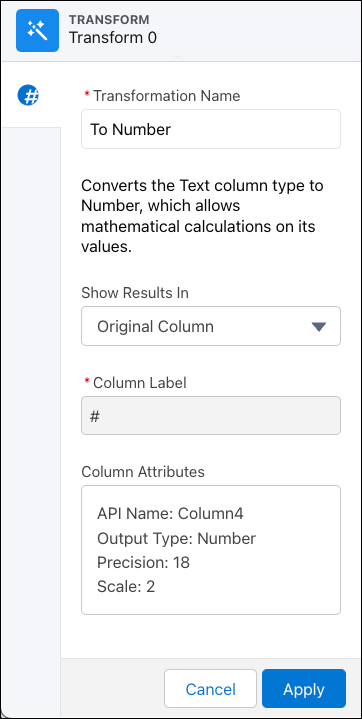
In the Transform toolbar, select Text to | Number.
Under Show Results In, select whether the new values appear in a new column and
whether to keep the original column.
If you elect to create a column, set the label under Column Label.
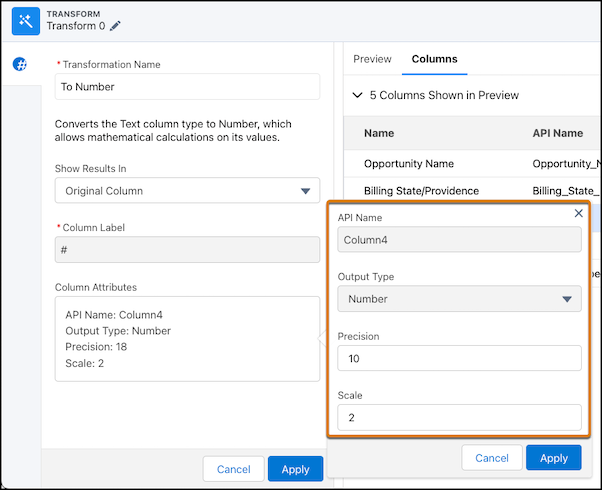
To change more column attributes, click the Column Attributes box, change them, and
click Apply.
Based on the output column’s datatype, you can set these attributes.
Attribute
Description
API Name
The API name of the column. The column API name can each be up to 255
characters. The API name must also be unique within the recipe.
Precision
The maximum number of digits in a numeric (measure) column. Includes all
numbers to the left and to the right of the decimal point (but excludes the
decimal point character). Enter an integer from 1 through 18, inclusive. If a
numeric value exceeds the specified precision, the value is set to 0 or null,
depending on whether null measure handling is enabled. For example, if
precision is set to 5 and null measure handling is enabled, the numeric value
123456.78 is replaced with null.
Scale
The number of digits to the right of the decimal point in a numeric column.
Enter an integer from 0 through 17, inclusive. The scale must be less than the
precision. For example, if the numeric value is 123456.789 and you set the
scale to 2, the number appears as 123456.78.
Length
The maximum number of characters in a text (dimension) column. Enter an
integer from 1 through 32000, inclusive. The default length is 255
characters.
Date Format
The date format of a date column.
For more guidelines, see the “Field Name Restrictions” section in this help topic.
Click Apply to add the transformation to the Transform node.
The Preview tab shows the number column.
To view the Graph area, click the Collapse button ().
Save the recipe.
Run the recipe to convert the column type to number.
Did this article solve your issue?
Let us know so we can improve!
Loading
Salesforce Help | Article
Cookie Consent Manager
General Information
Required Cookies
Functional Cookies
Advertising Cookies
General Information
We use three kinds of cookies on our websites: required, functional, and advertising. You can choose whether functional and advertising cookies apply. Click on the different cookie categories to find out more about each category and to change the default settings.
Privacy Statement
Required Cookies
Always Active
Required cookies are necessary for basic website functionality. Some examples include: session cookies needed to transmit the website, authentication cookies, and security cookies.
Functional Cookies
Functional cookies enhance functions, performance, and services on the website. Some examples include: cookies used to analyze site traffic, cookies used for market research, and cookies used to display advertising that is not directed to a particular individual.
Advertising Cookies
Advertising cookies track activity across websites in order to understand a viewer’s interests, and direct them specific marketing. Some examples include: cookies used for remarketing, or interest-based advertising.