
You are here:
Filter and Sort Search Results in Lightning Experience
Global search can produce lots of search results. Filter and sort your results to find what you want fast.
Required Editions
| Available in: Lightning Experience |
| Available in: All Editions except Database.com |
See the best matches from across Salesforce on the Top Results page
The Top Results page shows the best matches for the objects you use most. It's what you see when you don't search for a specific object. To see more results for an object, click View More.
See results for a specific object
To see results for a specific object, click the object’s name in the sidebar of the search results page.
See all available objects under Show More
If you don’t see an object listed under Search Results, select Show More. Searchable objects are listed alphabetically.
Filter your results
You can filter search results for accounts, cases, contacts, dashboards, files, Knowledge articles, leads, notes, opportunities, people, and tasks. You can also filter results for custom objects. To see filtering options, click the object's name in the sidebar (1).
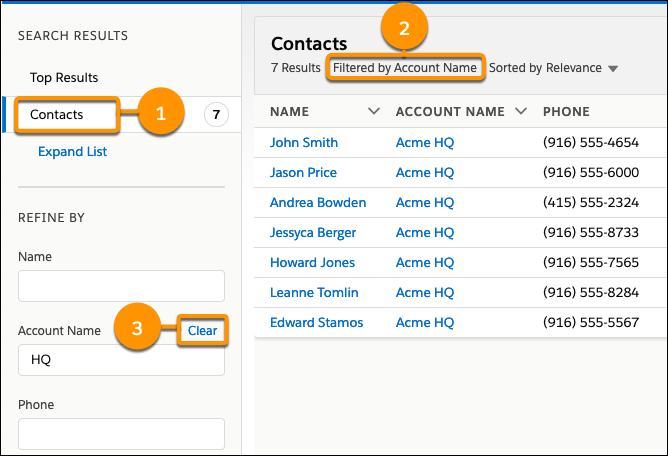
Search results update as you apply filters. See which filters are applied above the results (2). To remove a filter, click Clear (3).
The fields that can be filtered for an object are the ones your admin includes in the search results layout for that object. You can also filter on inactive record types. You can’t filter by encrypted fields.
When you filter by dates, you can select from predefined ranges such as “Last 7 Days” and “Last 30 Days.” You can’t enter a custom date range.
Sort your results
To sort search results, click the field name at the top of the columns or use the sort dropdown menu.
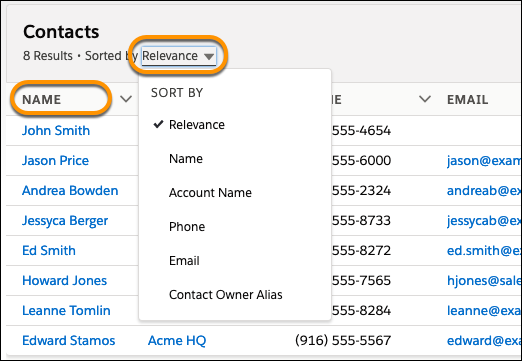
To change the sort direction, click the field name or the arrow in the column header.
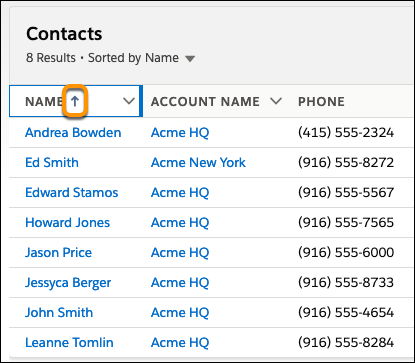
If the search layout includes all non-sortable fields, the sort dropdown menu is disabled.
See results from outside of Salesforce
If your admin connected an external search engine to your org, results appear under the External Results header in the sidebar of the search results page. External sources are listed alphabetically. Frequently used external data sources also appear in Top Results. And if the source was added to the navigation bar, it also appears under Search Results. Select the Title to go to the record detail page or View to go to the external document directly. Depending on the external source, the URL opens in the external source website or in a frame inside Salesforce.
More Search Tips and Best Practices
Here are easy things you can do to quickly get on the right search track.
- Limit the number of results by entering more specific search terms. For example, enter the full name and company (Mike Jones Salesforce) or last name and ZIP code (Jones 94123).
- Searching for a specific contact or opportunity? Get more targeted results by adding the account name to your phrase. For example, John Smith Acme or 200 Widgets Acme. Adding the account name also works for record suggestions in Lightning Experience instant results.
- Check your spelling and make sure you enter the complete search term.
- If you recently created or updated the record, wait a few minutes for the record to be made searchable. If you can’t find your record after 15 minutes, contact your admin. Not all fields on a record are searchable.
- If you think the record isn't appearing due to permission issues, check with your admin. We show you only the records that you have access to.
