
Enable Security Center Permissions
To give new users access to Security Center in the app launcher, enable Security Center permissions. You can assign Security Center permissions from Profiles or Permission Sets in Setup.
Required Editions
| Available in: Lightning Experience |
| Available in: Enterprise, Performance, and Unlimited Editions with the Security Center add-on license. |
| Available for free in: Developer Edition |
| User Permissions Needed | |
|---|---|
| To view Security Center pages: | View Security Center Pages |
| To create and edit security policies: | Manage Security Center |

Note This content relates to Security Center. Read
about Security Insights, Data Classification, and Who Sees What Explorer in Own from Salesforce.
Enable Security Center permissions and features to streamline your admin security duties. To ensure that you can connect a child tenant to the parent tenant, make these updates in your parent and child orgs.
-
From Setup, click any Profile or Permission Set, or create a Permission Set.Note You can add the Security Center permissions to existing Profiles or Permission Sets, or you can add them to a new Permission Set that you create.
-
Under System Permissions, look for Manage Security Center and View Security Center
pages. If a permission doesn’t appear, contact your account representative to enable the
Security Center license.
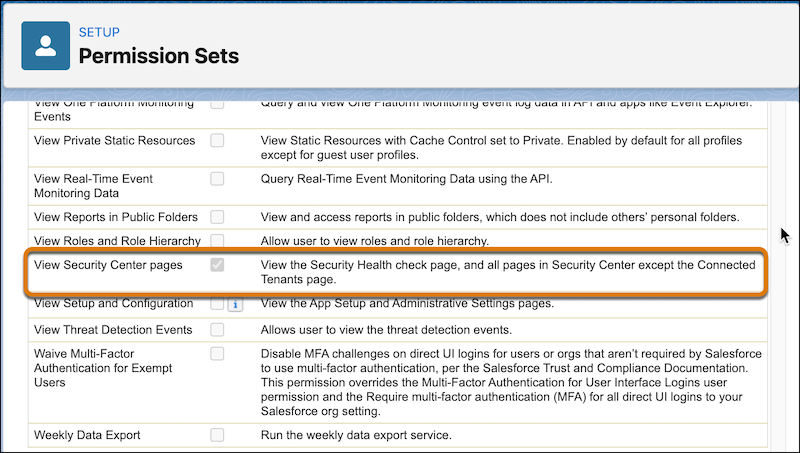
- Click Edit.
- Select Manage Security Center and View Security Center pages.
- Save your changes.
- To assign Permission Sets to users, add an assignment from Manage Assignments.
- To ensure that you can connect a child tenant to the parent tenant, update the permissions to both the parent and child orgs.
- If Security Center is enabled for production but you want it in a sandbox, see Push Updated Licenses to Sandbox Orgs.
See Also
Did this article solve your issue?
Let us know so we can improve!
