
You are here:
Get a List of Your Verified Email-Sending Domains
To identify your verified email-sending domains, use Salesforce Object Query Language (SOQL) and Tooling API. Query your DomainKeys Identified Mail (DKIM) keys and your authorized email domains.
Required Editions
| User Permissions Needed | |
|---|---|
| To use the Developer Console: | API Enabled AND View All Data |
| To use Query Editor and run SOQL on the Query Editor tab: | API Enabled |
Follow these steps to find the verified email-sending domains in your org.
To get a list of the domains used recently to send email from your org, see Identify Your Email-Sending Domains. To check whether Salesforce can send email from a specific domain, see Check the Verification Status of an Email-Sending Domain.

Access the Query Editor in the Developer Console
Use the Query Editor in the Developer Console to run SOQL and Tooling API queries.
If you're new to the Developer Console, see Developer Console Basics in Trailhead, or work with your Salesforce developer to run these queries.
-
Open the Developer Console.
- In Lightning Experience: Click the quick access menu (
 ), and then click Developer Console.
 - In Salesforce Classic: Click Your Name, then click Developer Console.
- In Lightning Experience: Click the quick access menu (
-
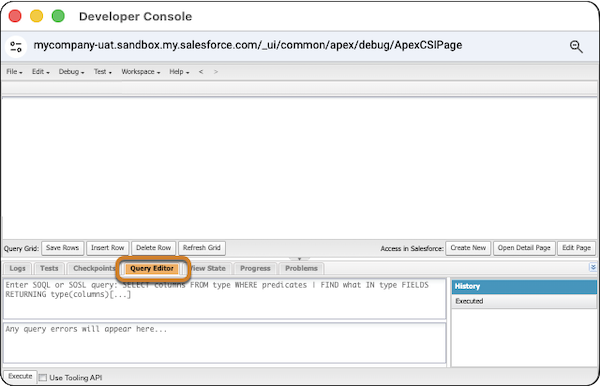
Click the Query Editor tab.
Query DKIM Keys
To review your DKIM key configurations, query the EmailDomainKey
object via standard SOQL.
- Access the Query Editor in the Developer Console.
-
Paste your SOQL query in the Query Editor.
Here are example SOQL queries for
EmailDomainKey. For the full list of fields for this object, see Email Domain Key in Object Reference for the Salesforce Platform.List all DKIM keys, including their status.
SELECT Id, Domain, Selector, IsActive, TxtRecordsPublishState
FROM EmailDomainKey
ORDER BY Domain
List only active DKIM keys.
SELECT Id, Domain, Selector, IsActive, TxtRecordsPublishState
FROM EmailDomainKey
WHERE IsActive = true
ORDER BY Domain
List only inactive DKIM keys.
SELECT Id, Domain, Selector, IsActive, TxtRecordsPublishState, CreatedDate FROM EmailDomainKey WHERE IsActive = false ORDER BY Domain - Click Execute.
-
Review the results in the results table.
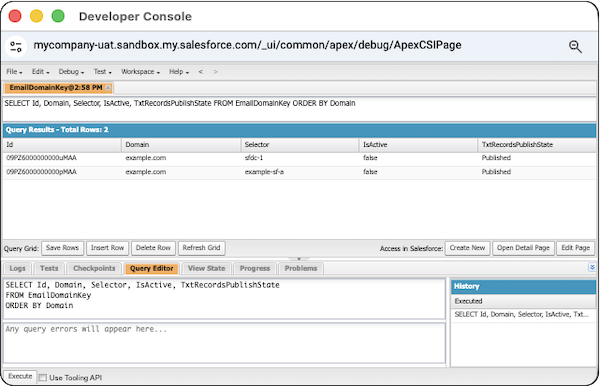
Here’s an example output of running the query to list all DKIM keys.
Query Authorized Email Domains
The AuthorizedEmailDomain Tooling API object tracks the email domains
in the Authorized Email Domain list in Setup. Query this object via Tooling API, not standard
SOQL.
- Access the Query Editor in the Developer Console.
- Next to the Execute button, select Use Tooling API.
-
Paste your query in the Query Editor.
Here are example Tooling API queries for
AuthorizedEmailDomain. For the full list of fields for this Tooling API object, see AuthorizedEmailDomain in Tooling API Developer Guide.List all authorized email domains.
SELECT Id, DomainName, IsDomainOwnershipVerified, IsEmailVerificationRequired, CreatedDate, CreatedById
FROM AuthorizedEmailDomain
ORDER BY DomainName
List only authorized email domains that are verified.
SELECT Id, DomainName, IsDomainOwnershipVerified, IsEmailVerificationRequired, CreatedDate, CreatedById
FROM AuthorizedEmailDomain
WHERE IsDomainOwnershipVerified = true
List only authorized email domains that are unverified.
SELECT Id, DomainName, IsDomainOwnershipVerified, IsEmailVerificationRequired, CreatedDate, CreatedById FROM AuthorizedEmailDomain WHERE IsDomainOwnershipVerified = false -
Click Execute.
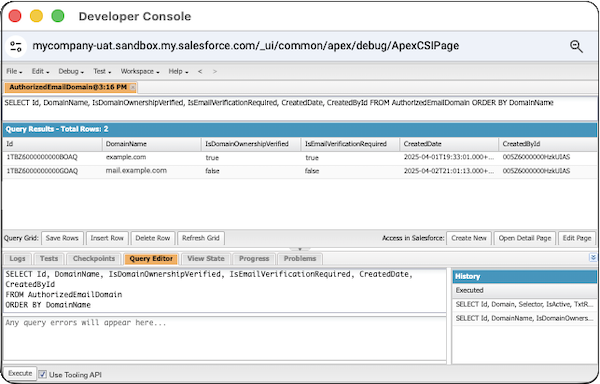
Here’s an example output of running the query to list all authorized email domains. “Use Tooling API” is selected.
Interpret Your Query Results
Use your query results to identify verified domains and act on incomplete or outdated domain configurations.
To get a list of all verified domains, combine the query results for active DKIM keys and for authorized email domains that are verified.
To identify email-sending domains for which setup is incomplete, combine the query results for inactive DKIM keys and for authorized email domains that are unverified.
-
For each query, copy the query results from the Developer Console.
There’s no export option in the Developer Console. If your query returns a large number of domains, use this method to extract the results or use REST API.
- Right-click on any record in the results grid, and then select Inspect.
-
Find the
<table>or the<div>tag that containsgrid-table.The CTRL+F (Windows) and CMD+F (Mac) shortcuts open the find dialog. - Right-click that element and select Copy, then select Copy Element.
-
For each query, paste the results into a file of your choice.
- To paste the results into an Excel spreadsheet, right-click a cell, select Paste Special, and select Unicode Text.
- If you don’t have Excel, paste the HTML table into a file and convert it to another format. AI tools can help you perform that conversion.
-
For each file, manually add the column headings.
The column headings aren’t included in the copied data.
-
Combine or compare the data.
The domain is in the
EmailDomainKeyobject Domain field and in theAuthorizedEmailDomainTooling API DomainName field.
To send email from an unverified domain, activate the DKIM key, set up an active DKIM key, or verify the authorized email domain. See Create a DKIM Key and Set Up an Authorized Email Domain.
