
You are here:
Interpret and Use Encryption Statistics
The Encryption Statistics page offers a snapshot of your encrypted data. You can use the information to help you make informed decisions about managing your encrypted data.
| Available as an add-on subscription in: Enterprise, Performance, and Unlimited Editions. Requires purchasing Salesforce Shield. Available in Developer Edition at no charge. |
| Available in both Salesforce Classic and Lightning Experience. |
The page offers three views of your encrypted data: summary cards for encrypted data categories, a field-level encryption summary panel, and an encrypted field detail view.
Summary Cards
Shield Platform Encryption encrypts some compatible databases in bulk, such as Database Encryption, search indexes and Data 360. Summary cards show encryption statistics for these databases, including whether encryption is enabled for that category of data and if that data is encrypted. When an encryption key is present, the summary cards also show the status of that key and when it was last rotated.
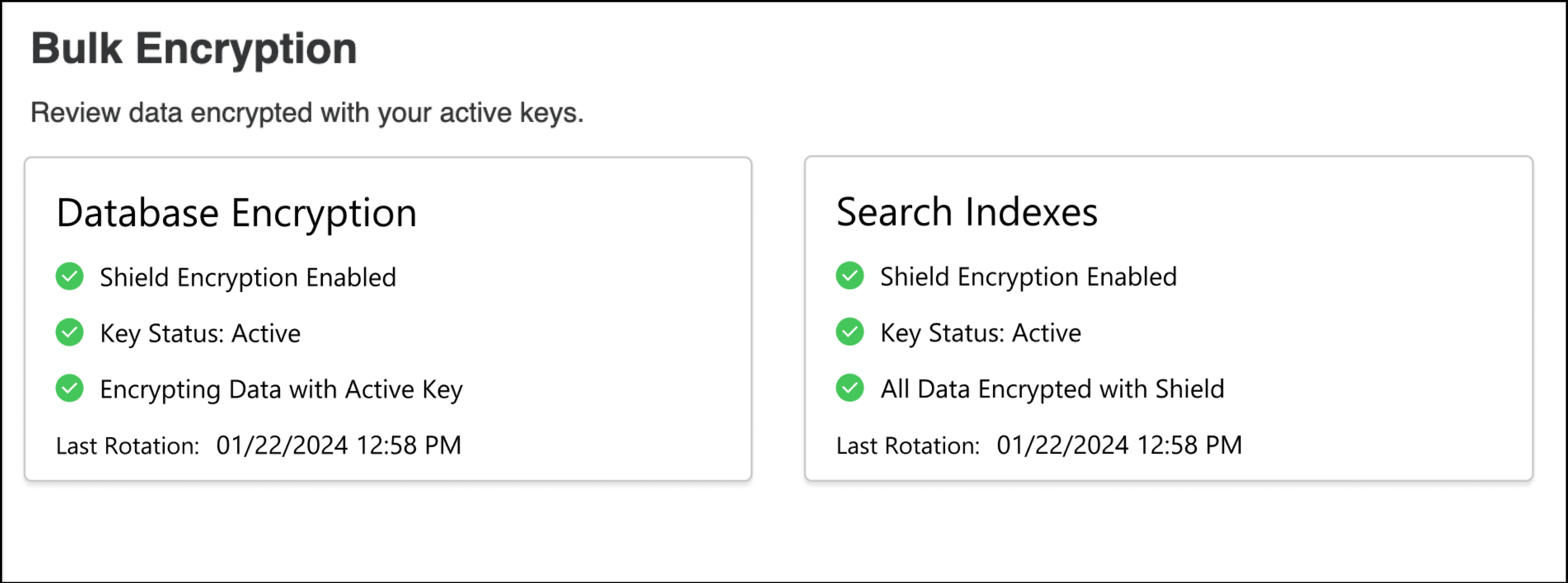
| Stage | Description |
|---|---|

Shield Encryption Enabled |
The org admin has enabled encryption for the feature. Highlighted with a green check icon. |

Shield Encryption Disabled |
The org admin has not enabled encryption for the feature. Highlighted with a gray icon. |
| Key Status | Encryption Key State
|
|
All Data Encrypted with Shield |
Highlighted with a green check icon when the encryption job is complete. |
|
Encrypting Data with Active Key |
For Database Encryption. Encryption of data is ongoing. This status is the final stage of Database Encryption after you turn it on. |

Shield Encrypting Only New Data |
Highlighted with a green circle icon. With some features, Salesforce first encrypts new data and gradually encrypts existing data. |

Preparing for Encryption with Active Key |
Highlighted with a blue process icon. Salesforce is preparing Database Encryption data for encryption. |

Retrieving Encryption Data. |
This information is being updated. This stage is temporarily highlighted with a red X. Sometimes we need up to 24 hours for complete and accurate information. |
Field-Level Encryption Summary View
The Encryption Summary View lists all your objects that contain encrypted data and statistics about the encrypted data in those objects.
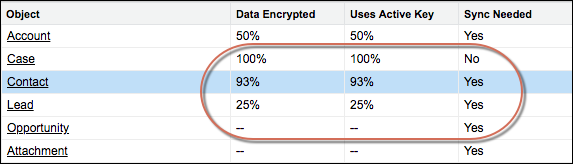
- Object—Lists your standard and custom objects. Data about standard objects are aggregated for all standard objects of a given type. Data about custom objects are listed for each custom object.
- Data Encrypted—The total percentage of data in an object that’s encrypted. In the example above, 50% of all data in Account objects is encrypted.
- Uses Active Key—The percentage of your encrypted data in that object or object type that’s encrypted with your active key material.
- Sync Needed—Recommends whether to synchronize your data with the background encryption service. This column displays Yes when you add or disable encryption on fields, change a field’s encryption scheme, or rotate key material.
When the numbers in the Data Encrypted and Uses Active Key columns are the same, and the Sync Needed column is No, all your encrypted data is synchronized. In the example above, the Case object is synchronized.
Sometimes the Sync Needed column is Yes for an object when the Encrypted Data and Uses Active Key columns have the same values. This combination of values happens when encryption policy settings or keys change since the last time that you gathered statistics or synchronized your data. This combination also happens when statistics are gathered for newly encrypted data but the object hasn’t been synchronized. In the example above, the Account, Contact, Lead, and Opportunity objects meet one or more of these conditions.
A double dash (--) means that statistics haven’t been gathered for that object or object type yet. In the example, statistics haven’t been gathered for the Opportunity and Attachment objects.
Database Encryption Statistics
A Database Encryption card shows whether Database Encryption is enabled, if it’s using an active key or not, and the date when the current Database Encryption key was activated.

Encryption Detail View
The Encryption Detail View shows statistics about the field and historical data stored in each object category. If encryption for field history and feed tracking is turned on, you can also view stats about encrypted field history and feed tracking changes.
- Fields
- The Fields tab displays data about field data in each object.
- Field—All encryptable standard and custom fields in the object that contain dataNote
Not all field data is stored in the same field that displays data in the UI. For example, some Person Account field data is stored in the corresponding Contact fields. If you have Person Accounts enabled but don’t see encrypted fields under the Account detail view, gather statistics for the Contact object and check there.
Similarly, Chatter data is stored in the Feed Attachment, Feed Comment, Feed Poll Choice, Feed Post, and Feed Revision objects. The Encryption Statistics page lists these objects and all fields that hold encrypted Chatter data in the database. Some fields listed on the Encryption Statistics page aren’t visible in the UI by the same name, but they store all encrypted data that’s visible in the UI. See Which Standard Fields Can I Encrypt? in Salesforce Help for a list of the encrypted Chatter fields.
- API Name—The API name for fields that contain data.
- Encrypted Records—The number of encrypted values stored in a field type across all objects of a given type. For example, you select the Account object and see “9” in the Encrypted Records column next to Account Name. That means there are nine encrypted records across all Account Name fields.
- Unencrypted Records—The number of plaintext values stored in a field type.
- Mixed Tenant Secret Status—Indicates whether a mixture of active and archived tenant secrets apply to encrypted data in a field type.
- Mixed Schemes— Indicates whether a mixture of deterministic and probabilistic encryption schemes apply to encrypted data in a field type.
Note For encrypted and unencrypted records:- The records count for a field doesn’t include NULL or BLANK values. A field with NULL or BLANK values can show a different (smaller) records count than the actual number of records.
- The records count for compound fields such as Contact.Name or Contact.Address can show a different (larger) records count than the actual number of records. The count includes the two or more fields that are counted for every record.
- Field—All encryptable standard and custom fields in the object that contain data
- History
- The History tab shows data about field history and feed tracking changes.
- Field—All encryptable standard and custom fields in the object that contain data.
- API Name—The API name for fields that contain data.
- Encrypted Field History—The number of encrypted field history values for a field type across all objects of a given type. For example, you select the Account object and see “2” in the Encrypted Field History column for Account Name, which means that Account Name has two encrypted field history values.
- Unencrypted Field History—The number of plaintext field history values stored for a field.
- Encrypted Feed Tracking—The number of encrypted feed tracking values stored for a field.
- Unencrypted Feed Tracking—The number of plaintext feed tracking values stored for a field.
Usage Best Practices
Use these statistics to make informed decisions about your key management tasks.
- Update encryption policies—The encryption statistics detail view shows you which fields in an object contain encrypted data. Use this information to periodically evaluate whether your encryption policies match your organization’s encryption strategy.
- Rotate keys—To encrypt all your data with your active key material, review the encryption summary pane on the left side of the page. If the Uses Active Key value is lower than the Data Encrypted value, some of your data uses archived key material. To synchronize your data, click the Sync button or contact Salesforce Customer Support.
- Synchronize data—Key rotation is an important part of any encryption strategy. When you
rotate your key material, apply the active key material to existing data. To synchronize
your data with your active key, click the Sync button.
If self-service background encryption is unavailable, review the Uses Active Key and Mixed Tenant Secret Status columns to identify any fields that include data encrypted with an archived key. Make a note of these objects and fields, then contact Salesforce Customer Support to request the background encryption service. Salesforce Customer Support can focus just on those objects and fields that you want to synchronize, keeping the background encryption process as short as possible.
