
Manage Trusted URL and Browser Policy Violations
To protect your users, two allowlists specify the URLs that you trust to load resources in Salesforce and the trusted URLs for redirections. Review blocked redirections and the resource requests that your content security policy (CSP) directives blocked. Then, to allow the required resources, update your trusted URLs.
Required Editions
| Available in: Salesforce Classic and Lightning Experience |
| Available in: Enterprise, Performance, Developer, and Unlimited Editions |
| User Permissions Needed | |
|---|---|
| To view, filter, and delete Trusted URL and Browser Policy violations: | Customize Application AND Modify All Data |
| To create, read, update, and delete trusted URLs: | Customize Application AND Modify All Data |
| To edit session settings: | Customize Application |
| Access the Blocked Redirect or CSP Violation event type object: | View Event Log Files and API Enabled OR View All Data |
Work the Trusted URL and Browser Policy Violations List
To manage blocked redirections and CSP violations, use the Trusted URL and Browser Policy Violation List in Setup.

-
In Setup, find and select Trusted URL and Browser Policy
Violations.
The Trusted URL and Browser Policy Violations list includes an entry for each unique violation that occurred within the last seven days. For example, if Salesforce blocks a redirection to https://www.example.com and then Salesforce blocks and records an attempt to load https://www.example.com in an iframe, those events each get one entry on the list. However, multiple attempts to redirect a user to https://www.example.com are logged as only one violation.
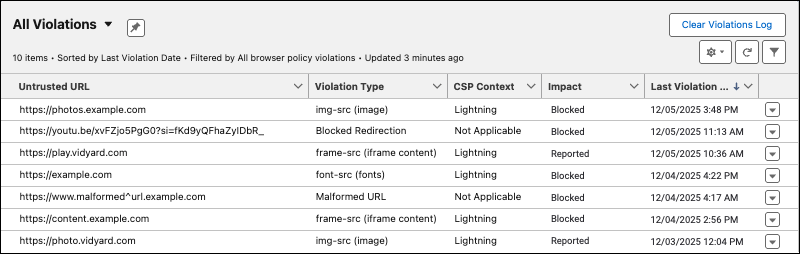
The list includes these columns.
- Untrusted URL
- The URL associated with the request. For blocked redirections, this field
includes the path. For example,
https://downloads.example.com/42AX58Q91.pdf. For CSP violations, the path isn't included. For example, if a blocked requested resource is an image with the URL https://www.example.com/images/image1.png, the URL on the CSP Violations list is https://www.example.com. - Violation Type
- Column name: Violation Type. The violation type. Possible values are:
- Blocked Redirection—At least one redirection to this URL was blocked because the blocked URL isn’t on the Trusted URLs for Redirects allowlist.
- img-src (image)—At least one request to load an image file from the URL was blocked, because the untrusted URL isn’t on the Trusted URLs allowlist with the img-src CSP directive.
- font-src (fonts)—At least one request to load a font from the URL was blocked, because the untrusted URL isn’t on the Trusted URLs allowlist with the font-src CSP directive.
- frame-src (iframe content)—At least one request to load content in an iframe that originated from the URL was blocked, because the untrusted URL isn’t on the Trusted URLs allowlist with the frame-src CSP directive.
- Malformed URL—At least one redirection to this URL was blocked because the target URL failed a syntax check. Examples of malformed URLs that fail a syntax check are https://malformed^url.example.com and https://mydomain.lightning.force.com/$test61'3.
- CSP Context
- The CSP context for the request. The context controls which pages can load
content from this trusted URL.
CSP violations in the list are always related to a Lightning Experience page. Those violations have a CSP context of
Lightning. For blocked redirections, the CSP context is alwaysNot Applicable. - Impact
- Salesforce occasionally enables the
Content-Security-Policy-Report-Onlyheader to help you identify potential violations if you adopt stricter CSP configurations. Those conditional violations are recorded as report-only until the stricter policies are enabled. - Distinguish between enforced and reported violations with the impact field.
- Blocked—The policy was enforced and prevented the resource from loading. The impact of blocked redirections and malformed URLs is always Blocked.
- Reported—The resource request is blocked only when stricter CSP settings are configured. For example, some resource requests associated with the frame-src (iframe content), font-src (fonts), and img-src (image) violation types aren’t blocked unless the Adopt updated CSP directives setting is enabled in Session Settings.
- In orgs created in Spring ’26 and later, the Impact field is on the list view by default. In orgs created before Spring ’26, add the field to the list view.
- Last Violation Date
- The latest recorded date of a violation for this untrusted URL, violation type,
and CSP context.
This field is updated daily.
-
To remove an item from the Trusted URLs and Browser Policy Violations list, click
 , and then select Delete.
When you remove an item from the Trusted URLs and Browser Policy Violations list, no change is made to your trusted URL allowlists. Only the logged event is removed. If your allowlists still block those requests or redirections, a new entry appears on the violations list the next time a matching request occurs.
Note To help you manage the list, a daily process deletes violations that haven’t occurred within the last seven days. To track violations over time, schedule daily queries of the Blocked Redirect and CSP Violations event types. - To clear the logged violations for all URLs, click Clear Violations Log, and then confirm your decision.
Manage CSP Violations
Content Security Policy (CSP) directives control the types of resources that Lightning components, third-party APIs, and WebSocket connections can load from each trusted URL. A CSP violation occurs when a resource request from a Lightning Experience page is blocked based on the CSP directives for your Trusted URLs.
-
To view only content security policy (CSP) violations, filter the list on the
violation type.
 Tip For quick access, create a custom list view with this filter.
- In Setup, find and select Trusted URL and Browser Policy Violations.
- Filter the list.
- For Field, select Violation Type.
- For Operator, select equals.
- In the Value field, select img-src (image), frame-src (iframe content), and font-src (fonts).
- Click Done, then save the filter.
-
To get information about all blocked resource requests from Lightning Experience
pages based on your content security policy, use the CSP Violation event type
object.
The CSP Violation event type captures all blocked and potentially blocked resources based on your CSP settings. That event type also captures violations of CSP directives that don’t appear in the Trusted URL and Browser Policy Violation list. For example, violations of the
media-src(audio and video) and thestyle-src(style sheets) directives.See CSP Violation Event Type in Object Reference for the Salesforce Platform.
Tip The CSP Violation event is available at no extra cost for all customers with a 24-hour data retention period. The event is available in the API but not in the Event Monitoring Analytics app. To collect details for CSP violations over multiple days, schedule a daily query of the CSP Violation event type via REST API. -
To allow a CSP directive for a URL, add the untrusted URL to the Trusted URLs
allowlist.
-
On the Trusted URL and Browser Policy Violations list, note the untrusted URL,
violation type, and CSP context.
The violation type is the CSP directive.
- From Setup, in the Quick Find box, enter Trusted URLs, and then select Trusted URLs.
- On the Trusted URLs Setup page, check for an existing entry for the URL and context.
-
Either edit the existing trusted URL or add a new trusted URL and select the CSP
directives to allow.
See Manage Trusted URLs.
- To verify the change, test the Lightning page that loads the font, image, or framed content. Or set up a test Lightning page that loads the previously blocked resource from the newly trusted URL.
-
On the Trusted URL and Browser Policy Violations list, note the untrusted URL,
violation type, and CSP context.
-
To use the latest CSP directives delivered in Salesforce-authored code, enable a
session setting.
Some of the resource requests associated with trusted URL violations with a type of frame-src (iframe content), font-src (fonts), or img-src (image) aren’t blocked unless a session setting is enabled.
If your org was created in Summer ’24 or later, this setting is enabled by default.
-
To review the resource requests that are blocked with this change, look for
violations with an Impact of Reported.
If you scheduled a query of the CSP Violations Event Type to collect details about violations over multiple days, then resource requests impacted by this change have a DISPOSITION of
reportin that event log. See CSP Violation Event Type in Object Reference for the Salesforce Platform. - To block the resource requests associated with these violations, in Setup, find and select Session Settings. Then select Adopt updated CSP directives and save your changes.
-
To review the resource requests that are blocked with this change, look for
violations with an Impact of Reported.
Manage Blocked Redirections
The violations list captures blocked redirections from Salesforce to untrusted URLs and malformed URLs. However, not every blocked redirection is logged. To understand which redirections are blocked and logged, see External Redirection Restrictions in Salesforce.
-
To view only blocked redirections to valid URLs, filter the list view.
- In Setup, find and select Trusted URL and Browser Policy Violations.
- Filter the list.
- For Field, select Violation Type.
- For Operator, select equals.
- For Value, select Blocked Redirection.
-
To view only blocked redirections to malformed URLs, filter the list view.
Examples of malformed URLs that fail a syntax check are https://malformed^url.example.com and https://mydomain.lightning.force.com/$test61'3.
- Filter the list.
- For Field, select Violation Type.
- For Operator, select equals.
- For Value, select Malformed URL.
-
To get more information about a blocked redirection, including where the redirection
originated, use the Blocked Redirect event type object.
-
To locate where the blocked redirection originated, use the ORIGIN
field.
For example, if a form on an Experience Cloud Visualforce site page redirects a user to an untrusted URL via the
saveURLparameter, then ORIGIN contains the base URL of that site.
See Blocked Redirect Event Type in Object Reference for the Salesforce Platform
Tip The Blocked Redirect event is available at no extra cost for all customers with a 24-hour data retention period. The event is available in the API but not in the Event Monitoring Analytics app. To collect details for blocked redirections over multiple days, schedule a daily query of the Blocked Redirect event type via REST API. -
To locate where the blocked redirection originated, use the ORIGIN
field.
-
To search for blocked redirections to other Salesforce orgs, filter the list on the
Untrusted URL field with the contains operator and a comma-delimited list of these top-level
domains.
An example of a blocked redirection to another Salesforce org is when a user clicks a link in a sandbox that includes a redirection to a production URL.
- Filter the list.
- For Field, select Untrusted URL.
- For Operator, select contains.
- For Value, enter .force.com, .forceusercontent.com, .force-user-content.com, .salesforce.com, .salesforceliveagent.com, .salesforce-experience.com, .salesforce-hub.com, .salesforce-scrt.com, .salesforce-setup.com, .salesforce-sites.com, .sfdcopens.com, .site.com, .trailhead.com.
To understand where each of these domains is used, see Allow the Required Domains. -
To search for redirections to legacy Salesforce host names, apply a filter on the
Untrusted URL field with the contains operator and a comma-delimited list of these top-level
domains.
Legacy host names were used in orgs without enhanced domains. If your org was created in July 2022 or later, your org had enhanced domains by default. For more information, see Prepare for the End of Redirections for Non-Enhanced Domains.
- Filter the list.
- For Field, select Untrusted URL.
- For Operator, select contains.
- For Value, enter .documentforce.com, .lightning.com, .salesforce-communities.com, .sfdc.sh.visualforce.com.
To understand where each of these domains is used, see Allow the Required Domains. -
To allow a blocked redirection, add the untrusted URL to the Trusted URLs for Redirects
allowlist.
-
Before you allow a blocked redirection, review and validate the URL.
The Blocked Redirection violation type includes attempted redirections to malformed URLs. Examples of malformed URLs include https://mydomain.lightning.force.com/&/'"teste-efx-15, which contains invalid characters in the path, and Set-Cookie:cookie1=cookie1, which isn’t a valid method to set a cookie as part of a redirection.
- On the Trusted URL and Browser Policy Violations list, note the untrusted URL.
- From Setup, in the Quick Find box, enter Trusted URLs for External Redirects, and then select Trusted URLs for External Redirects.
- Click New URL.
- Enter the URL, and save your changes.
- Test your changes. See Test External Redirections.
-
Before you allow a blocked redirection, review and validate the URL.
