
Manage Trusted URLs
Specify the URLs that you trust to interact with your users and network. Use Content Security Policy (CSP) directives to control the types of resources that Lightning components, third-party APIs, and WebSocket connections can load from each trusted URL. If you enabled the Permissions-Policy HTTP header in Session Settings, you can also control which URLs can access browser features from Salesforce.
Required Editions
| Available in: Salesforce Classic and Lightning Experience |
| Available in: Enterprise, Performance, Developer, and Unlimited Editions |
| User Permissions Needed | |
|---|---|
| To create, read, update, and delete trusted URLs: | Customize Application AND Modify All Data |
For each trusted URL in Setup, you can specify CSP directives and Permissions-Policy directives. To specify the external URLs to which users can be redirected from Salesforce, see Manage Redirections to External URLs. To allow external sites to load your Visualforce pages or surveys in an inline frame (iframe), see Specify Trusted Domains for Inline Frames.

After each update to your Trusted URLs, check the CSP header size of the related pages. Some infrastructure limits the maximum size of HTTP headers. If you allow multiple domains to frame content served by your org, keep the size of the CSP header under 12 KB. Salesforce customers report issues when the header size approaches 16 KB, and third parties often add to the header during processing.
Add or Edit a Trusted URL
For each trusted URL in Setup, you can specify Content Security Policy (CSP) directives and Permissions-Policy directives.
-
From Setup, in the Quick Find box, enter Trusted URLs, and then
select Trusted URLs.
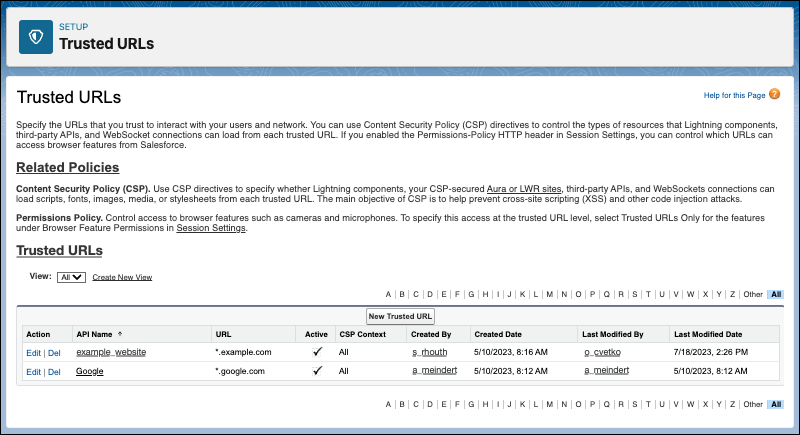
- To add a new trusted URL, click New Trusted URL.
- To edit an existing trusted URL, click Edit.
-
If you’re adding a trusted URL, enter the API Name.
Enter only underscores and alphanumeric characters. The name must be unique, begin with a letter, not include spaces, not end with an underscore, and not contain two consecutive underscores.
If you edit the API name of an existing trusted URL, review your code and update references to the previous API name.
-
Edit or enter the URL.
The trusted URL must include a domain name and can include a port. For example, https://example.com or https://example.com:8080.
To reduce repetition, you can use the wildcard character * (asterisk). For example, *.example.com.
For a third-party API, the URL must begin with https://. For example, https://example.com.
For a WebSocket connection, the URL must begin with wss://. For example, wss://example.com.
The host section of the URL can include an asterisk (
*) as a wildcard. Otherwise, the URL cannot be malformed. Examples of malformed URLs that fail a syntax check are malformed^url.example.com, and https://{subdomain}.example.com.Note Before February 2025, it was possible to save a malformed URL. Malformed URLs are excluded from generated CSP HTTP headers. To keep your Trusted URLs list accurate, remove any malformed entries. You can use an Apex class to find all malformed URLs. See the knowledge article, Identify Malformed Trusted URLs. - Optionally, enter or edit a description for the trusted URL.
- Optionally, to temporarily disable this trusted URL, deselect Active.
- Specify at least one CSP directive or permissions policy directive for the trusted URL, and then save your changes.
Specify CSP Directives for a Trusted URL
To help prevent cross-site scripting (XSS) and other code injection attacks, the Lightning component framework uses Content Security Policy (CSP) to impose restrictions on content. By default, the framework’s headers allow content to be loaded only from secure (HTTPS) URLs and forbid XHR requests from JavaScript. To use third-party APIs that make requests to an external (non-Salesforce) server or to use a WebSocket connection, add the server as a Trusted URL.
To enable the corresponding access for Apex, create a remote site.
-
From Setup, in the Quick Find box, enter Trusted URLs, and then
select Trusted URLs.
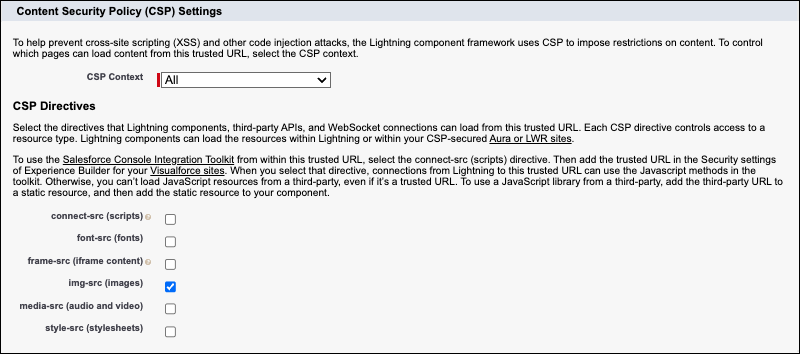
You define the CSP context and directives in the Content Security Policy (CSP) Settings section of the Trusted URL page.
-
To control which pages can load content from this trusted URL, select the CSP
context.
- To apply the CSP directives to all supported context types, select All. This context is the default.
- To apply the CSP directives to Experience Cloud sites only, select Experience Builder Sites.
- To apply the CSP directives to Lightning Experience pages only, select Lightning Experience pages.
- To apply the CSP directives to your custom Visualforce pages only, select Visualforce Pages.
For custom Visualforce pages, content is restricted to CSP Trusted Sites only if the page’s
cspHeaderattribute is set totrue. Tip To specify CSP directives for one URL with two of the three CSP contexts, create two trusted URL records with different API names.
 -
Select the CSP directives for this trusted URL. Each CSP directive controls access to a
resource type. Lightning components can load the resources within Lightning or within your
CSP-secured Aura or LWR sites.
Note The CSP HTTP header size can't exceed 512,000 characters for the Experience Builder Sites context. The same limitation applies to the Lightning Experience Pages context.
-
To allow Lightning components, third-party APIs, and WebSocket connections to load URLs
that use script interfaces from this trusted URL, select connect-src
(scripts).
To use the Salesforce Console Integration Toolkit from within a trusted URL, also add the trusted URL in the Security settings of Experience Builder for your Visualforce sites. Otherwise, you can’t load JavaScript resources from a third party, even if it’s a trusted URL.
To use a JavaScript library from a third party, add the library to a static resource, and then add the static resource to your component.
- To allow Lightning components, third-party APIs, and WebSocket connections to load fonts from this trusted URL, select font-src (fonts).
-
To allow Lightning components, third-party APIs, and WebSocket connections to load
resources contained in
<iframe>elements from this trusted URL, select frame-src (iframe content). - To allow Lightning components, third-party APIs, and WebSocket connections to load images from this trusted URL, select img-src (images). This option is enabled by default.
- To allow Lightning components, third-party APIs, and WebSocket connections to load audio and video from this trusted URL, select media-src (audio and video).
- To allow Lightning components, third-party APIs, and WebSocket connections to load style sheets from this trusted URL, select style-src (stylesheets).
-
To allow Lightning components, third-party APIs, and WebSocket connections to load URLs
that use script interfaces from this trusted URL, select connect-src
(scripts).
Grant a Trusted URL Access to Browser Features
Select the permissions policy directives for a trusted URL. Each directive grants the trusted URL access to a browser feature.
To use this feature, enable the Permissions-Policy header in Session Settings. You can control access to a browser feature at the trusted URL level only when access for the corresponding feature is set to Trusted URLs Only in Session Settings.
-
Add or edit a trusted URL.
You grant access to browser features in the Permissions Policy Directives section of the Trusted URL page.

- To grant this trusted URL permission access to the user’s camera, select camera.
- To grant this trusted URL permission access to the user’s camera, select microphone.
