
You are here:
Create Survey Data Maps to Create or Update Records
Incorporate feedback into your Salesforce org by creating data maps that automatically create or update case or other records based on a participant's responses.
Required Editions
| Available in: both Salesforce Classic and Lightning Experience |
| Available in: Enterprise, Unlimited, and Developer Editions |
| Available with the Feedback Management - Starter and Feedback Management - Growth licenses |
| User Permissions Needed | |
|---|---|
| To create or update data maps: |
|
| To view data maps: | Read permission for the Survey object |
- In the Survey Builder, click Advanced Settings, and then select Survey Data Mapping.
- Click Add Data Map.
 Note You can create up to 20 data maps for a survey.
 - Name the mapping.
- Select whether to create or update records.
- From the Target Object dropdown, select the object whose records you want to create
or update.
- You can create records for any object in your Salesforce org.
- You can update records of objects that are associated with the survey invitation records and survey response records of any object that Survey Subjects supports.
- Define the target object's fields and values.
- Select a Field.
- If the Information Type is String, Picklist, Boolean, Currency, Date, or DateTime, define a constant Value.
- If the Information Type is Response to Question, select a question whose response is
populated. If the participant doesn't respond to a question, the field mapped to the question
remains blank. You can only map question types that are supported for each field type.
Field Type Supported Question Types Address Short Text and Long Text Currency Scoring, Net Promoter Score, Slider, Rating, Short Text, and Long Text Date Date DateTime Date Double Scoring, Net Promoter Score, Slider, Rating, Short Text, and Long Text Email Short Text and Long Text ID Short Text and Long Text Int Scoring, Net Promoter Score, Slider, Rating, Short Text, and Long Text Long Scoring, Net Promoter Score, Slider, Rating, Short Text, and Long Text MultiSelectPicklist Picklist and Single Selection Percent Scoring, Net Promoter Score, Slider, Rating, Short Text, and Long Text Phone Short Text and Long Text Picklist Picklist and Single Selection String Scoring, Net Promoter Score, Slider, Rating, Short Text, Long Text, Picklist, and Single Selection URL Short Text and Long Text Note You can't map responses to multiple selection questions and ranking questions. - If the Information Type is Associated Record ID, select the ID of the record that is associated with the survey invitation. If multiple records are associated with a survey invitation, the ID of the latest association is populated.
- If the Information Type is Associated Record, select a field value from the associated record configured as merge field.
- If the Information Type is Invitation Field, select a field value from the invitation record.
- If the Information Type is Participant Record, select a field value from the participant
record configured as merge field. You can only map merge field values of associated
records and participant records that are supported for each field type.
Field Type Associated Record - Supported Merge Fields Value Type Participant Record - Supported Merge Fields Value Type Address - Address
- String
- Text area
- Int
- Long
- Reference
- Address
- String
- Text area
- Int
- Long
- Reference
Boolean Boolean Boolean Currency - Currency
- Int
- Double
- Currency
- Int
- Double
Date Date Date DateTime Date time Date time Double Double Double Email Email Email ID - String
- ID
- String
- ID
Int Int Int Long - Long
- Int
- Long
- Int
MultiSelectPicklist None None Percent Percent Percent Phone - String
- Int
- Long
- Phone
- String
- Int
- Long
- Phone
Picklist None None String All All Text Area All All Time None None URL - URL
- String
- Int
- Long
- URL
- String
- Int
- Long
- If the Information Type is Custom Variable, select a predefined value. You can only map
merge field values of custom variables that are supported for each field type.
Field Type Supports Custom Variables? Address Yes Boolean No Currency No Date No DateTime No Double No Email No ID Yes Int No Long No Multipicklist No Percent No Phone Yes Picklist No String Yes Text Area Yes Time No URL Yes - If the Information Type is Org Variable, select predefined values about your company. You
can only map merge field values of org variables that are supported for each field
type.
Field Types Supported Organization Variables Address All Boolean None Currency None Date None DateTime None Double - Latitude
- Longitude
Email None ID None Int - Latitude
- Longitude
Long - Latitude
- Longitude
Multipicklist None Percent - Latitude
- Longitude
Phone All Picklist None String All Text Area All Time None - If the Information Type is Last Modified Timestamp, select the latest data map execution timestamp that you want to add to a record.
- If the Information Type is Existing Map, map the ID of the record created or updated by the previous map. You can map an existing map only when your data map is used to create records.
- To add another mapping row, click Add Row.
- Select the Condition Type.
- To always create or update records from responses, select Every time.
- To define rules that determine when to create or update records, select Based
on conditions, and then define the conditions.
- Select whether to create or update records for all or any conditions that you define.
- Select a Logic Type.
- Response to Question—Defines the condition based on responses to questions in the survey.
- Response Field—Defines the condition based on the value of the selected field in the Survey Response object.
- Invitation Field—Defines the condition based on the value of the selected field in the Survey Invitation object.
- Associated Record—Defines the condition based on the value of the associated object merge field.
- Participant Record—Defines the condition based on the value of the participant object merge field.
- Custom Variable—Defines the condition based on the value of the custom variable merge field.
- Org Variable—Defines the condition based on the value of the org variable merge field.
- Select an Operator.
- Select a response or enter a value that validates the condition.Note The values of merge fields show as API names. For example, the value of an owner name field appears as OwnerId.
- To define another condition, click Add Condition.
- Save the mapping and the survey.
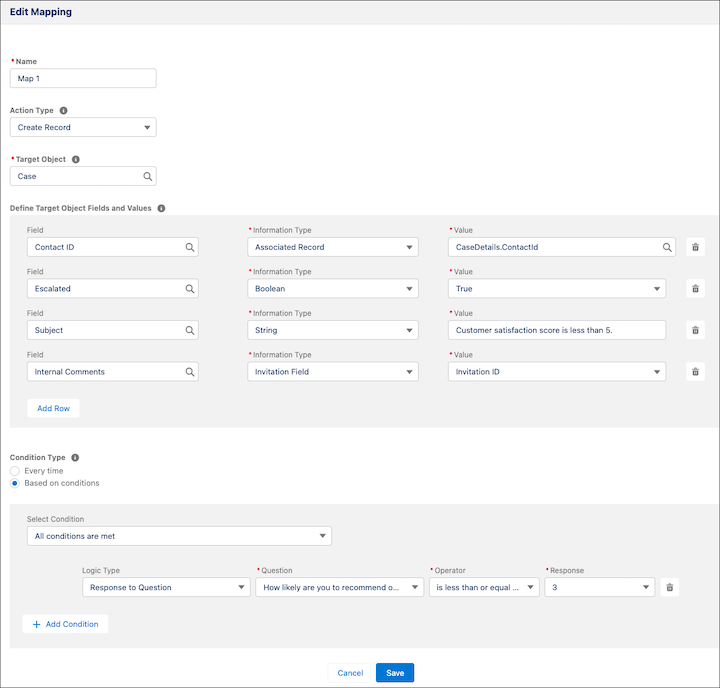

Example Every year, a solar panel manufacturer shares a survey to gather customer satisfaction
scores and to check if their solar panels require servicing.
- Score question: How likely are you to recommend our solar panels to your colleagues and friends?
- Follow-up long text question: Tell us the reasons for the Net Promoter Score (NPS).
- Single selection question: Does your solar panel require servicing?
The survey contains two data maps. One map creates a case record when a customer provides a score of 3 or less. The other map creates a task record when a customer indicates that their solar panel requires servicing. Here's how some of the fields are mapped in each data map.
- In the data map that creates the case records:
- The Contact ID of the participants is mapped to the Contact ID of the case.
- The Escalated field is mapped to True.
- The Subject field is mapped to the constant value: Customer satisfaction score is less than 5.
- The Description field is mapped to the response to the follow-up question asking about the reasons for the customer satisfaction score.
- The Internal Comments field is mapped to the Survey Invitation ID.
- In the data map that creates the task records:
- Related to ID field is mapped to the ID of the case created by the previous data map.
- The Subject field is mapped to the constant value: Solar Panel requires servicing.
- The Status field is mapped to Not Started.
- Timeline View for Survey Responses
Configure Timeline in a data map to get a comprehensive and chronological view of survey responses. For example, you can create timelines for the Contact object to monitor survey responses with a low net promoter score. You can enable Timeline for standard objects and custom objects. - Alerts for Survey Responses
Use Record Alerts in a data map to monitor updates in records based on survey responses. For example, if a customer gives a low rating for a support agent, Record Alerts can be defined to notify the agent about the survey response immediately. You can see Record Alerts on the Alerts component in the service console.
Did this article solve your issue?
Let us know so we can improve!
