
Loading
Salesforce Feedback Management
Table of Contents
Select Filters

          No results
          No results
          Here are some search tips

          Check the spelling of your keywords.
          Use more general search terms.
          Select fewer filters to broaden your search.

          Search all of Salesforce Help
          Capture Responses from Partially Completed Surveys

          Capture Responses from Partially Completed Surveys

          Participants sometimes exit before they complete the survey. Let participants pick up right where they left off by saving their in-progress work. The response status changes from Started to Partially Completed after the partial save window period, and the partial responses are stored in survey objects. Responses are saved when the participant clicks the Next button on a page. For surveys with auto-progress enabled, responses are saved up to the second-to-last page visited. Partial save isn't available for surveys with all questions on a single page.
          Required Editions

          Available in: Available in: Salesforce Classic and Lightning Experience
          Available in: Enterprise, Unlimited, and Developer Editions
          Available in: Feedback Management - Starter and Feedback Management - Growth licenses
          User Permissions Needed
          To capture responses from partially completed surveys Permissions to create surveys
          1. From the App Launcher, find and select Surveys.
          2. Start a new survey.
          3. Enter a name for the survey and then select a survey type.
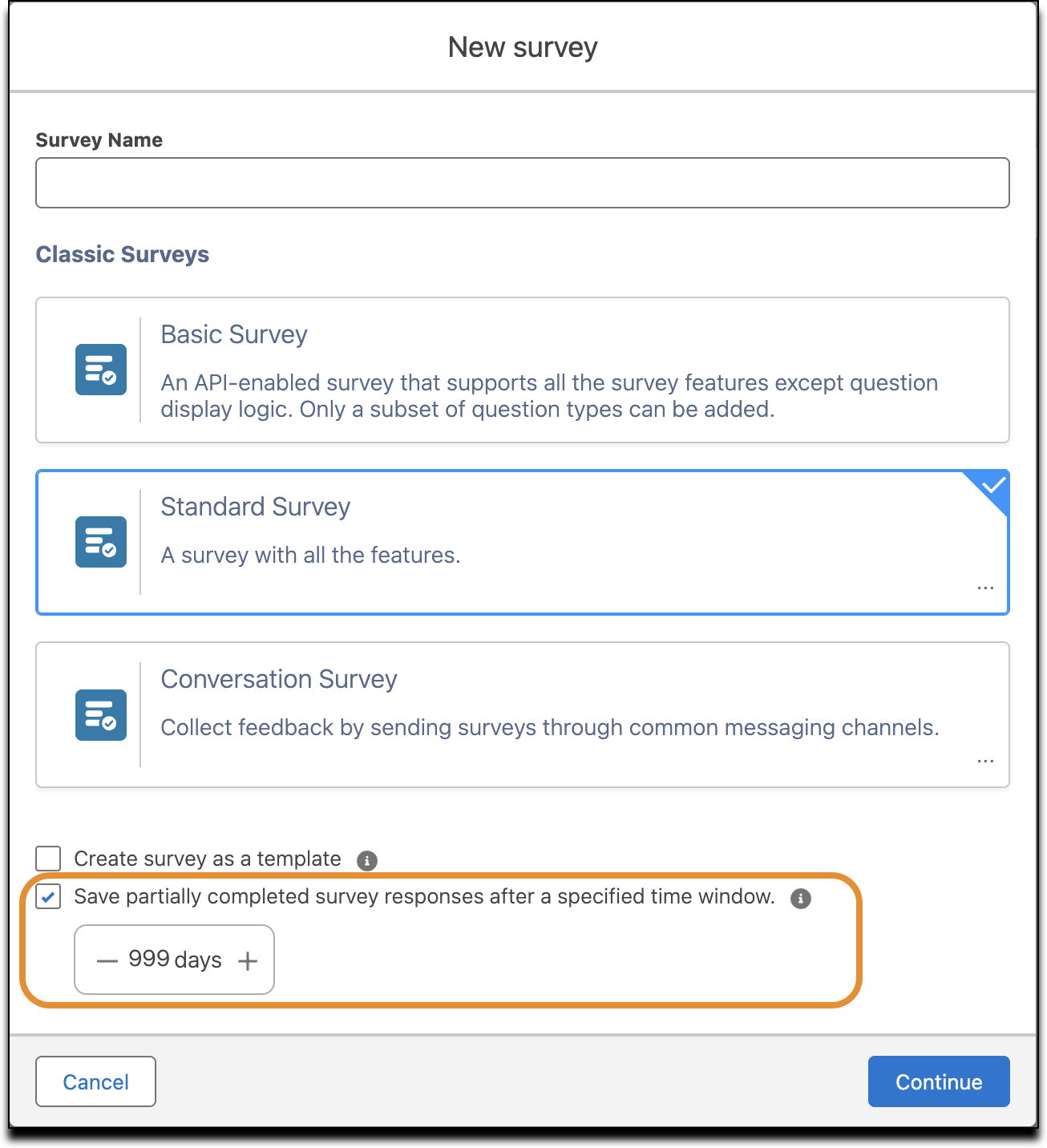
          4. Select Save partially completed survey responses after a specified time window and set a time window between 1 and 999 days.
          5. Edit the welcome page, add questions, and include a thank-you message.
          6. Save your work.
          7. To see how the survey looks, click Preview.
          8. To finish the survey so that you can send it to participants, click Activate.
          9. To view responses for partially completed surveys, from the Related tab, click the dropdown next to a survey invitation, and select View Responses.
          Partial Survey Settings while creating a new survey.

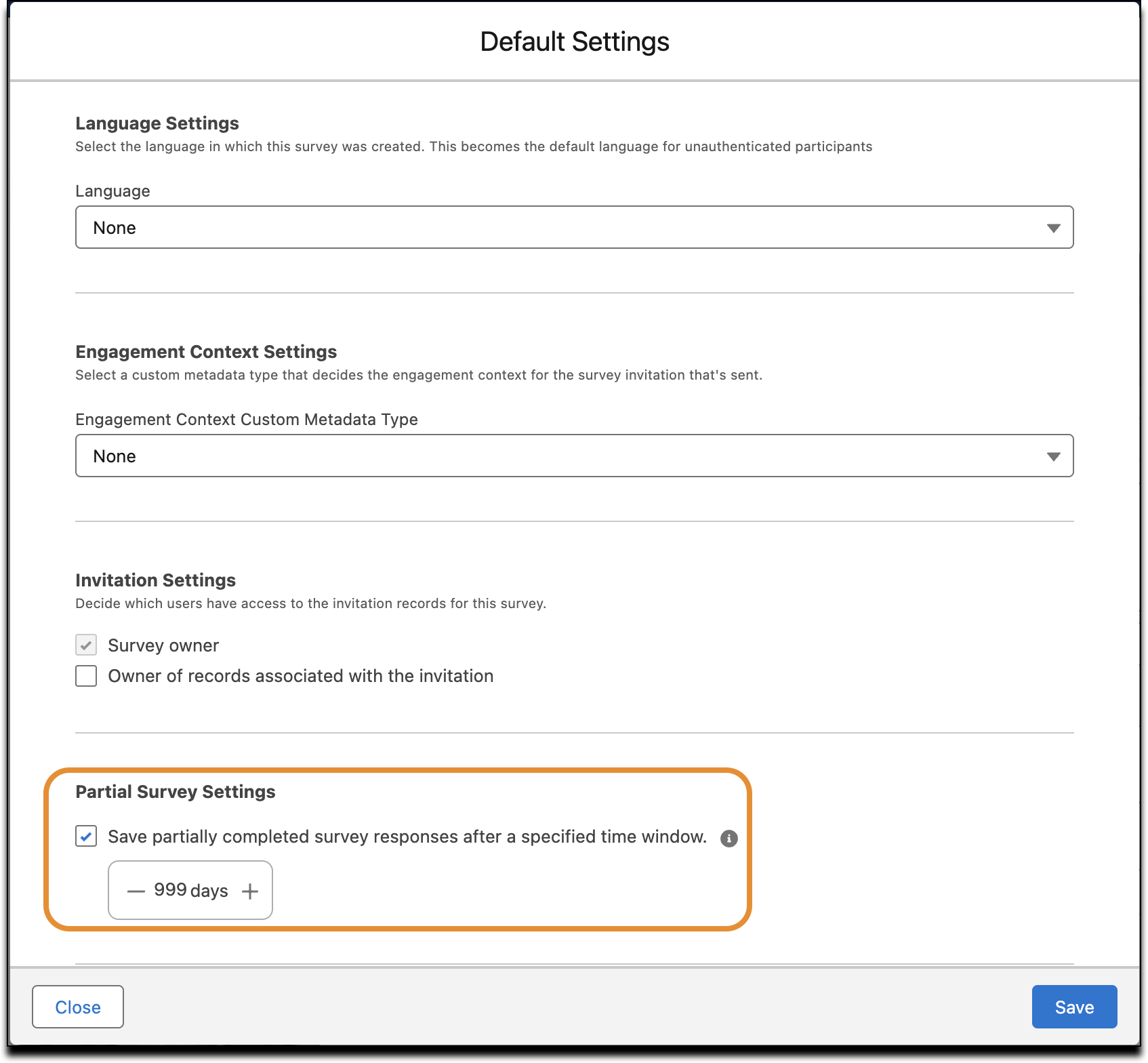
          Partially completed survey responses aren't saved for survey invitations created before you enabled the setting. You can select or deselect the option to save partially completed surveys even after the survey has been activated. After you create the survey, you can update the partial survey settings from Default Settings in the Survey Builder.

          Partial Survey Settings in the Default Settings for a survey.

          Partially completed survey responses are automatically saved for unauthenticated guest users. Guest users can’t resume a survey. Previously, responses were saved only for authenticated users.

          Partial survey responses aren't the same as paused responses. Unlike partial responses, paused responses aren't stored in survey objects.

           
          Loading
          Salesforce Help | Article