
You are here:
Create Scheduled Reminders
Keep users informed about upcoming and past occurrences through scheduled reminders sent via emails.
Required Editions
| Available in: Enterprise, Unlimited, and Developer Editions |
| Available with the Industries Scheduled Reminders license |
| User Permissions Needed | |
|---|---|
| To create Scheduled Reminders: | Manage Scheduled Reminders |
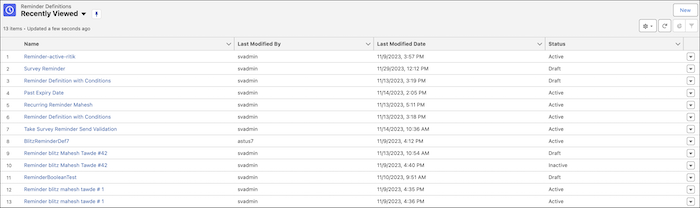
- From the App Launcher, find and select Reminder Definitions.
- Click New.
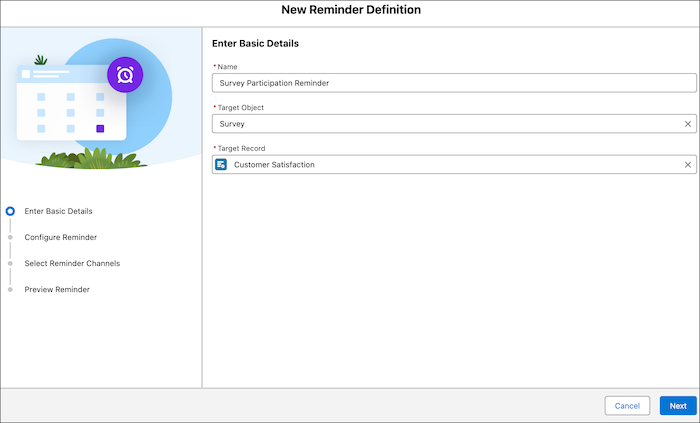
- Enter a name for the reminder and select a target object.
-
Search for and select a target record.
-
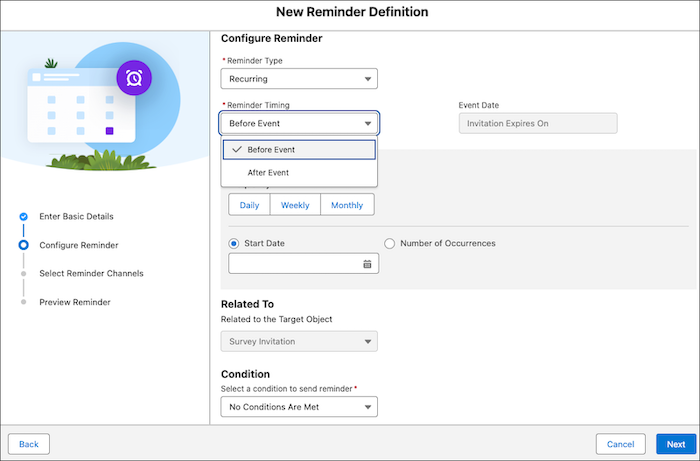
Select a reminder type.
Recurring Send repeated reminders at regular intervals. Non-Recurring Send one-time reminders. -
Select a reminder timing.
Before Event Send reminders before the event. After Event Send reminders after the event. The Event Date field is automatically filled.
-
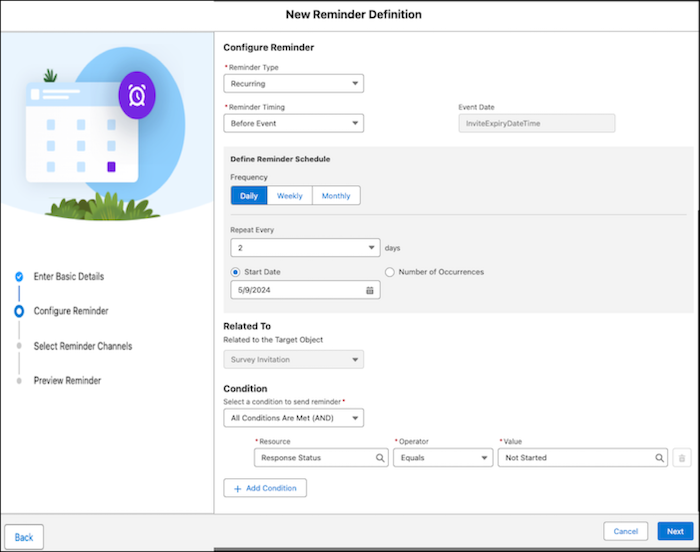
If you selected recurring as the reminder type, then define the frequency of the
reminder.
Daily Define the days on which the reminder repeats. For example, every day, every alternate day, and every third day. Weekly Define the days of the week on which the reminder repeats. For example, every Monday, Wednesday, Friday of every week, every Monday and Thursday, or every alternate week. Monthly Define which day of the month a reminder repeats. For example, the first Monday of every month or the fifth day of every month. End Date Define the end date for the recurrence period for an after event reminder, if necessary. Start Date Define the start date for the recurrence period for a before event reminder, if necessary. Number of Occurrences Define the number of times the reminder repeats if necessary. - If you selected non-recurring as the reminder type, then select the number of reminders to send and the interval for the reminders.
-
Define the conditions to send the reminder.
-
Select one of the values from the picklist.
Option Description All Conditions Are Met (AND) Applies when all the conditions must be met
Any Condition Is Met (OR) Applies when any one condition must be met
No Conditions Are Met Applies when none of the specified conditions need to be met
- Resource: The field used as a parameter for filtering records. For example, Contact ID.
- Operator: The operator decides how records are filtered. For example, Not Equals.
- Value: The value based on which records are filtered. For example, True.
- Add Condition: Used to define another condition.
-
Select one of the values from the picklist.
-
Click Next and then Next again.
 Note Currently, you can send reminders only through email.
 - In the Sender field, select the sender's email address.
- Search for and then select an email template for the reminder.
- To pause creating the reminder and continue working on it later, click Save.
- To finish the reminder so that you can send it, click Save & Activate.
Note To send survey emails, verify the sender email domain. If you don't verify the domain,
the emails aren't sent.
Did this article solve your issue?
Let us know so we can improve!
