You are here:
Create Summaries from Survey Responses
Generate summaries of survey responses using generative AI to gather feedback and valuable insights. Use data maps to automatically create or update records, or send custom notifications whenever a summary is generated.
| Available in: Lightning Experience |
| Available in: Enterprise, Unlimited, and Developer Editions with the Einstein for Service add-on |
| Available with the Feedback Management - Starter and Feedback Management - Growth licenses |
To use generative AI to create survey response summaries, first turn on Einstein Generative AI.
Enable AI-Generated Surveys
Allow your users to create survey response summaries automatically using Generative AI.
Define Configurations for Survey Response Summaries
Select the settings to activate the preferences for creating survey response summaries with Generative AI.
Create Survey Response Summaries with Generative AI
Create summaries of survey responses to gather valuable insights from your target audience.
- In the Survey Builder, click Advanced Settings, and then select Survey Data Mapping.
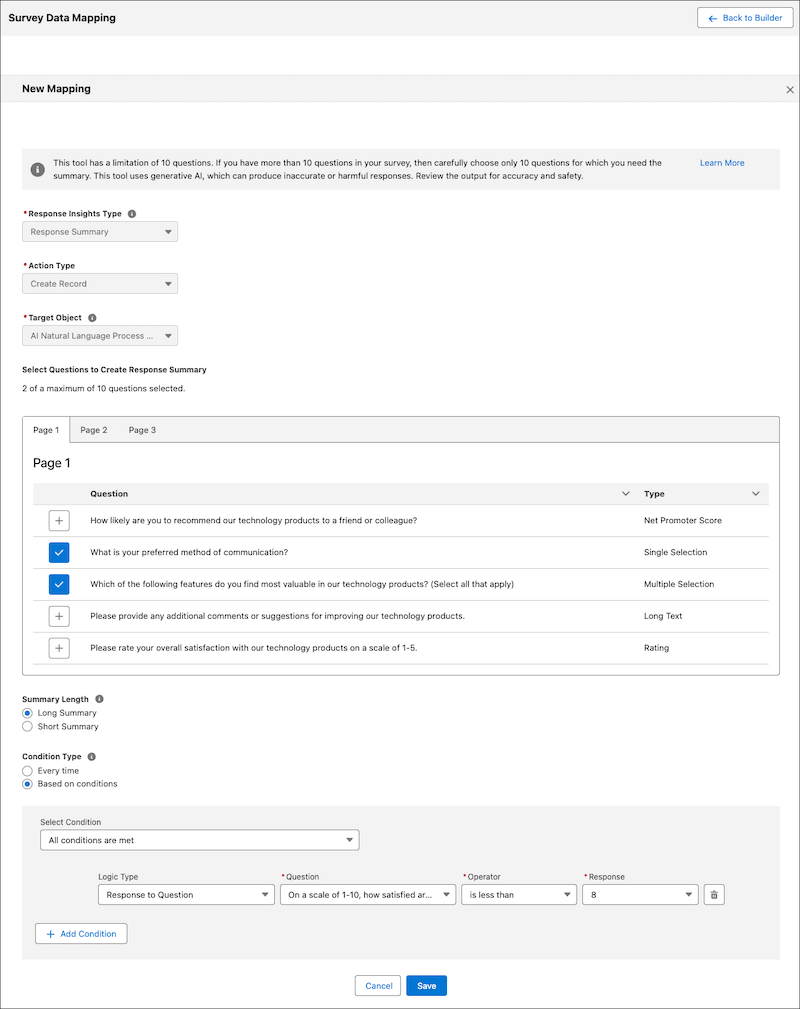
- Click Create Response Summary.
-
Select the questions for which you want to create response summaries. You can select up to
10 questions.
The question types that response summaries support are Long Text, Short Text, Net Promoter Score (NPS), Rating, Multiple Selection, Single Selection, and Picklist.
-
Select whether you want to create a long summary and a short summary.
A long summary extends up to 4,000 characters, whereas a short summary is limited to 255 characters.
-
Select the condition type.
Option What It Does Every time Creates a summary every time a response occurs. Based on conditions Defines rules about when to create a summary. -
If you selected Based on conditions as the condition type, define the conditions.
-
Select one of the values from the picklist.
Option When It Applies All conditions are met All the conditions must be met
Any condition is met Any one condition must be met
-
Select a logic type.
Option What It Defines Response to Question The condition based on responses to questions in the survey
Response Field The condition based on the value of the response field Invitation Field The condition based on the value of the invitation field Associated Record The condition based on the value of the related object merge field
Participant Record The condition based on the value of the participant object merge field
Custom Variable The condition based on the value of the custom variable merge field
Org Variable The condition based on the value of the org variable merge field
- Select a question, response field, invitation field, field, or variable based on the logic type that you selected.
- Select an operator.
- Select a response or enter a value that validates the condition. The values of merge fields appear as API names. For example, the value of an owner name field appears as OwnerId.
- To define more conditions, click Add Condition.
-
Select one of the values from the picklist.
-
Save the mapping and the survey.
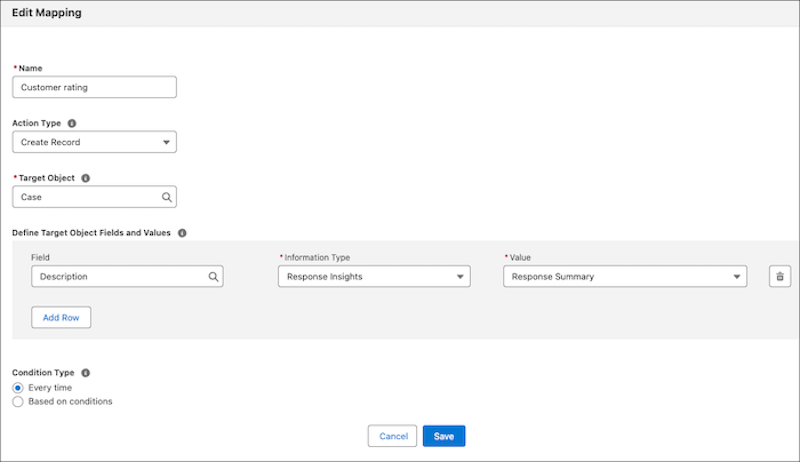
You can create a data map and use response summaries to define the fields and values of the target object.