
You are here:
Create a Data Map for Survey Responses
Create a data map that creates a Task record based on survey responses. You can show the details of the record in a timeline. For example, you can create a standard survey to collect feedback and then create a data map that automatically creates a Task record based on a participant's response. You can then view the responses in a timeline.
Required Editions
| Available in: both Salesforce Classic and Lightning Experience |
| Available in: Enterprise, Unlimited, and Developer Editions |
| Available with the Feedback Management - Starter and Feedback Management - Growth licenses |
| User Permissions Needed | |
|---|---|
| To create or update data maps: |
|
| To view data maps: | Read permission for the Survey object |
- From the App Launcher, find and select Surveys.
- Click New.
- Enter a name for the survey, and then select Standard Survey.
- Edit the Welcome page.
- Add a page, and then as Net Promoter Score type question, enter Rate your experience!.
- Edit the survey’s Thank You page, and then save the survey.
- Click Advanced Settings.
- Click Merge Field Variables, and then Object Variables for Merge Fields.
- In Participant Object, for Variable Name, enter ContactName.
- For Object, select Contact, and then save your changes.
- Click Back to Builder, and save the survey.
- Click Advanced Settings, and then click Survey Data Mapping.
- Click Add Data Map, and then name the mapping.
- In Action Type, select Create Record.
- From the Target Object dropdown, select Task.
-
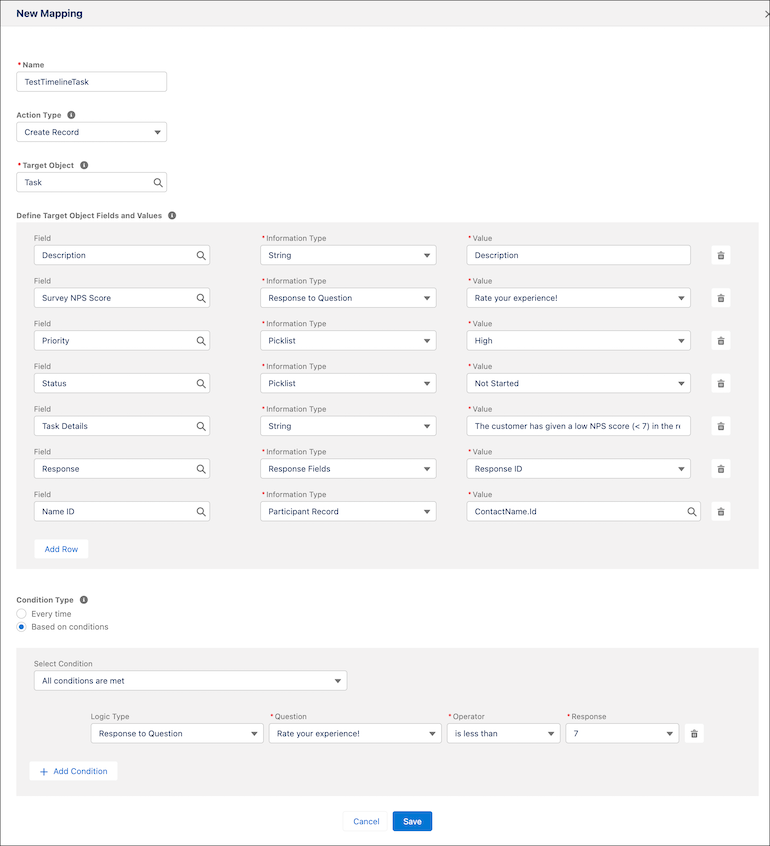
Define your target objects and values.
Field Information Type Value Description String Detractor Alert: Unhappy Customer (Low NPS) Survey NPS Score Response to Question Rate your experience! Priority Picklist High Status Picklist Not Started Task Details String The customer has given a low NPS score (< 7) in the recently concluded survey. We need to speak to the customer to understand his concern. Response Response Fields Response ID Name ID Participant Record Contact ID  Note In this example, Survey NPS Score, Task Details, and Response are custom fields.
 -
Select Based on conditions, and specify these values.
- Select Conditions: All conditions are met
- Logic Type: Response to Question
- Question: Rate your experience!
- Operator: is less than
- Response: 7
-
Save the mapping and the survey.
Did this article solve your issue?
Let us know so we can improve!
