
You are here:
View and Manage Privacy Jobs
See details about the jobs for your Data Management and Right to Be Forgotten policies. You can also cancel, reschedule, or immediately run privacy jobs.
Required Editions
| Available in: Developer, Enterprise, Performance, and Unlimited Editions. Requires the Privacy Center license. |
Considerations for Privacy Jobs
Privacy jobs are the individual instances when a Data Management or Right to Be Forgotten Policy executes in your org. When a policy is scheduled, a job with a unique ID is created and added to the queue.
To execute jobs, Privacy Center draws from a pool of internal system users known as Automated Process Users. These users carry out various automated tasks across Salesforce, and they can appear in the Last Modified By field on processed records. We can't guarantee the exact user that executes a given job or how the user appears on record fields.

Privacy jobs are executed one at a time. Because multiple jobs can’t run concurrently, sometimes they begin later than their scheduled time. To avoid having jobs backed up in the queue, we recommend staggering the scheduled run times for your policies.
Privacy jobs process the objects on a policy one at a time, in the order that you configured them. You can see the order of objects on the policy details page, under Active Objects.
View Job Session Details
Use the Privacy Job Sessions tab to view the status of your completed, in-progress, and scheduled privacy jobs.
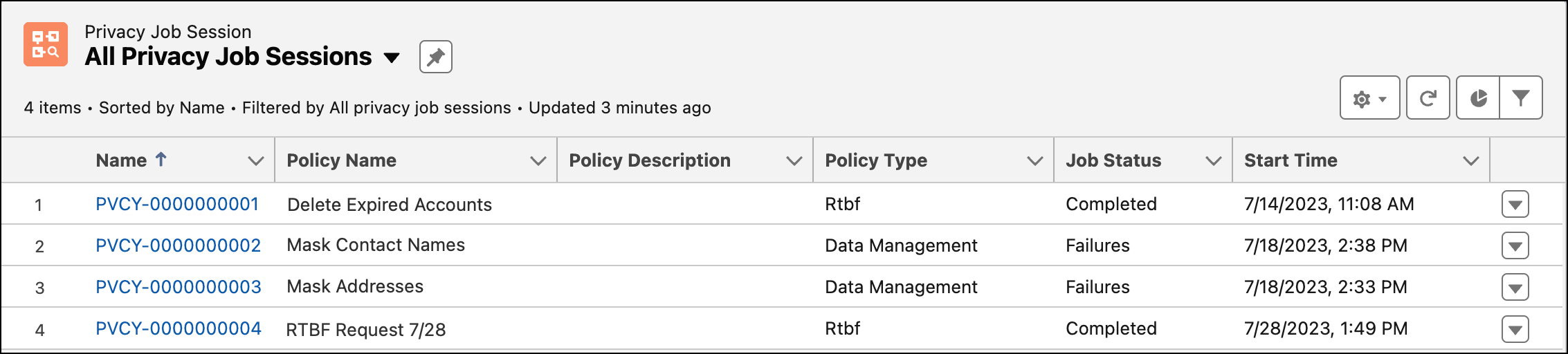
| Job Status | Status Definition |
|---|---|
| Completed | Job successfully completed with no errors. |
| Canceled | Job was canceled manually via the Cancel button in the UI. |
| Suspended | A user requested to cancel the job. |
| Failures | Errors prevented the job from completing. |
| Completed with Failures | Job completed and processed all records, but errors prevented the processing of some records. For example, validation rules or triggers prevented the deletion or masking of some records. |
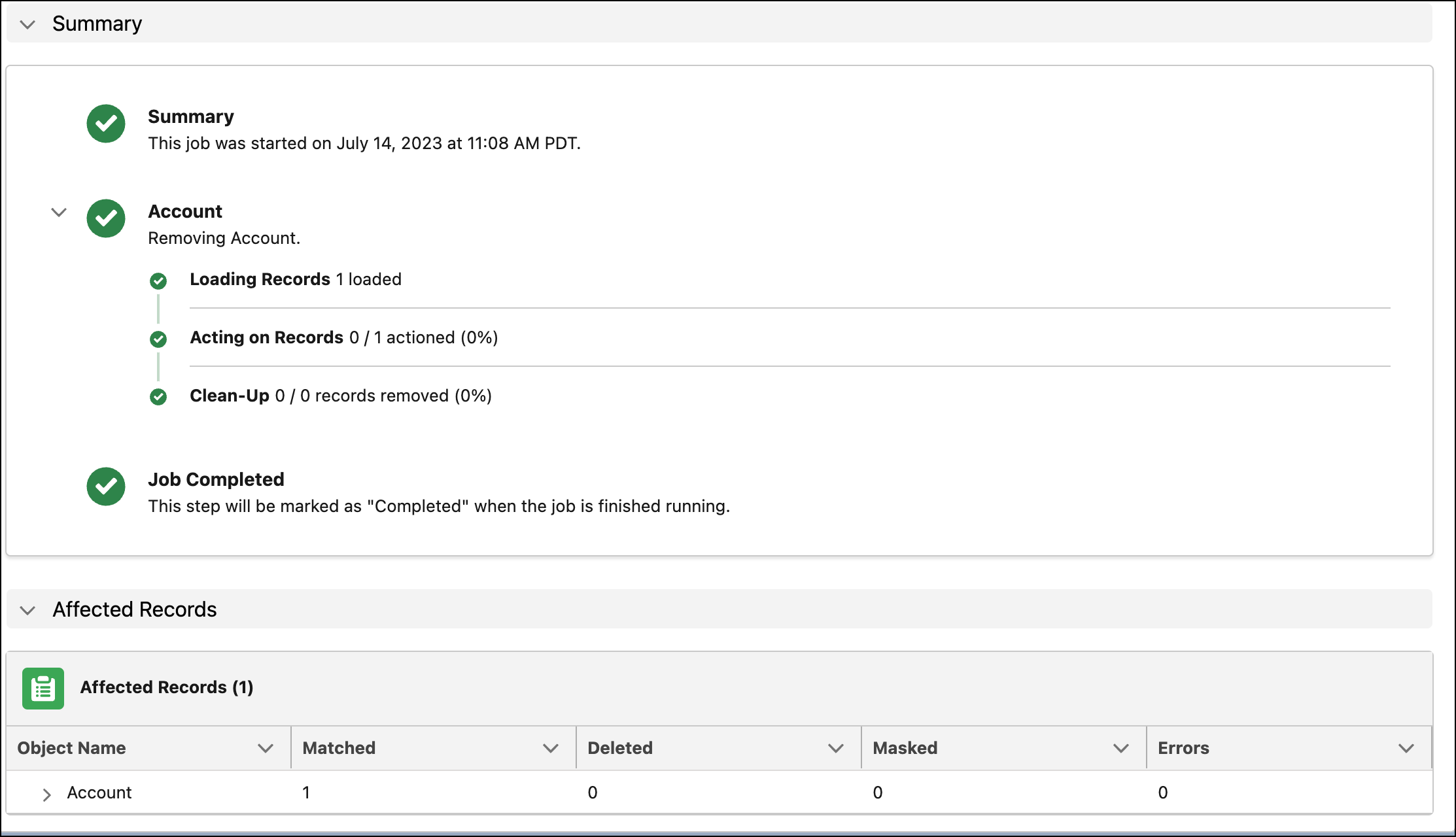
To view a specific job, click its name from the list. On the Details tab, you can see live status updates while the job is in progress, and a summary of the affected records when the job is complete. On the Related tab, you can see information about job errors or failures. Error and failure logs are available for 28 days after a job completes.
See Affected Records for Completed Jobs
After a job completes, under Affected Records, you can see the number of deleted, masked, or retained records. Each row shows the total affected records for a particular object. To expand a row and see the individual records that were processed, click the object name.
The Affected Records data captures only the objects that are defined on the policy, as shown under Active Objects on the policy page. Records that are cascade-deleted and not part of a defined object aren’t included in the count of deleted records.
For example, consider a scenario where you delete 1 Account record. As a result, 10 Contact records are cascade-deleted, because Contact has a master-detail relationship to Account.
- If you add only the Account object to the policy, then the deleted Contact records aren’t represented, and the total count of deleted records is 1.
- If you add both the Account and Contact objects to the policy, then the total count of deleted records is 11, accurately reflecting the deleted Contacts.
Manage Scheduled Jobs
If you want a scheduled job to run as soon as possible, click Run Now. This action cancels the existing job record and creates a new job with an immediate runtime. If a preexisting job is already in progress, the new job starts running as soon as the in-progress job completes.
To remove a currently scheduled job from the queue, click Cancel. In the unlikely event that a job gets stuck running, clicking Cancel forces the job to stop.

