
You are here:
Install the Consumption Tagging App
The Consumption Tagging app contains the required metadata and objects (data lake objects and semantic data models) for consumption tags and the Tableau Next assets for the Consumption Analytics dashboard. This Tableau Next dashboard uses billing data and standard consumption tags to provide you with granular insights, interactive visualizations, and usage forecasts.

The Consumption Tagging app includes:
- Consumption Insights data model object (DMO)
- Consumption Insights Semantic Model (SDM) for standard consumption tags
- Consumption Insights Extended Semantic Model (SDM) for custom consumption tags (currently in pilot)
- Consumption Analytics Tableau Next workspace and dashboard assets
We recommend that you don’t delete any of the installed objects and assets, even if you don’t plan to use the associated feature.
Before you begin, see Salesforce Help: Digital Wallet Permissions to see the permissions required to install the app. After you verify that you have the proper permissions to install the Consumption Tagging app, go to Digital Wallet setup page to begin the process.

-
From Setup, find and select Digital Wallet.
If you don’t see the Digital Wallet setup page, be sure you’re in a Digital-Wallet-enabled production org.
-
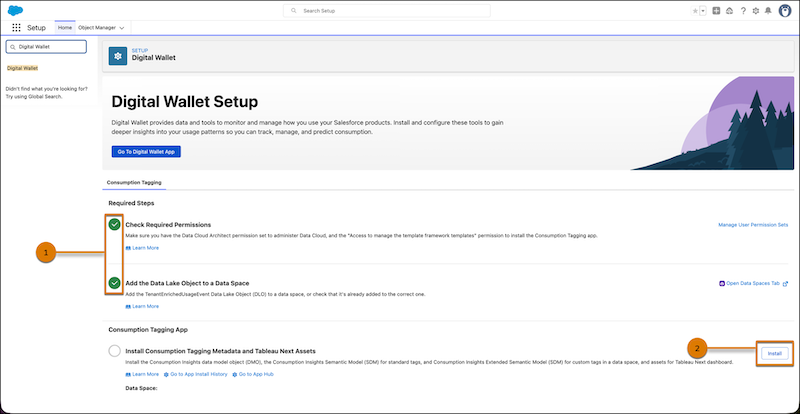
Make sure that you have the required permissions to perform the setup and
installation.
Continue to the next step when you see a green checkmark (1).
-
Add the TenantEnrichedUsage Event DLO to a data space, if you haven't already.
A data space acts as a logical partition or container for data, models, and features. The TenantEnrichedUsageEvent DLO contains the billing metrics and standard consumption tags that provide the data for the visualizations. After you complete this step, you're ready to install the app (2).
-
Click Install to install the Consumption Tagging app.
If you know that the TenantEnrichedUsageEvent DLO is added to the correct data space, but you see a warning message that you can’t load it, then the likely issues are either:
- The Digital Wallet app isn’t functioning properly, or
- You don’t have access to the TenantEnrichedUsage Event DLO due to your Data 360 Governance policy.
See “Issue: You Can’t Install the Consumption Tagging App” in Salesforce Help: Troubleshoot Digital Wallet for details.
-
Select the data space to install the Consumption Tagging app metadata and objects, then
click OK.
Be sure to select a data space that contains the TenantEnrichedUsageEvent DLO.
Next: assign users the appropriate license and permissions to view the Consumption Analytics dashboard. See Digital Wallet Permissions for details.
- Reinstall the Consumption Tagging App If the Installation Fails
If the app installation fails, you see a red error toast on the Setup page. You must delete the failed installation of the Consumption Tagging app before you attempt to install it again. - (Optional) View the Consumption Tagging App Installation Artifacts
The Digital Wallet Setup page indicates when you have successfully installed the Consumption Tagging app. However, you can optionally dig deeper to verify that all the metadata, objects, and Tableau Next assets were installed, and where you can see them.
