
You are here:
Monitor Usage for Consumption-Based Products in Digital Wallet
The Digital Wallet Consumption Cards tab provides consumption information for monitoring and observing usage trends over time. It uses Data 360 core features to collect usage data from various services, process it in near real-time, and store the consumption records as data lake objects (DLOs). This architecture allows Digital Wallet to provide granular, unified tracking of consumption-based products, including Data 360, Agentforce, and more.
Required Editions
| Available in: Lightning Experience |
| Available in: Enterprise and Unlimited Editions |
| User Permissions Needed | |
|---|---|
| To view Digital Wallet Consumption Cards tab: | View Consumption |
How Does Digital Wallet Track Consumption?
Digital Wallet gives you a variety of ways to monitor your consumption, helping you do the following:
- Understand your total usage spanning all active contracts that have the same Digital Wallet-enabled products
- Track overall product usage to understand how much you’ve used and how much you have left
- Detect trends over time and identify patterns for better budgeting and buying decisions
Consumption information is updated multiple times a day but can take longer in some situations. If the information in Digital Wallet differs from your invoice, your monthly statement is the definitive source of truth for consumption details.
Consumption Cards Homepage
If your org uses Data Cloud in production and sandbox environments, Digital Wallet displays usage from both environments. Active entitlements for Data Cloud sandboxes say “Sandbox” in the relevant card name. See Salesforce Help: Data Cloud in a Sandbox for more information. If the sandbox card has been retired, any remaining credits or storage allocations have been moved to the production card.
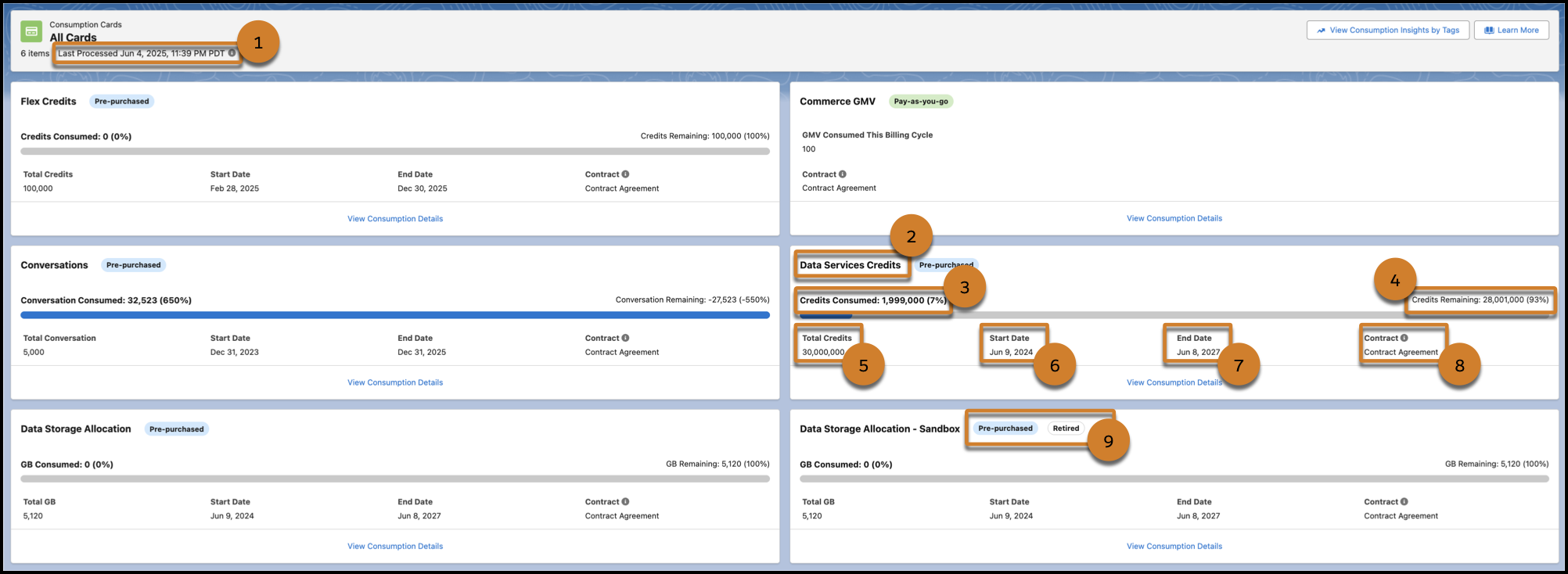
- Last Processed (1) – The date and time that Digital Wallet last synced your org’s usage data. Time is in your org’s default time zone.
- Card Name (2) – Name of the Digital Wallet consumption card.
- Credits or Capacity Consumed (3) – The total credits or capacity your org has used from that consumption card since the Last Processed date and time.
- Credits or Capacity Remaining – (4) The credits or capacity your org has left on that card’s entitlement until it reaches the total credits or capacity amount.
- Total Credits or Capacity – (5) The number of credits or capacity allocated to your org through the contracts that feed into that card’s entitlement.
- Start Date (6) – When the contract that feeds into that card began. If you see “Multiple” instead of a date here, then multiple contracts are fueling the card.
- End Date (7) – When the contract that feeds into that card ends. If you see “Multiple” instead of a date here, then multiple contracts are fueling the card.
- Contract (8) – Click the contract number or “Multiple” to go to see a list view of the contracts containing the entitlements associated with that card and how the usage has been drawn down from the contracts. If you see “Multiple” instead of a single contract number, then multiple contracts are fueling the card.
- Pricing Model or Retired Badge (9) – Indicates the pricing model for the contract or if a card has been retired. Retired indicates that the remaining entitlements have been converted and added to another existing card. For example, the remaining entitlements for a Data Cloud sandbox card were moved to its production card.
Retired cards appear as long as the contract associated with them is active. The historical consumption data for the retired card appears only on the retired card, while any new consumption appears on the production card.
Ways to Monitor Consumption
As your company draws down your credits and capacity, Digital Wallet gives you a variety of ways to monitor your consumption:
- A bird’s eye view of your org’s usage.
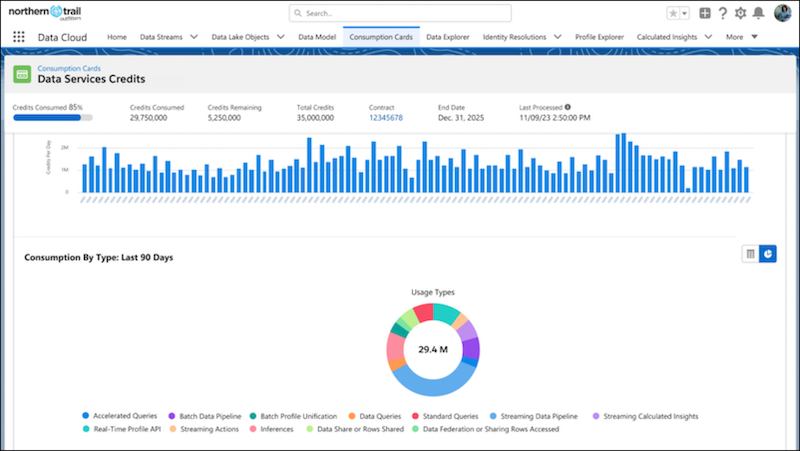
- Bar charts detailing data on a specific day and time period.
- Tables and pie charts that drill down into consumption by service or resource type.
- Out-of-the box Data 360 reports and Tableau Next visualizations that provide deep insights to analyze current usage and predict future trends.
- View Consumption by Type, Org, and Time Period in Digital Wallet
The Consumption Insights page in Digital Wallet enables you to dig into the consumption data for a set of usage types within a time period or on a specific day. - Digital Wallet-Enabled Consumption-Based Products
Consumption-based products that have been enabled in Digital Wallet have an associated consumption card on the Consumption Cards tab in Digital Wallet. You can also find links to each product’s rate card and information on what counts as usage (usage types). - Spot Potential Overages with Digital Wallet
Learn how to spot potential consumption overages in your org’s via your Digital Wallet homepage, the Digital Wallet Consumption Insights page, the Consumption Threshold Alerts flow, or the Monthly Account Summary email, if you receive one. - Multi-Contract Consumption in Digital Wallet
A multi-contract scenario happens when your company purchases the same Digital Wallet entitlement under multiple contracts on the same org. Learn how to identify a multi-contract sceanrio in Digital Wallet. - Understand Entitlement Pooling for Data Cloud One
In a Data Cloud One configuration, Data 360 pools your entitlements in the home org, while all other products, such as Flex Credits, keep separate entitlements in the org in which usage is generated. - Data Aggregation Types and Calculations in Digital Wallet
Dig into the way Digital Wallet amasses and calculates your consumption data within each Digital Wallet card. - Digital Wallet Data Lake Objects (DLOs)
During the Digital Wallet setup process, Digital Wallet creates data streams and data lake objects (DLOs) in your org. These DLOs capture your raw consumption data and track your entitlement usage on both an hourly and daily basis. They apply contractual multipliers to convert raw usage into consumption credits, all while keeping a record of the specific entitlements your company has purchased. Our enriched DLO provides critical metadata that fuels ready-to-use reports and dashboards. It also enables you to create powerful custom reports, letting you easily slice and dice your data to find advanced insights.
