
You are here:
View Consumption by Type, Org, and Time Period in Digital Wallet
The Consumption Insights page in Digital Wallet enables you to dig into the consumption data for a set of usage types within a time period or on a specific day.
Required Editions
| Available in: Lightning Experience |
| Available in: Enterprise and Unlimited Editions |
| User Permissions Needed | |
|---|---|
| To use Digital Wallet: | View Consumption user permission |
From the Digital Wallet home page, click View Consumption Details to view this page.

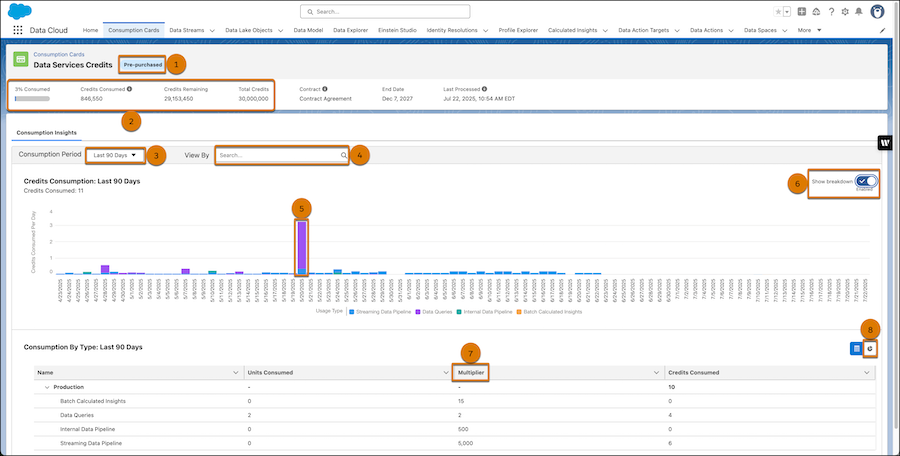
- A badge by the consumption card name indicates the pricing model or card status, if applicable (retired or dormant). See Digital Wallet glossary for pricing model descriptions.
- To view overall usage for all the usage types associated with this card, look at the Credits Consumed, Credits Remaining, and Total Credits in the header. In the page header, the Credits Consumed value lists the credits consumed for the listed contract or multiple contracts. Click Multiple to see all active contracts for this org.
- To change the time period, click the Consumption Period dropdown arrow above the bar chart. Select a time period from the list. You don't see historic usage details if you select a time period window that occurs before Digital Wallet was enabled for the entitlement you're viewing. The Credits Consumed value lists the credits consumed during the specified time period, and can include usage for both active and expired contracts.
-
To view usage for a specific Data Cloud One companion org, sandbox, or
Marketing Cloud Engagement tenant, click the View By search box to
select the desired org.
Data Cloud One companion orgs and sandboxes can be identified by their name and 18-digit org ID, while Marketing Cloud Engagement tenants can be identified by their tenant name (often company name or business unit) and Member ID (MID), if available. Alternatively, if the tenant name can't be determined, a Marketing Cloud Engagement tenant is listed as MCE: Enterprise ID (EID)-MID, for example,
MCE:526001200-526001200. - To view usage for this card on a specific day, click the corresponding bar in the bar chart. Rollover text appears and shows the amount of usage consumed that day for all the usage types associated with the card.
- Turn on Show Breakdown to see the usage types consumed in the bar chart.
- Multipliers are specific to a usage type. See the feature's rate card for multiplier details. You can quickly access the rate card for a feature in Digital Wallet-Enabled Features, Products, and Rate Cards.
- To view consumption by type in as a pie chart, click the pie chart icon to the right of the table. To see more details about that segment, hover over a segment in the pie chart. The pie chart view is only available when enough data points are present.
