
You are here:
View Member Benefits Widget Template
The View Member Benefits widget template lets members view the tier benefits and personalized benefits that have been assigned to them. The widget displays benefits alphabetically based on the name of the benefit.
Required Editions
| Available in: Lightning Experience in Enterprise, Performance, Unlimited, and Developer Editions with Loyalty Management |
Widget Content
The View Member Benefits widget has the default state and the error state. You can customize both states.
| State | Section | What You Can Customize |
|---|---|---|
| Default | Background | Consists of the widget’s background. You can add a color or image for the background and change the background’s height and padding. |
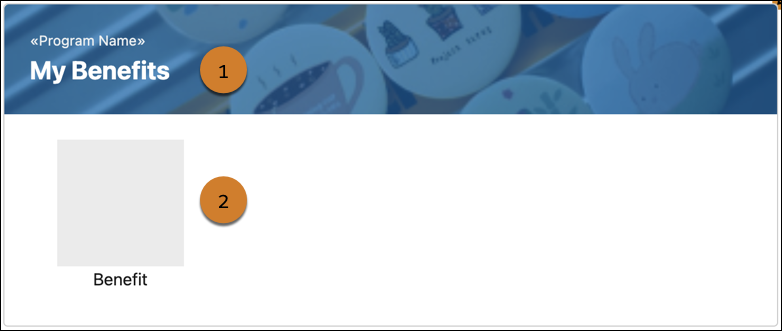
| Header (1) | Consists of a banner, the name of the loyalty program, and a message. You can change the banner, the message text, and the padding. You can also remove the merge field that contains the program name. | |
| Body (2) | Consists of tiles that show the names and the images of the benefits assigned to the members. You can change the padding of the section. | |
| Error | Background | Consists of the widget’s background. You can add a color or image for the background and change the background’s height and padding. |
| Message | Consists of the message that is shown to the members when the widget can’t show any data to the members. You can change the text in the message. |
In Loyalty Widget Designer, you can also decide the members who can view the widget. You can show the widget to:
- All members
- Members who belong to the tiers that you specify
- Members whose points balance for the currency that you specify isn’t less than the value that you specify
Example for Customizing the Widget in Widget Designer
The loyalty program manager of a company wants to add the company’s banner in the widget header and update the text in the header. The program manager also wants to change the error message that’s shown in the error state.
The program manager switches to the default state of the widget and selects the Header section. In the widget properties, the manager expands Background and adds the URL of the company’s banner. Then, the program manager expands Message Text. Before the merge field containing the loyalty program name, the program manager adds this text: ‘You’re a valued member of {programName}.’ And the program manager replaces ‘My Benefits’ with ‘Make the most of these amazing benefits.’
The program manager then switches to the error state and selects the Message section. The manager expands Message Text and updates the messages that appear in the error state.
Example for Customizing the Widget in FlexCard Designer
The loyalty program manager of a company wants to change the title of the widget and change the background of the benefit icons.
The program manager expands the default state and selects the header. On the Properties tab, the program manager changes the text to ‘My Program Benefits.’ Then the manager opens the child card and selects the image component for benefits. In the Background Image URL field in the Appearance section on the Style tab, the manager adds the URL of an image.
Preview the Widget
After customizing the widget, the program manager previews the widget. In preview, here are the values that the program manager provides, to view how members view their benefits.
- Program Name—Enters the name of the loyalty program that the widget is previewed for.
- Membership Number—Enters the membership number of the member that the widget is previewed for.
- Number of Benefits to Display—Enters 5 to view five assigned benefits of the member. This parameter is optional.
- View All Link—Enters the URL of the page that lists all assigned benefits of the member. This parameter is optional.
