
You are here:
Explore the Loyalty Widget Designer
The Loyalty Widget Designer lets you customize the branding and content of your widgets.
Required Editions
| Available in: Lightning Experience in Enterprise, Performance, Unlimited, and Developer Editions with Loyalty Management |
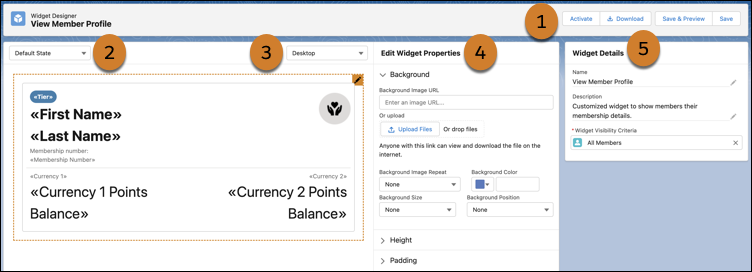
Get to know the Loyalty Widget Designer canvas and its capabilities before you start working with it.
| Section | Use |
|---|---|
| Widget State (2) | Select the state of the widget that you want to customize. All widgets have a default state and an error state. In the default state, you can customize the text and the design of the widget. In the error state, you can customize the message that appears when the widget doesn’t load on your website or portal. Some widgets have additional states. |
| Form Factor (3) | Choose the form factor that you want to customize the widget in. All widgets are responsive to the desktop, tablet, and mobile form factors. |
| Widget Properties (4) | Select the sections of the widget and customize the text and design of each component within the sections. The widget sections vary between the default and error states. |
| Widget Details (5) | Update the name or the description of the widget. Also, specify the visibility criterion for the widget:
Some widgets have additional visibility criteria. For details, see the help for each widget. |
| Buttons (1) |
|
Explore and Learn
Watch this video to understand how to customize widgets based on your company’s branding on the Widget Designer.
If you aren’t able to watch the video in full screen, open the
video on a new tab:  Design Loyalty Engagement Widgets As Per
Your Company’s Branding.
Design Loyalty Engagement Widgets As Per
Your Company’s Branding.
