
You are here:
Join Promotion Widget Template
The Join Promotion widget template lets members join a promotion. Loyalty program managers can choose the promotion that is shown on the widget.
Required Editions
| Available in: Lightning Experience in Enterprise, Performance, Unlimited, and Developer Editions with Loyalty Management |
Prerequisite for the Join Promotion Widget Template
To enable members to enroll in a promotion, select the Enrollment Required checkbox on the promotion record, and add the enrollment period of the promotion. If a promotion that doesn’t require enrollment is shown on the widget, the widget automatically hides the Join button on the widget’s footer.
Widget Content
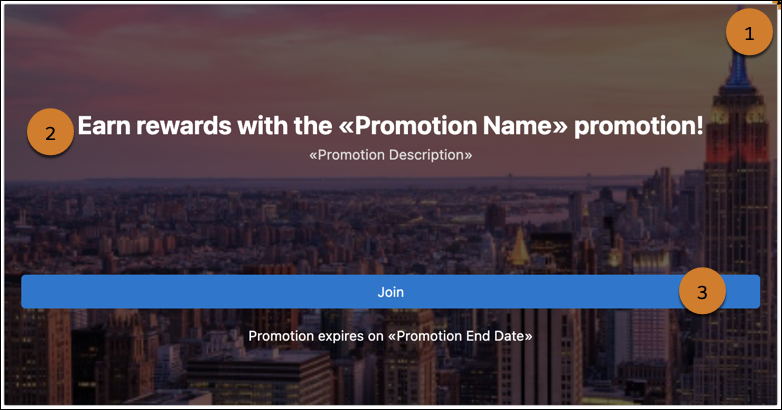
The Join Promotion widget has the not enrolled, enrolled, and error states. You can customize all states.
| State | Section | What You Can Customize |
|---|---|---|
| Not Enrolled | Background (1) | Consists of the widget’s background. You can add a color or image for the background and change the background’s height and padding. |
| Body (2) | Consists of a message with the name and description of the promotion. You can customize the message and the padding of the section. | |
| Footer (3) | Consists of a button for members to join the promotion. The footer also shows the expiration date of the promotion. You can change the button label and the error message. | |
| Enrolled | Background | Consists of the widget’s background. You can add a color or image for the background and change the background’s height and padding. |
| Body | Consists of the message that the member is enrolled in the promotion. You can customize the message and the padding of the section. | |
| Error | Background | Consists of the widget’s background. You can add a color or image for the background and change the background’s height and padding. |
| Message | Consists of the message that is shown to the members when the widget can’t show any data to the members. You can modify the text in the message. |
In Loyalty Widget Designer, you can decide the members who can view the widget. You can show the widget to:
- All members
- Members who belong to the tiers that you specify
- Members whose points balance for the currency that you specify isn’t less than the value that you specify

Example for Customizing the Widget in Widget Designer
The loyalty program manager of a company wants to change the background of the widget and customize the messages that appears in the not enrolled state and the enrolled state.
The program manager switches to the not enrolled state of the widget and selects the Background section. In the widget properties, the manager expands Background and adds the URL that consists of the promotion’s marketing image. Then, the program manager selects the Body section and expands Promotion Details. The program manager changes the text to ‘Join the {promotionDetails.promotionName} promotion and get 100 points extra when you shop with us!’
Next, the program manager switches to the enrolled state and selects the Body section. The program manager expands Promotion Details Text and changes the text to ‘Go ahead and shop with us for 100 extra points.’
Example for Customizing the Widget in FlexCard Designer
The loyalty program manager of a company wants to change the title of the widget and to change the message that’s shown when members join a promotion.
The program manager expands the not enrolled state and selects the title. The program manager changes the title to ‘Join the {promotionDetails.promotionName} promotion and get $10 off on your next purchase’. Then, the program manager selects the not enrolled state joined button title and changes the text to ‘You’re all set to earn a $10 voucher.’
Preview the Widget
After customizing the widget, the program manager previews the widget. In preview, here are the values that the program manager provides, to view how members can join a promotion.
- Promotion Name—Enters the name of the promotion that the widget is previewed for.
- Membership Number—Enters the membership number of the member that the widget is previewed for.
- Days Until Promotion Expiration—Enters 10 to ensure that members are notified, starting ten days before the expiration date, that the promotion is about to expire.
- Program Name—Enters the name of the loyalty program that the widget is previewed for.
Process After Members Join the Promotion
When a member joins the promotion, a Loyalty Program Member Promotion record is created. The record is related with the member and the promotion. On the record, the member’s enrollment for the promotion is marked as active.
