
You are here:
Refer Friends Widget Template
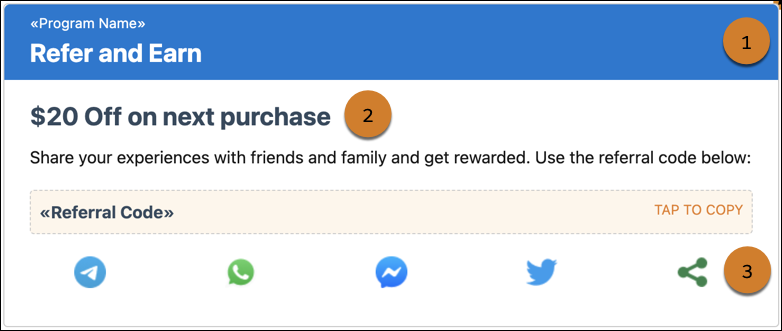
Members can use the Refer Friends widget template to refer their friends and family to join the loyalty program. The widget lets members share their referral code across their social media accounts.
Required Editions
| Available in: Lightning Experience in Enterprise, Performance, Unlimited, and Developer Editions with Loyalty Management |
Widget Content
The Refer Friends widget has the default state and the error state. You can customize both states.
| State | Section | What You Can Customize |
|---|---|---|
| Default | Background | Consists of the widget’s background. You can add a color or image for the background, and change the background’s height and padding. |
| Header (1) | Consists of a banner, the program name, and a header text. Customize the background, the padding of the header, and the header text, and replace the merge field that provides the program name. | |
| Body (2) | Consists of a message that talks about the reward that the members receive when they refer another person to the loyalty program. The member’s referral code is also shown in the body along with a button to copy the code. You can modify the text of the message about the reward that members receive for their referrals along with the background’s padding. And change the label of the button that allows members to copy their code. | |
| Icons (3) | The icons in the widget are static resources. You can change the padding of the section, change the icons, and also change the padding of each icon. | |
| Error | Background | Consists of the widget’s background. You can add a color or image for the background, and change the background’s height and padding. |
| Message | Consists of the message that is shown to the members when the widget can’t show any data to the members. You can change the text for the message. |
In Loyalty Widget Designer, you can also decide which members can view the widget. You can show the widget to:
- All members
- Members who belong to the tiers that you specify
- Members whose points balance for a currency that you specify is equal to or above a value that you specify
Example for Customizing the Widget in Widget Designer
The loyalty program manager of a company wants to reward members with a $5-voucher whenever a member’s referral joins the loyalty program. The program manager also wants to change the banner color and the header text of the widget. For the icons, the program manager wants to replace one of the icons with the icon of another social media platform. Finally, the message that’s shown in the error state has to be changed.
The program manager switches to the default state of the widget and selects the Header section. In the widget properties, the program manager expands Background and changes the banner color from blue to purple. The program manager then expands Message Text and changes the header text to ‘Refer and Get a Voucher’. Next, the program manager selects the body of the widget and then expands Message Text. The program manager changes the message to ‘Get a $5-voucher when your referral joins our loyalty program.’ Finally, in the default state, the program manager selects the Icons section, expands Fifth Icon, and adds the image of another social media platform in Background Image URL.
The program manager then switches to the error state and selects the Message section. The manager expands Message Text and updates the messages shown in the error state.
Example for Customizing and Previewing the Widget in FlexCard Designer
The loyalty program manager of a company wants to add links for the sharing option icons and wants to change the label of the button that allows members to copy their referral code.
The loyalty program manager selects each button and expands Action on the Properties tab. In the URL field, the program manager adds the redirect URL for each icon. Next, the program manager selects the default state URL copy action and changes the text to ‘Copy’ on the Properties tab.
Preview the Widget
After customizing the widget, the program manager previews the widget. In preview, here are the values that the program manager provides to how members can refer their friends:
- Program Name—Enters the name of the loyalty program that the widget is previewed for.
- Membership Number—Enters the membership number of the member that the widget is previewed for.
- Url—Enters the URL that members can share with their referrals and the referrals can
use to join the loyalty program. This parameter is optional.
The referral code of the member is automatically added in the URL to ensure that each member has a unique referral link. For example, if your URL is
www.example.com/?referral=, the widget automatically provides members that URL aswww.example.com/?referral={member referral code}. Also, you can add a mailto link to directly allows members to email their friends their referral code. - Icon One Link—Adds the URL that redirects members to the social media platform that the first icon represents and where they can share their referral code. This parameter is optional.
- Icon Two Link—Adds the URL that redirects members to the social media platform that the second icon represents and where they can share their referral code. This parameter is optional.
- Icon Three Link—Adds the URL that redirects members to the social media platform that the third icon represents and where they can share their referral code. This parameter is optional.
- Icon Four Link—Adds the URL that redirects members to the social media platform that the fourth icon represents and where they can share their referral code. This parameter is optional.
- Icon Five Link—Adds the URL that redirects members to the social media platform that the fifth icon represents and where they can share their referral code. This parameter is optional.
