You are here:
Customize the fndSingleDocxLwc Omniscript
You can customize the fndSingleDocxLwc Omniscript according to your requirements. In this example, customize the Omniscript to set a default template and hide the pick a template window during the document generation process.
You can then call this Omniscript from a custom Generate Document action button on any object such as a contract, order, quote, work order, or opportunity.
To help you understand how this Omniscript works, refer to Step Properties for the fndSingleDocxLwc Omniscript.
To modify the Omniscript, follow these instructions:
- Create a custom Generate Document button. Follow steps 1 to 3.
-
Modify the Generate Document custom action to preselect the template for
document generation by using the template ID.
- In Setup, click Object Manager.
- Click the object for which you created the custom Generate Document action button. For example, Work Order.
- Click Buttons, Links, and Actions.
- Click Generate Document.
- Click Edit.
-
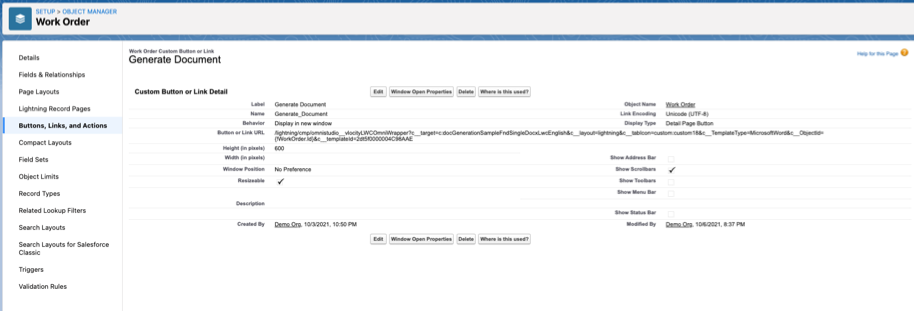
To add the template ID as a parameter, at the end of the URL, enter
&c__templateId=templateobjectId.
Here's an example.
&c__templateId=2dt5f0000004C98AAE
/lightning/cmp/omnistudio__vlocityLWCOmniWrapper?c__target=c:docGenerationSampleFndSingleDocxLwcEnglish&c__layout=lightning&c__tabIcon=custom:custom18&c__TemplateType=MicrosoftWord&c__ObjectId={!WorkOrder.Id}&c__templateId=2dt5f0000004C98AAE - Save your work.
-
Modify the Omniscript to set default values.
- To clone the fndSingleDocxLwc Omniscript, click New Version.
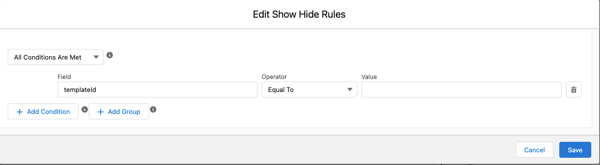
- In the PickTemplate step, to hide the Pick a template window during document generation, go to Properties > Conditional View, and then click Show Element if True.
- Enter these values, and then save your changes.
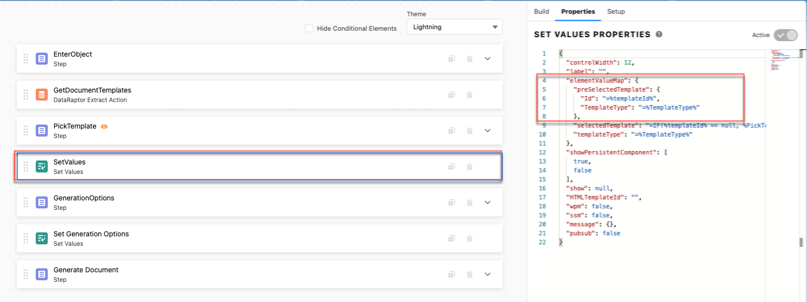
- In the SetValues step, to preselect the template for document generation, click Edit Properties As JSON and then replace the elementValueMap node with this value.
- Click Close JSON Editor.
-
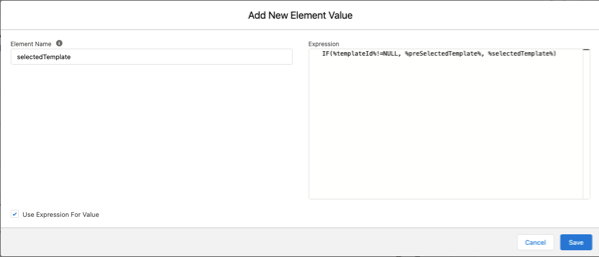
In the SetGenerationOptions step, click Add New Element
Value.
The Add New Element Value window opens.
- Enter these following values, and then save your work.
- Click Activate Version, and then click Done.
-
Generate the Microsoft Word .docx document.
- On your object, from the Actions dropdown list, click Generate Document .
-
Click Next.
The Pick a template window is hidden.
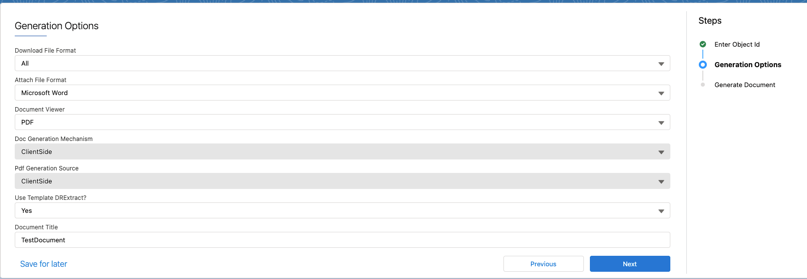
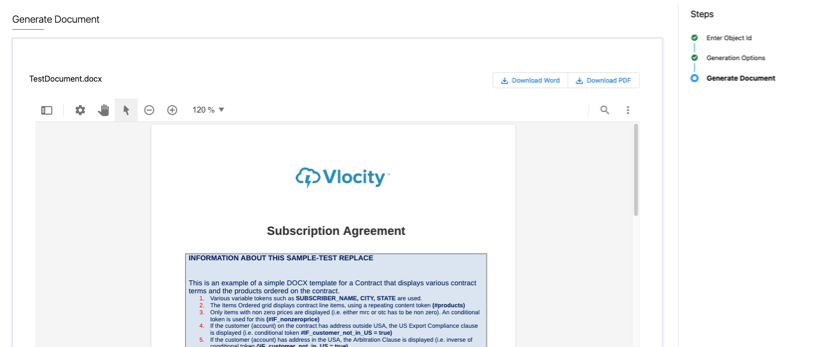
- Select the document generation options, and then click Next.