
You are here:
Convert a Lead to a Contact
The Nonprofit Success Pack includes a Lead conversion utility that provides specialized functionality to convert a Lead to a Contact.

The Nonprofit Success Pack includes a Lead conversion utility that provides specialized functionality.
To convert a Lead to a Contact:
- In the Nonprofit Success Pack, go to the page for the Lead you want to convert, and then click Convert. The button is in the right-hand corner of the page.

- Enter the field values on the page as necessary to convert your Lead into a Contact.
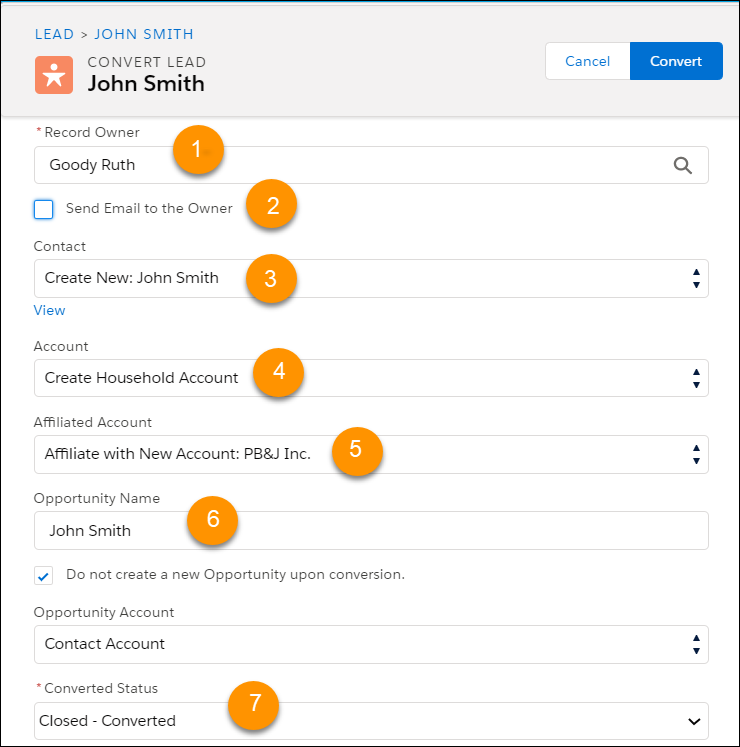
When you specify the Company ("PB&J Inc."), the Account and Affiliated Account options appear.
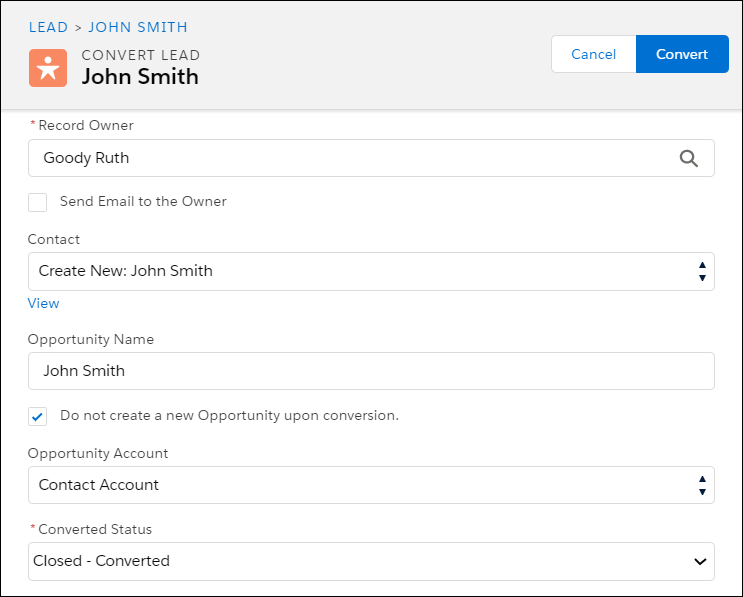
When the Company field value is "Individual," the Account and Affiliated Account options don't appear on the Lead Convert page.
- Record Owner (1): Select the owner of the new or merged Contact and Household Account.
- Send Email to the Owner (2): Sends an email to the new owner with a link to the new Contact.
-
Contact (3): Includes these options:
- Create New: Creates a Contact. If you create a Contact from the Lead, Salesforce creates a Household Account for the Contact, or you can specify an Organizational Account.
- Merge with Existing: The NPSP Lead Conversion utility attempts to find an exact-match (not case-sensitive) Contact in the system, searching for either the email address or the Lead's full name (both First Name and Last Name). If the utility finds potential matches, they appear in the Contact picklist. Select Merge with Existing to merge the Lead into an existing Contact record.
-
Account (4): Includes these options:
- Create Household Account: Creates a Household Account for the new Contact.
- Attach to Existing: Selects if the Lead's Company matches an existing Organizational Account, and you want the Contact to use that for their Account.
-
Create New Account: Creates an Organizational Account that uses the Lead's Company, and to have the Contact use that for their Account. Note
-
If you merge the Lead into an existing Contact, these options don't appear because the Contact's Account remains unchanged.
-
If the Company name on the Lead is "self," the Lead's full name, or "Individual," the Account and Affiliated Account options don't appear on the Lead Convert page.
-
Avoid record-triggered flows on the Account object to assign picklist values valid only for the Organization Record Type. Doing so causes the lead conversion process to fail. Instead, build the automation on the Contact object and access the Affiliation Account via the Primary Affiliation field.
-
-
Affiliated Account (5): Includes these options:
- None: NPSP doesn't create an Affiliation between the Contact and Account.
- Affiliate with Existing: Selects if the Lead's Company matches an existing Organizational Account, and you want to create an Affiliation between the Contact and Account.
- Affiliate with New Account: Selects to create an Affiliation between the Contact and a new Organizational Account, created from the Lead's Company.
- Opportunity Name / Do not create a new opportunity (6): To create a new Opportunity (Donation) for the Contact after converting the Lead, deselect Do not create an Opportunity upon conversion, and enter a name. The new Donation record uses the converter's default Record Type.
- Converted Status (7): If you're using multiple Lead Status values in your organization, select the appropriate value based on your business process.
- Click Convert to start the Lead convert process.
When completed, the page shows the newly converted or merged Contact. If you elected to create an Opportunity, you can find the new record by scrolling down to the Donations related list on the Contact page.
