You are here:
Relationship Cards in Automotive Cloud
Create a relationship card, specify where you want the cards to appear, and then connect the cards to the objects that the cards are to draw information from. Then, choose the information you want the cards to display.
Required Editions
| Available in: Enterprise, Unlimited, and Developer Editions. |
Configure a new relationship card by using the Relationship Card Type Manager in Setup. Here’s how you can configure your relationship cards.
Design a Relationship Card
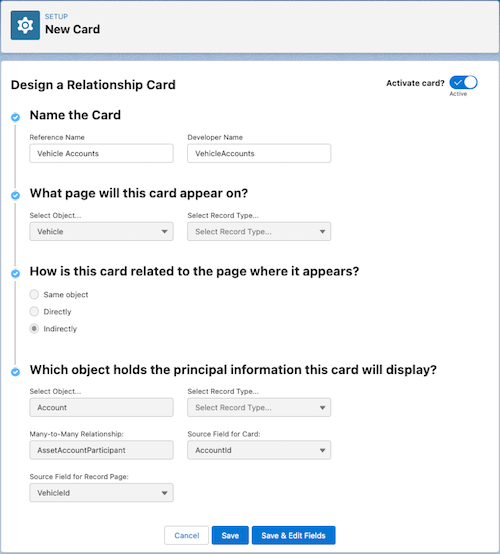
On the Design a Relationship Card page, choose where you want the card to appear and the objects that the card draws information from. The table describes the fields on the Design a Relationship Card page.
| Field | Description |
|---|---|
| Name the Card | |
| Reference Name | Give your card a meaningful name. |
| Developer Name | Name of the card that appears in Setup. |
| What page will this card appear on? | |
| Select Object | Choose the object whose record page the card appears on. Example: Vehicle. |
| Select Record Type | Choose the object’s record type, if any, that the card appears on. |
| How is this card related to the page where it appears? | Choose how the object where the information you want the card to display is related to the object where the card appears.
|
| Which object holds the principal information this card displays? | |
| Select Object | Use this field if the object is directly or indirectly related to the page where the card appears. For example, select Contact as the indirectly related object for Vehicle where the card appears. Account is related to Asset and Asset is related to Vehicle. |
| Select Record Type | Use this field if the object is directly or indirectly related to the page where the card appears. Select the object’s record type, if any, where the information is stored. |
| Many-to-Many Relationship | Use this field if the object is directly or indirectly related to the page where the card appears. Select an object, such as Asset Contact Participant, which has a many-to-many relationship with Asset and Contact. |
| Source Field for Card | Use this field if the object is indirectly related to the page where the card appears. For example, select ContactId as the field that is indirectly associated with Vehicle via Asset. |
| Source Field for Record Page | Use this field if the object is indirectly related to the page where the card appears. For example, select VehicleId as the field that is associated with Vehicle. |
Design the content of the card
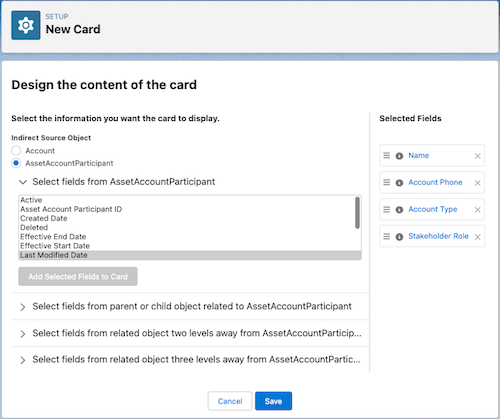
On the Design the content of the card page, select the fields that you want the card to show. Choose a source object or an object related to the source object, and add fields from it. The table describes the fields on the Design the content of the card page.
| Field | Description |
|---|---|
| Indirect Source Object | Choose a source object from the objects you selected on the Design a Relationship Card page. You can add fields from the source object or objects related to the source object. |
| Select fields from source object | From the selected source object, add the fields that you want to appear on the card. |
| Select fields from objects related to the source object | Add fields from an object related to the source object. You can select fields from a parent or child object of the source object, or an object related two or three levels away from the source object. |
You can change the order of the selected fields and rename them in the Selected Fields pane.
Finally, activate the card, and add it to the desired page layout to display it on the chosen page.
