You are here:
Gather Consent and Disclosure Authorizations from Customers
Make sure that your customers agree to information disclosure policies before capturing or sharing sensitive data. Monitor consent and disclosure authorization requests provided to users, and track their responses. The process also supports consent on behalf of another person or group.
You can track whether a person has seen, signed, or rejected an info authorization request form, and how and when they gave their response. Optionally, capture additional information about the user response, including the user’s email address, IP address, or geographic location at the time of consent, for verification and audit purposes.
To record a response to an info authorization request form:
-
On an Info Authorization Request detail page, click the Related
tab.
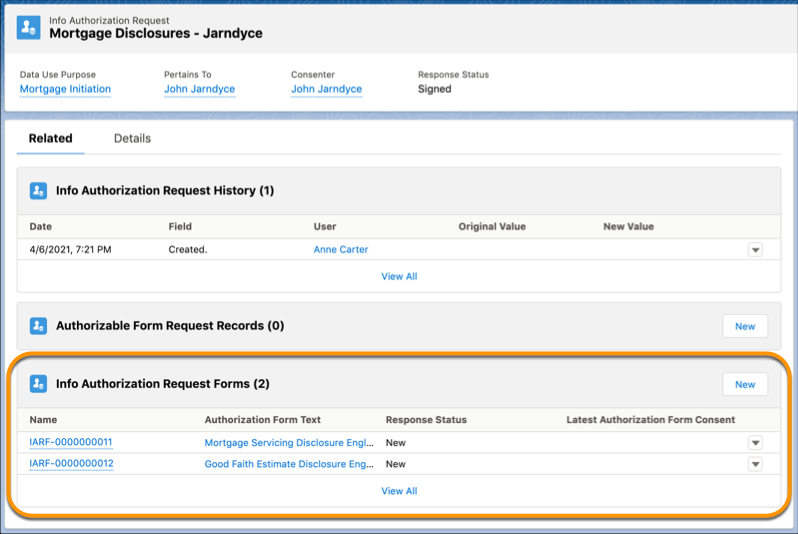
- Select one of the forms in the Info Authorization Request Forms related list.
-
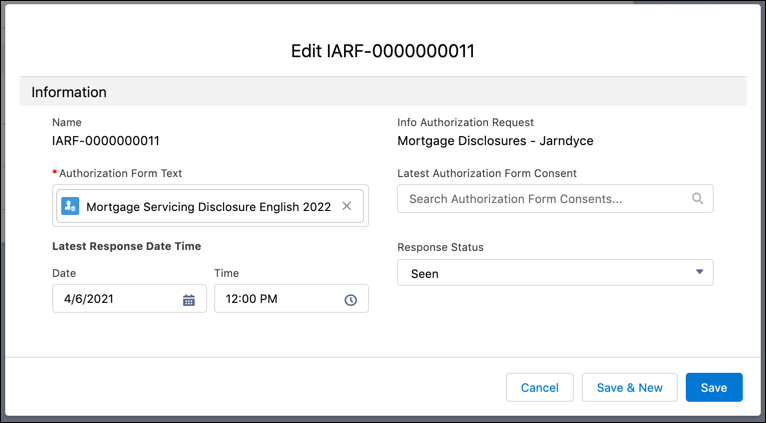
From the dropdown menu in the upper right, select Edit.
-
(Optional) To capture a simple response in this record:
- In the Latest Response Date Time section, set the Date and Time fields to the time when the response was given.
- From the Response Status dropdown, select the appropriate value, such as Seen, Signed, or Rejected.
-
(Optional) To capture a more detailed response, create an Authorization Form Consent
record:
-
From the Latest Authorization Form Consent dropdown, select
+ New Authorization Form Consent.
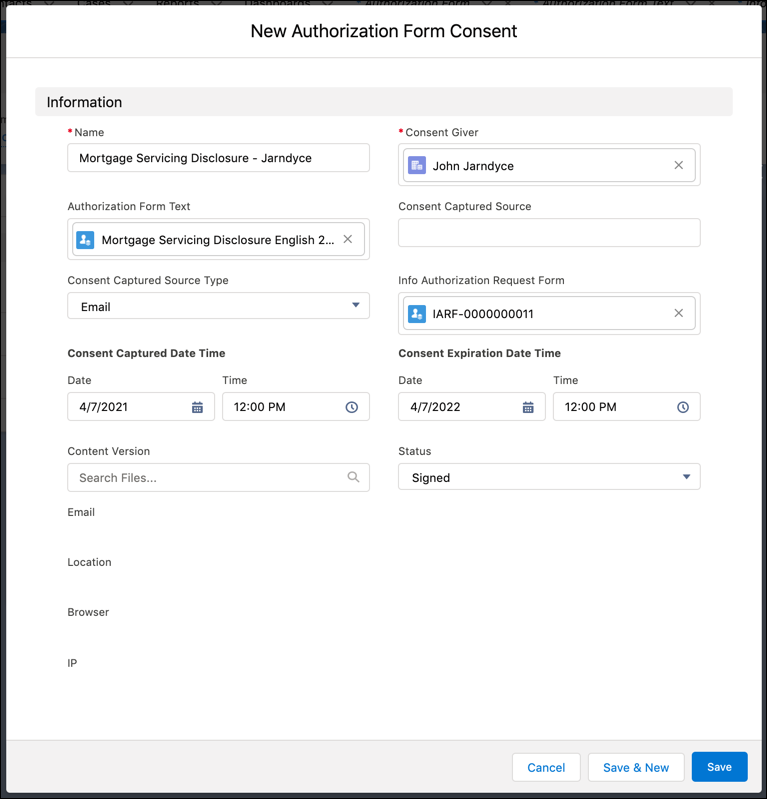
- On the New Authorization Form Consent page, enter a descriptive Name.
- From the Consent Giver dropdown, select the account, contact, individual, or person who provided the response.
- From the Authorization Form Text dropdown, select the record representing the text that was shown to the person giving the response.
- (Optional) Add details about the source of the subject’s response in the Consent Captured Source and Consent Captured Source Type fields.
- In the Consent Captured Date Time section, set the Date and Time fields to the time when the response was received.
- (Optional) In the Consent Expiration Date Time section, set the Date and Time fields to the time when the response stops being valid.
- From the Status dropdown, select the appropriate value, such as Seen, Signed, or Rejected.
- Save your work.
-
From the Latest Authorization Form Consent dropdown, select
+ New Authorization Form Consent.
- On the Edit Information Authorization Form, save your work to record the response.
Loading
Did this article solve your issue?
Let us know so we can improve!
